System Administration Enhancements
aPriori 2021 R1 provides this system administration enhancement:
New Database Connection Speed Monitor
A new Database Connection Speed Monitor provides visibility into the connection speed (latency) between the aPriori client application and the aPriori database server and identifies when it does not meet aPriori’s latency requirements.
aPriori Professional 2021 R1 provides a database connection speed monitor which reports and characterizes the speed of the connection (latency) between the aPriori client application and the aPriori database server. This enables users to determine if their network latency does not meet aPriori’s required or recommended levels and therefore may prevent proper functioning of the aPriori application. This connection time measured is the Round Trip Time (RTT) for the aPriori client to make a connection to the database. The monitor is in the upper right corner of the aPriori Professional application window, as shown below.
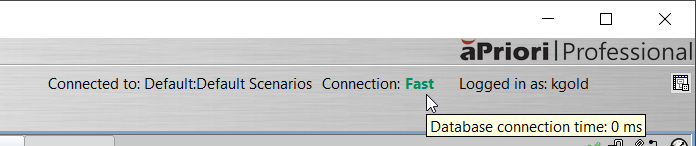
The connection speed is characterized as either Fast, Average, Slow, or Poor, where:
• Fast < 75 ms
• 75 ms <= Average < 150 ms
• 150 ms <= Slow < 240 ms
• Poor >= 240 ms
Additionally, when the mouse hovers over the database connection monitor a tool tip is displayed which reports the most-recently measured connection time in milliseconds. The monitor and tool tip output are refreshed and updated every 10 seconds. Note that the functioning of the monitor and tooltip display does not degrade the latency.
NOTE: aPriori requires a latency of less than 240 milliseconds and recommends a latency of less than 150 milliseconds. Therefore, if a connection is characterized as Poor, it does not meet minimum network performance requirements. For more information on the impact of poor latency and suggestions for minimizing latency, see System Requirements for aPriori On-Premise Deployments Version 2021 R1.
The Database Connection Monitor is displayed by default. Users can hide the indicator from the View menu by clearing the option Show DB Connection Monitor. Administrators can hide it by setting the option apriori.database.monitor.enable to false in the apriori.properties file. Note that user settings take precedence over apriori.properties settings.