-
Click
 next to the Import button to display the Open window. (The Open window typically opens automatically when you first bring up the BOM Loader.)
 -
Select the CSV file that contains the BOM you want to import, then click Open.
The CSV file must be formatted correctly. For more information, see Formatting a BOM.
Once you select the .csv file, the window updates to display the Column Mapping pane , which is described below.
-
Enter a new roll-up name in the Rollup Name field.
You can also click the “...” button to search for an existing roll-up. Select the roll-up and click OK.
If you do not specify a roll-up, aPriori loads components directly to the aPriori database.
-
Click
next to the Functional Template field and open your functional group template. (See "Using Functional Groups" in the aPriori Professional User Guide for information about defining functional group templates.)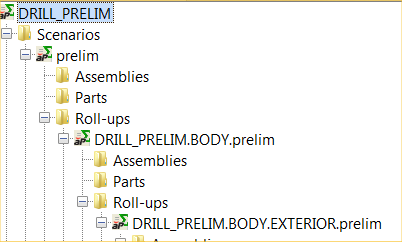
In the Default Scenario Name field, enter a descriptive string. This name gets appended to the name of any parts and also to any roll-up (if specified).
Note: If a specific scenario name field is NOT present in the BOM file for a particular row, then this default name is used instead. If a specific scenario name IS specified in the BOM, then it will be used. aPriori resolves any conflicts with existing names by appending (2), (3), etc.
-
From the Processing Rule if Scenario Exists pull-down menu, select one of the following options:
-
Update: Update the existing scenario with the values imported from the BOM.
-
Skip: Do not update the existing scenario.
-
Create New Scenario: Make a copy of the existing scenario, then update the copy with values that are in the BOM load CSV file.
-
-
In the Column Mapping pane, map the Input File Column values from the CSV file to the aPriori Field values.
- You must map the Part Number, Quantity, and Level fields to load the BOM.
- You must also map any required User Defined Attribute (UDA) fields if present.
- In addition to the minimum required, fields you must also set the field Type if you are loading in components with non-integer quantities or loading in component placeholders for assemblies (e.g. single components that will be assemblies when the product is designed). Valid fields for type include Part, Assembly, or Bulk Item.
- Single components can be designated as assemblies in a BOM load. Additionally, BulkItem is used to designate non-integer components like fluids. The quantity field in aPriori does not accept non integers. When a component is specified as a BulkItem, the quantity from the BOM file is appended to the description field and the quantity in aPriori is set to 1.
- To map a field, click the aPriori Field cell and select the field you want to map to from the drop-down list. By default, manually costed parts are not totaled. If you wish to have these values aggregated, click the checkbox labeled Calculate aggregate costs for Manually Costed components? When enabled, the following fields are computed during load unless they are mapped from a value in the CSV file: other direct costs, variable costs, amortized investment, fully burdened cost, aggregate fully burdened cost, capital investment.

-
If you wish to specify a different currency for manually costed components only, use the drop-down menu labeled Manually Costed Currency. aPriori-costed components will use the currency from the Digital Factory.
-
When done, click Import to import the information from the CSV file into aPriori and create new or update existing components and rollups.
For more information, see BOM loader assumptions