Before allowing your users to cost wire harnesses or PCBAs, you must configure the BOM Loader by mapping BOM column headings to aPriori fields:
-
Open the aPriori client and select Tools > Digital Factory Toolset.
-
Click the BOM Loader icon. The BOM Loader opens and prompts you to select the file to import.
-
Select a Wire Harness or PCBA .csv data import file (NOT the component library file).
For a new installation, this might be a demo file created for you by aPriori Professional Services with a name like WIRE-HARNESS-001 - formatted.csv, delivered in a folder with a name like Wire Harness Demo Data. -
Assuming that this is the first import done on your installation, the aPriori BOM Loader prompts you to enter a mapping name. Provide a descriptive name such as "Wire_Harness" (or “PCBA”).
-
Ensure that this checkbox is checked in the upper-right corner.

-
One by one, click the aPriori Field cell for each Input File Column header and select the appropriate plain-English display name as shown in the screenshots below. (Different BOM versions may use different naming conventions, such as underscores vs spaces and initial caps.)
Wire Harness mappings:
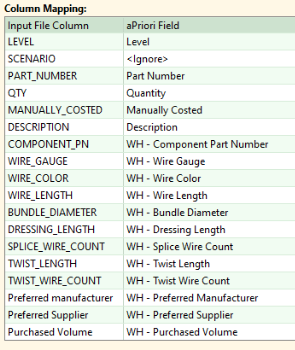
Figure: Column mapping
PCBA mappings:
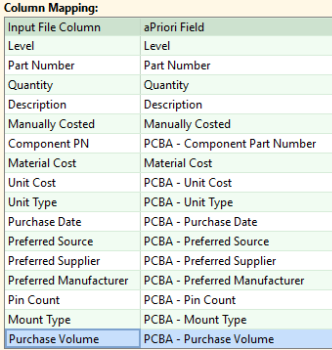
Figure: PCBA mappings


-
Click the Save Changes icon in the upper-left corner when done.