To start the licensed version of the Bulk Loader, select Tools > Bulk Costing & Analysis from the aPriori menu bar to display the Bulk Costing & Analysis window.

Creating a new bulk cost group
-
Ensure that the parts that you want to analyze together are in or underneath the same folder. You may need to organize the parts and assemblies into either a single folder or a set of sub-folders underneath a single, top-level folder.
-
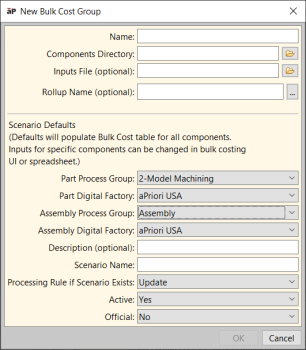
Click File > New Bulk Cost Group from the aPriori Bulk Costing & Analysis menu bar to display the New Bulk Cost Group window.

-
Name: Enter a name for the group. If you do not enter this, it will default to the folder name specified in the next step.
-
Components Directory: Click
 next to the field and navigate to and select the folder where the parts and assemblies are located. aPriori import all parts and assemblies located in the selected folder and any/all subfolders.
 -
Inputs File: (Optional) Click
next to the field to navigate to and select a user inputs file spreadsheet in either Excel or CSV format of cost inputs. For more information, see Editing bulk costing inputs. - Rollup Name(Optional) Specify a name for the rollup that will be created from the results of this bulk load.
It is good practice to use a descriptive name such as: bulk_load_test_mm-dd-yyyy
- If you leave this field blank the parts will not be added to a rollup.
- If you specify a the dialogue will update and display a new optional field Output Report File.
- Output Report File(Optional) This field appears only if you have specified a Rollup Name as described above. This field you to specify an Excel file Spreadsheet Report . The name of the file must end in .xls or xlsx. If you do not specify an output file, no spreadsheet report is created.
- Set values that will serve as scenario defaults for all components. To specify inputs for individual components, go to the Bulk Costing & Analysis window, or the Inputs File spreadsheet.
- Part Process Group: Select the default process group Casting, Forging, Sheet Metal that assigned to parts when not otherwise defined.
- Part Digital Factory: Select the default Digital Factory such as “USA”, China”, “India” that used to cost non-parent components unless otherwise defined.
Assembly Process Group: Select the default
Assembly Digital Factory: Select the default Digital Factory such as “USA”, China”, “India”, etc.) that will be used to cost assemblies unless otherwise defined. This makes it easier to cost products that are assembled in one location using parts produced in other locations.
Description: ( text that might be helpful to identify or explain the purpose of this Bulk Cost group.
Scenario Name: Scenario support fields.
Processing Rule if Scenario Exi.
ActiveScenario support fields.
OfficialScenario support fields.

-
Click OK. The parts and assemblies will be displayed in the aPriori Bulk Costing & Analysis window, but not yet costed or analyzed.
-
Click the Save button or select Save from the File menu if you wish to store the bulk cost group .
To enter bulk costing parameters and other information about the components Editing bulk costing inputs.
Opening an existing bulk cost group
-
Select File > Open Loader File from the aPriori Bulk Costing & Analysis menu bar to display the Open Loader File window.
-
Navigate to the desired loader file (loader file filenames end loader.xml), select it, and click Open.
-
This displays a pre-populated instance of the New Bulk Cost Group window. This gives you the opportunity to adjust the values provided by the loader file. When done, click OK to display the Bulk Costing & Analysis window with the saved Bulk Cost Group.
Editing and adding components from a bulk cost group
-
If you specified an Inputs File on the New Bulk Cost Group, all entries defined in that spreadsheet are by default read-only in the Bulk Costing & Analysis window. To edit an entry, you must first select its checkbox under the Ignore Excel Inputs column. This column is not displayed if you did not specify an Inputs File.
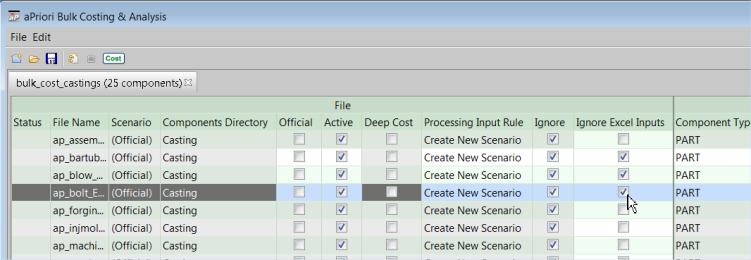
- Fields that are editable in the Bulk Costing & Analysis window are highlighted.
- Uneditable fields are grayed.
- You can edit individual entries directly, or you can select multiple entries and change them together using the right-click context menu or the Edit menu in the menu bar.
- When clicking to select multiple rows, do so within grayed columns, or you may inadvertently change checkbox settings while selecting.
- To temporarily remove a component from the costing operation, click its Ignore checkbox. You can also remove a component permanently if the bulk cost group has been recently created but not yet saved, by deleting its file from the Components Directory and clicking File > Refresh.
- A component is not removed from the Bulk Costing & Analysis UI even after you remove its CAD file from the Components Directory :
- It is defined in a user inputs file.
- The bulk cost group was opened from a loader.xml file.
- A component is not removed from the Bulk Costing & Analysis UI even after you remove its CAD file from the Components Directory :
-
Click the Save button or select Save from the File menu to save your edits.
For more information, see Bulk costing data fields and Editing bulk costing inputs. -
To add new entries for files that have been added to the Components Folder, select File > Refresh Files.

Creating a new row from an existing row
You can quickly create a new row in the Bulk Costing & Analysis UI using an existing row as a starting point:
-
Select the existing row.
-
Click Create from this row... from either the Edit menu or the right-click context menu.
This menu item is enabled only if:
-
One row is selected
-
A user inputs file is not provided for this row.
-
The component row is CA-connected (“Components Directory” is populated), such that Bulk Costing knows where the CAD file is located.
-
All inputs of the selected row will be copied to the new row except for the scenario name and the setting of the "official" field.
Note: aPriori disables the Create From This Row menu item if the CAD file for the selected row is not CAD-connected. The new scenario will fail to cost if there are no GCDs for the new scenario, that is, the Bulk Costing Child process will not copy the scenario).