When aPriori starts a costing operation, you can cancel it by clicking the Cancel icon that appears in the lower right of the window when its displayed.

It is not always possible to cancel a costing operation. For example, the Cancel icon is not available the Bulk Costing & Analysis window.
When aPriori cancels a costing operation, note the following:
-
The cancellation affects only costing; it does not affect GCD extraction. If you click the Cancel icon during GCD extraction, nothing gets cancelled until the GCD extraction is complete.
-
No routing is selected. (aPriori does not just pick the best routing up until that point).
-
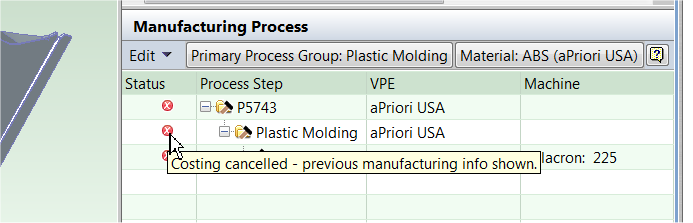
The Manufacturing Process window displays information like what is shown when an error occurs during costing aPriori displays red Xs as necessary with tool-tip text that shows the message: “Costing Cancelled – previous manufacturing info shown”.

-
In the Cost Summary tab, the information in the Current column moves to the Previous column and the Current column remains blank. Note that if you cancel two times in a row, the Previous column behavior is similar to what happens when a costing error occurs; the Previous column displays the last successful results.
-
The Cancel icon works on a per-costing basis; whatever part is being costed when Cancel is clicked is canceled, nothing more. If you are in an assembly and select multiple subcomponents that are uninitialized and select initialize, cancelling affects whichever part is currently being costed. aPriori then moves on to the next part and starts costing that part. The Cancel icon does not cancel all parts that are currently queued up for costing.
More about costing
This section only described the basics about costing. With aPriori, you can perform sophisticated using costing operations different scenarios, and by controlling factors such as whether to cost just at the top level of an assembly, or to “deep cost” all of the assembly’s child parts, and their scenarios. You can also apply some or all of an assembly’s production input values to its children, using a single command.
For more information, see Using the Scenario Menu and Bulk Costing and Analysis.