The Part Details and Assembly Details tabs display descriptive, manufacturing and costing information about parts and assemblies.
Users can create additional views containing just the data fields of interest for a particular purpose organized in a desired order. Users can select these views to be displayed on the Part Details and Assembly Details tabs.
To create a new view:
-
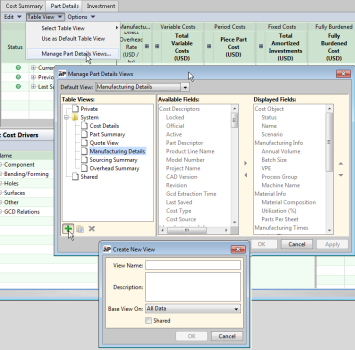
From the Part Details or Assembly Details tab, click Table View > Manage Part Details Views or Manage Details Views. From the resulting window, click the "plus sign" Add icon (
 ).
).
-
In the Create New View window, complete the View Name and Description fields, then use the Base View On drop-down menu to indicate which pre-configured view to use as a starting point. All Data is the default since it contains all available fields.
-
Check the Shared checkbox if you want the new view to be available to other users. . If you want the view to be Private, only available to you, leave the box unchecked.
Note: A shared view can be deleted by any user who shares it. To ensure that a view that you want to keep is not inadvertently deleted, first create a private view. Then duplicate it and check the 'Shared' box. This creates a copy of the view so that it is always available in your private list even if someone else deletes the shared view.


-
Click OK. The Customize Part/Assembly Details View window will update to show the name of the new view you are creating and whether it is a Private or Shared view.
-
The right panel of the window shows a list of Available Fields and Displayed Fields.
-
Use the left arrow to remove fields from the Displayed list. You can hold down the Ctrl key to move multiple fields at once. Use the up and down arrows to order the Displayed Fields as desired.
-
Use the right arrow to move fields from the Available list to the Displayed list.
-
-
Click OK when you are satisfied with the contents and order of the new view.
-
To display the new view you have just created, click Table View
-
If you want to edit the view, choose Manage Part/Assembly Details Views. In the left panel, click on the view you want to edit. The right-hand panel shows the configuration for the selected view, where you can change displayed fields.