You can create a comparison summary in the UI:
-
From the Compare button (
 ) on the toolbar, which starts with the scenario and prompts you to specify a second for comparison.
 -
From the Scenario > Create Comparison menu, which behaves identically to the Compare button.
-
From the File > New Cost Comparison menu, which prompts you to specify both scenarios to compare.

Create and work with a Comparison
A common situation is where you are already working with one open scenario and want to compare it to another scenario
-
Ensure that the first scenario of interest is open and selected.
- Click the Compare button from the toolbar.
- Alternatively, you can click the Scenario > Create Comparison menu.
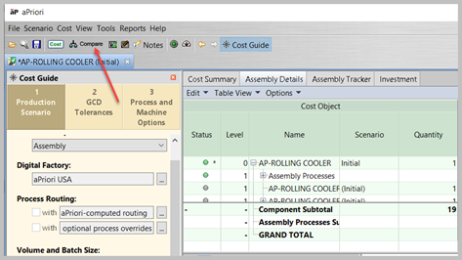
- Alternatively, you can click the Scenario > Create Comparison menu.
- In the resulting Create Comparison dialog, you can optionally edit the Name:, Scenario Name, and/or Description fields.
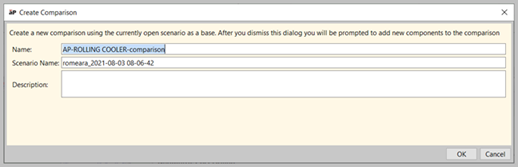
- Click OK.
-
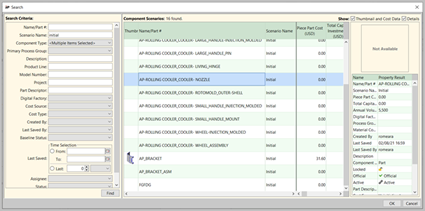
In the resulting Search window, find and select the second scenario which you to compare.For more information about using the Search window, see Using the Search tool
-
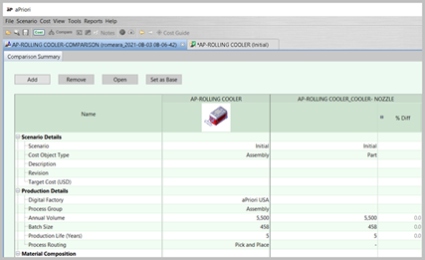
In the resulting Comparison Summary view, the left-most component is considered the "Base". Any scenarios to the right of the Base scenario are compared to the Base, and variations from the Base are shown in the %Diff column.
-
In the Summary view you can do the following:
-
Collapse and expand entries in the Name column, using either the +/- buttons.
-
Add additional scenarios to compare against the Base scenario by clicking Add and using the Search tool. There is no practical limit to the number of scenarios you can add.
-
Make a different scenario the Base by selecting its column and clicking the Set as Base button.
-
Remove a scenario from the comparison by selecting its column and clicking the Remove button. You can expand the selection to remove multiple scenarios at once with Shift-Click and Ctrl-Click.
-
Open a scenario by selecting its column and clicking the Open button.
-
If you recost a scenario, any changes are immediately reflected in the Comparison Summary view.
-


Save, find, and re-open Comparison Summaries
Comparison summaries can be saved, searched for, and opened as scenarios like any other component.
Use the options on the Scenario menu to save comparison summaries and to change their Active, Lock, and official status.
For more information, see Working with scenarios