File-connected mode and file-disconnected mode
When aPriori creates a new component from a CAD file, the aPriori operational database stores the:
-
Directory (full path to) and name of the CAD file
-
Name of the newly created aPriori component (which matches the name of the CAD file) and the newly created scenario that are associated with the CAD file
-
Geometry and any Production and Manufacturing Information (PMI) that was exctrated from the CAD file
When a scenario is open, aPriori Professional, is in either file-connected mode or file-disconnected mode.
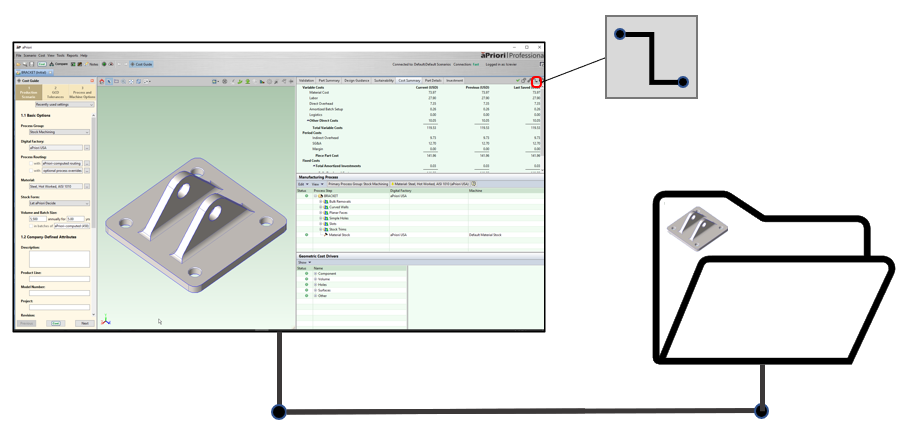
File-connected mode
aPriori Professional is in file-connected mode when it can access the CAD file that is associated with the open scenario. When aPriori is in file-connected mode, the File-Connected icon is displayed in the upper right corner, as shown in this figure.
Important: For the 2-Model Machining process group, both the source and finished scenarios must be CAD-file connected to their respective CAD files. If you change the source scenario, and either scenario is not file connected, aPriori Professional disables the save option for the current finished scenario, and any subsequent costing relies on the Geometric Cost Driver (GCDs) that were extracted from the previously selected source scenario.
Note: By default, a scenario that is associated with a component that was created by importing a CAD file via a Cost in aPriori Plug-in is not automatically file-connected. Therefore, if the geometry of a CAD model changes after a component that was created by importing the original version of that CAD model has been cost, the updated CAD model must be re-imported and the new or updated component must be recost.
File-disconnected mode
aPriori Professional is in file-disconnected mode when it is not connected to the CAD file that is associated with an open scenario. When aPriori Professional is in file-disconnected mode, the File-Disconnected icon is displayed in the upper right corner, as shown in this figure.
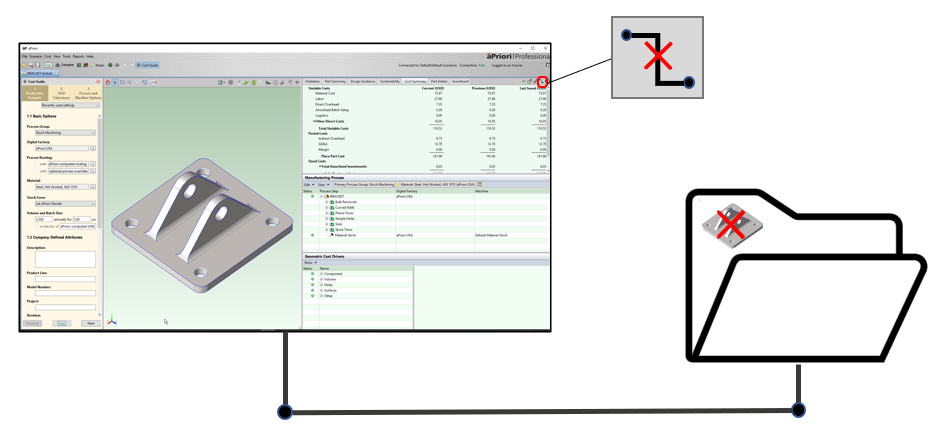
In this case, aPriori Professional is connected to the directory for the associated CAD file, but either:
-
The directory no longer contains the CAD file.
-
The directory contains the CAD file, but the name of the CAD file has been changed
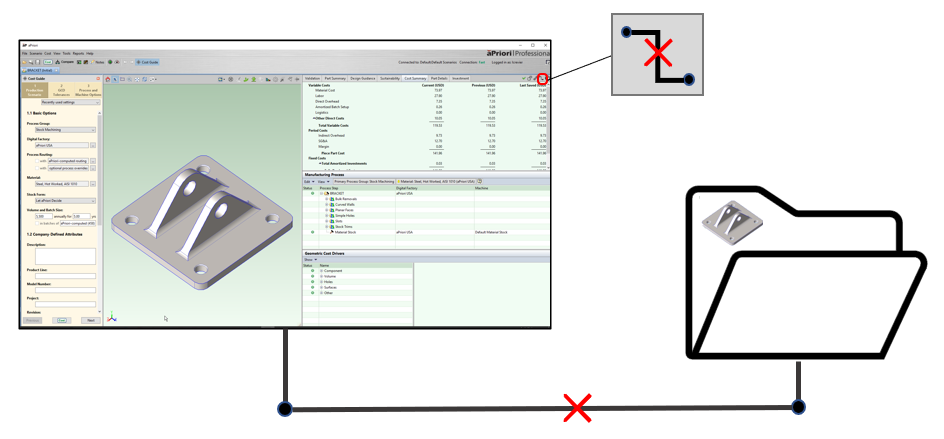
aPriori Professional is also in file-disconnected mode when it is not connected to the directory that contains the associated CAD file, as shown in this figure.
In file-connected mode, aPriori Professional monitors the CAD file for geometry changes. If you initiate the costing of a scenario after anyone has updated the geometry in the CAD file, aPriori Professional updates the geometry that is associated with the scenario in the aPriori operational database by default. This process ensures that you are costing the most recent geometry for the scenario.
Limitations
For an aPriori Cloud deployment, aPriori scenarios are associated with CAD files that have been uploaded to a directory in AppStream instead of with CAD files that are stored and worked with locally. Therefore, for cloud deployments, aPriori Professional automatically updates the geometry for a scscenario that is about to be cost in file-connected mode only if the associated CAD file is stored in the original AppStream directory and the geometry for the CAD file has been updated.
Also see:
-
Active and inactive scenarios
-
Direct-integration mode and CAD-independent mode