Use Matrix Costing
This example shows how to use Matrix Costing, which generates results for multiple scenarios that differ only with respect to Digital Factory, production volume, and batch size.
Prerequisites
Before you begin Matrix Costing for a part:
-
Open a scenario for the part.
-
Configure the scenario settings. Use any Digital Factory, production volume, and batch size, but specify the value that you want to use for the comparison for other settings,such as setup options, tolerances, routing, and operation assignments.
-
Cost the scenario.
Before you begin Matrix Costing for an assembly:
-
Open a scenario for the assembly and for each component in the assembly.
-
Configure the scenario settings. Use any Digital Factory, production volume, and batch size, but specify the value that you want to use for the comparison for other settings,such as setup options, tolerances, routing, and operation assignments.
-
Add welds as required and perform optional assembly operations for the top level assembly and any components in the assemblies that are also assemblies.
-
Cost the scenarios for the assembly and for each component in the assembly.
TIP: Deep cost the assembly.
As needed, you can further modify costing inputs and settings by using standard controls within the Bulk Costing & Analysis window, see Bulk Costing and Analysis.
Procedure
-
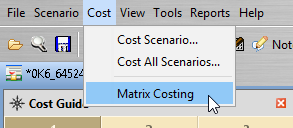
Select Matrix Costing from the Cost menu.
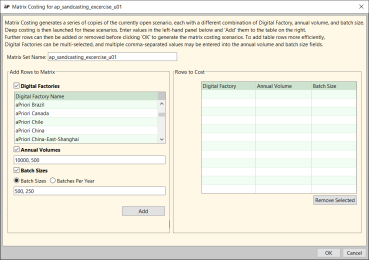
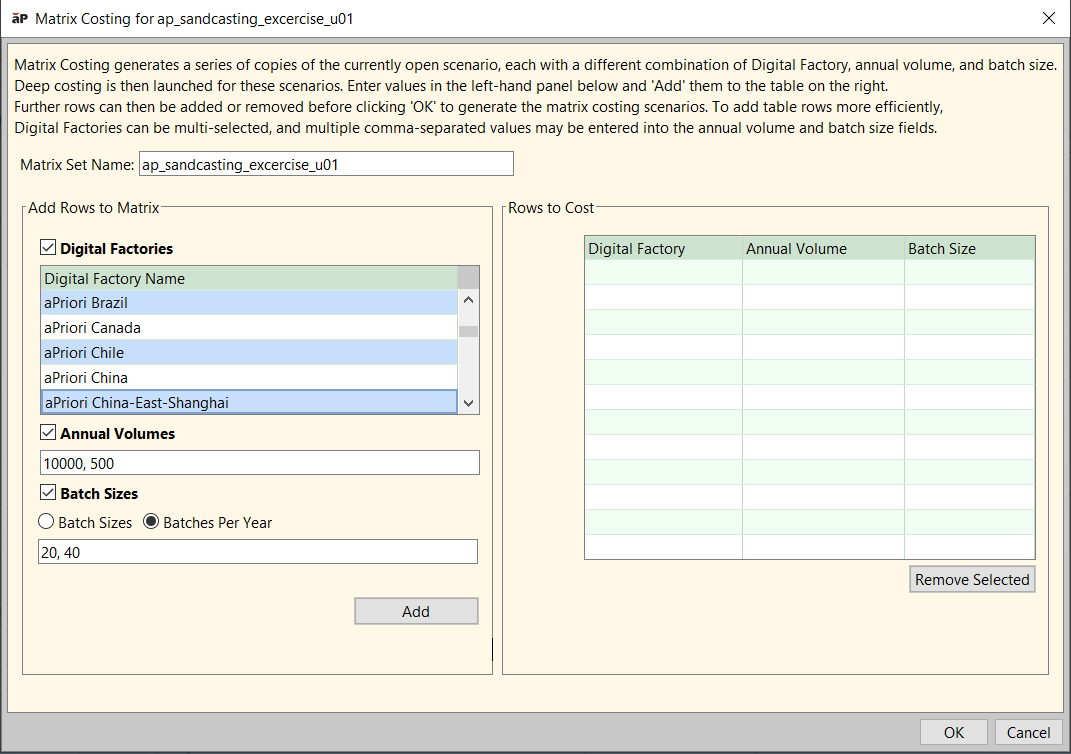
The Matrix Costing dialog appears.
If you invoke Matrix Costing for one or more scenarios that has not been cost, an error message dialog opens and lists the scenarios that were not initialized.
-
In the Matrix Set Name field, enter a name for the set of scenarios to be created and compared.
-
Select one or more Digital Factories from the Digital Factories list box.
-
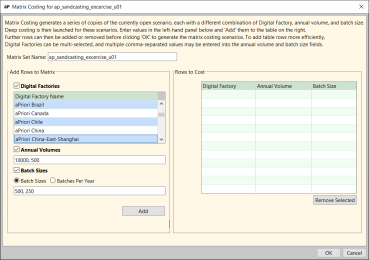
Click and then shift-click to select a range of Digital Factories.
-
Use Ctrl+Click to select additional Digital Factories.
-
If you don’t want to vary Digital Factories, uncheck the Digital Factories checkbox.
-
-
Enter one or more annual volumes in the Annual Volumes field. To enter multiple values, use a comma-separated list of values. If you don’t want to vary annual volumes, uncheck the Annual Volumes checkbox.
-
If you:
-
Do not want to vary batch sizes, deselect the Batch Sizes checkbox and skip the next step in this procedure.
-
Do want to vary batch sizes, select one of these radio buttons and enter an applicable value:
-
Batch Sizes – Enter one or more batch sizes. To enter multiple values, use a comma-separated list of values.
-
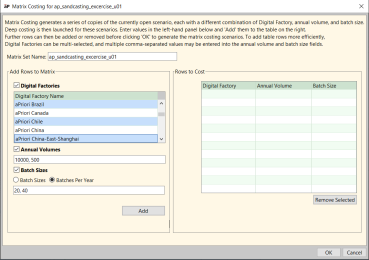
Batches Per Year – Enter one or more values representing the number of batches to be run in a year. To enter multiple values, use a comma-separated list of values.
aPriori computes the batch sizes in the background based on the specified values.
-
-
-
Click Add
aPriori populates the Rows to Cost table. Each row represents a scenario. There is one scenario for each possible combination of Digital Factory, production volume, and batch size from the values that you specified in the previous steps.
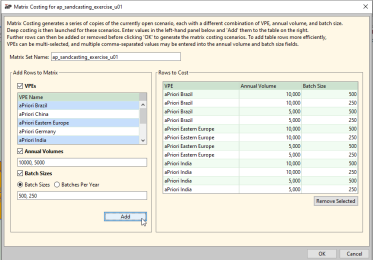
-
You can use the Remove button to remove selected rows in the Rows to Cost table (click and Shift+Click to select a range; Crtl+Click to select additional rows).
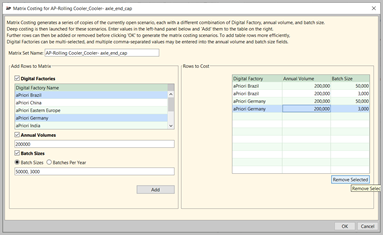
-
Click OK
The aPriori Bulk Costing and Analysis window appears. It contains a line for each generated scenario. For more information, see Bulk Costing and Analysis.
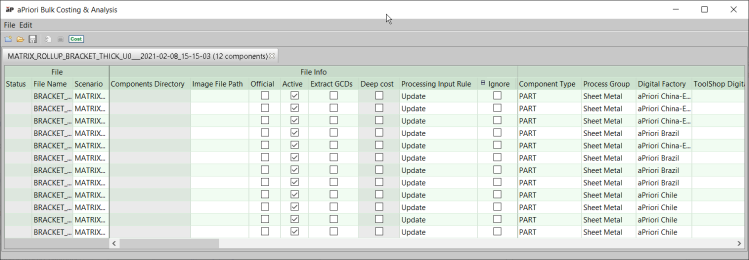
The Annual Volume value(s) for sub-component scenarios are automatically set appropriately, based on the specified values for the assembly/roll-up and considering the number of instances (quantity) of sub-components in the assembly
-
Click the Cost button at the top of the Bulk Costing & Analysis window to initiate costing of all scenarios.
All the scenarios are cost in a background process; a message dialog is displayed upon completion.
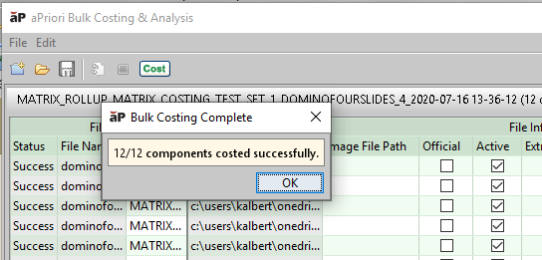




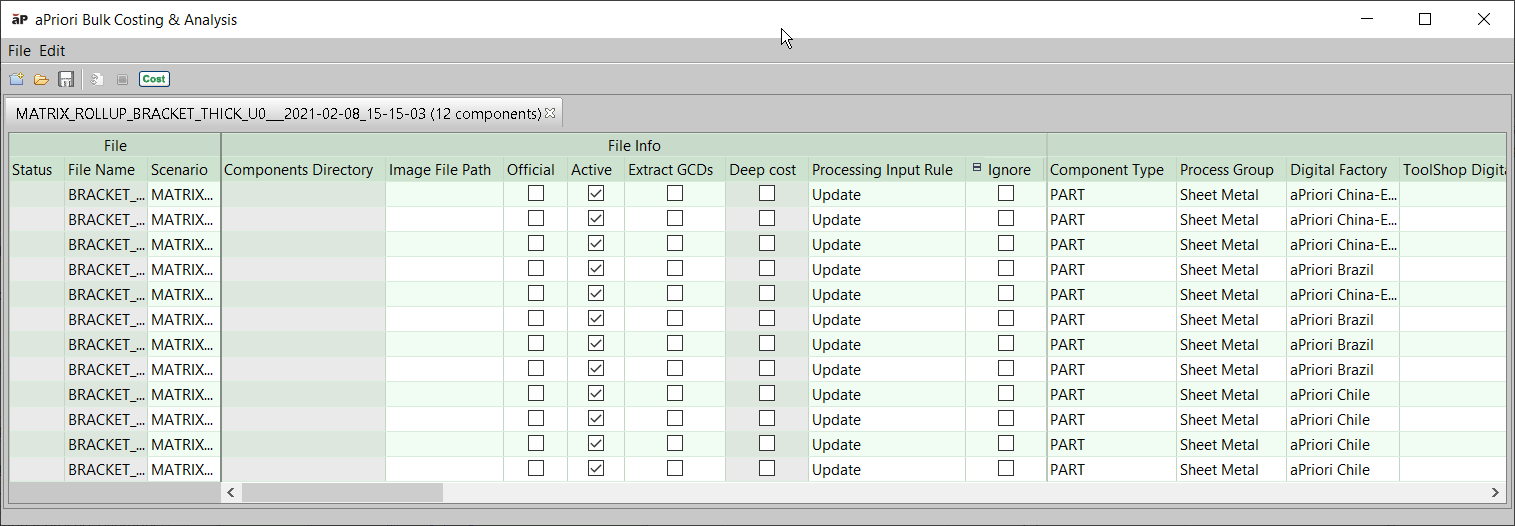

aPriori creates a new roll-up is that contains all the generated scenarios. The syntax for the roll-up name is:
MATRIX_roll-up_<Matrix Set Name>_<Component Name>_<Time Stamp>
This roll-up provides a convenient way to consolidate and review the different cost estimates for all the generated scenarios.
If the generated scenarios match scenarios created by previous matrix costings of the same component with the same matrix set name, the Matrix Costing aPriori Professional