A 2-Model Machining example
This procedure goes into more detail than the Quick Start above, and illustrates more advanced uses of the Cost Guide for costing the parts described in the Overview..
Although this process follows the recommended order of steps for 2-Model Machining (open and cost the source model first, then open the finished model and specify the costed source model, then cost the finished model), other approaches are also discussed.
Cost the input source model
-
Open the CAD file for the source model and cost it in the appropriate process group. For this example, we will be using Casting. In the Cost Guide assign it to the Casting process group.
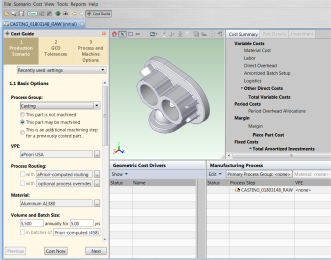
Unlike the Quick Start example above, this example will explore some of the other Cost Guide options available to 2-Model Machining. You may notice that when you switch to the Casting process group, the Cost Guide displays three additional options in the Process Group section:
This part is not machined
This part may be machined
This is an additional machining step for a previously costed part
If you know the CAD model represents an unmachined Casting or Forging, then you should select This part is not machined. aPriori will NOT assign machining to the part if this radio option is chosen. However, it still will warn you if it determines that there are GCDs that cannot be manufactured without machining, such as small holes or surfaces with tight tolerance and surface finish requirement. In this case, GCDs will fail rather than being assigned a machining operation.
These options are provided only for three process groups:
- Casting
- Forging
- 2 Model Machining (displayed, but grayed)
Specify This part is not machined when you are costing a casting or forging part and you know for certain that it will become the input part for the 2- ModelMachining process group. This option disables any secondary machining process from being routed within the Casting or Forging process group, but still evaluates the feasibility of the casting or forging process.
Note: With this setting, it is possible for aPriori to determine that a GCD is infeasible for casting or forging if machining is excluded. This includes things like small holes, high-quality tolerances, etc. that cannot be achieved via Casting or Forging alone.
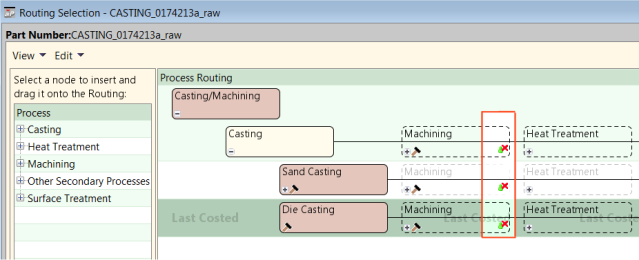
You can see the results of this setting after you cost the model and then access the Customize Routing feature available from Edit > Routing Selection in the Manufacturing Process panel. The machining processes are marked with a red “x” over the user override symbol, indicating that they are not available:
If you are costing a part that represents a machined casting or forging, and you do not have a distinct CAD model of the raw casting or forging, then choose the second radio option (This part may be machined). Similarly, if you are not sure if the part has features that must be machined, choose the second ratio option..
The setting This is an additional machining step for a previously costed part automatically changes your process group to 2-Model Machining. It is provided as a convenience to users who think about their finished model as a forging or a casting which needs to be machined, rather than leaping to the realization that it should be designated a 2-Model Machining part. For example, assume that you open the finished model, but knowing how it was created, you specify the Casting or Forging process group. When you click This is an additional machining step for a previously costed part, the Cost Guide changes your process group to 2-Model Machining.
-
Use the Cost Guide to enter any other cost inputs for the parts, including production volumes and attributes. See the "Initial costing: the Cost Guide" section of the aPriori Professional User Guide for more details about using the Cost Guide.
-
Similarly, if you need to adjust tolerances before costing the part, you can click Next and proceed to the GCD Tolerances tab of the Cost Guide.
Note: When you have only a single CAD model, tolerance settings are one of the inputs that will drive aPriori to add Machining if needed to achieve the specified tolerance. In the 2-Model environment, aPriori often can tell that machining is present simply because of the differences between the CAD models. So it may not be as critical to enter tolerance values in order to drive machining. However, in the case of tight tolerances and surface finish requirements, specifying the tolerances still is recommended as it may drive a specialized machining operations such as grinding as well as milling and turning operations.
-
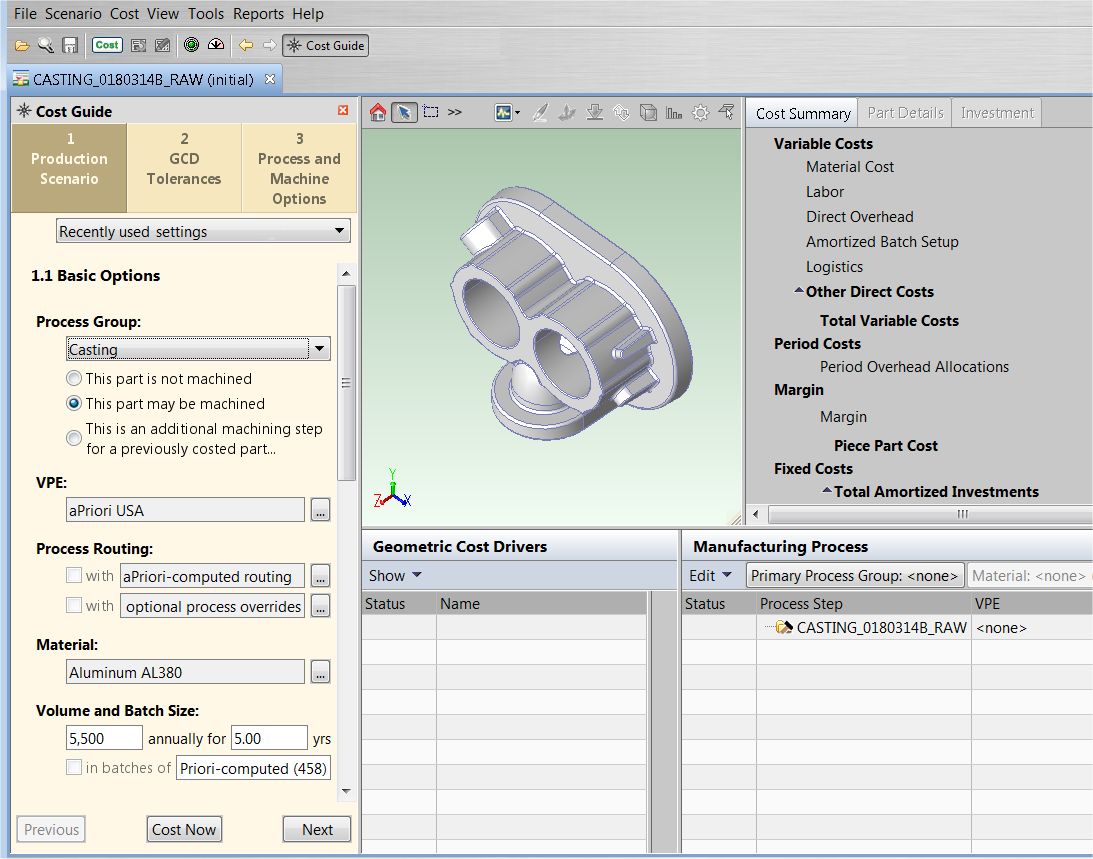
At this point you must perform an initial costing before you can proceed. Click Cost Now at the bottom of the Cost Guide (or click the Cost button in the aPriori toolbar).
-
After this initial costing, check for any error or warning messages and address them if necessary. Once you have a good costing, you can optionally proceed to the “Process and Machine Options” and address any Process Setup Options (PSOs) or Machine Selection issues and re-cost. Again, these step are not specific to 2-Model Machining. Once you have a good costing for the source part, you can proceed to the finish-machined model.

Cost the finished model
-
Click File > Open CAD File to open the finished model, and in the Cost Guide assign it to the 2-Model Machining process group.
Note: if you initially assign it to Forging or Casting because that is the way you think about the part, you could now click This is an additional machining step for a previously costed part and the Cost Guide will automatically switch to 2-Model Machining.
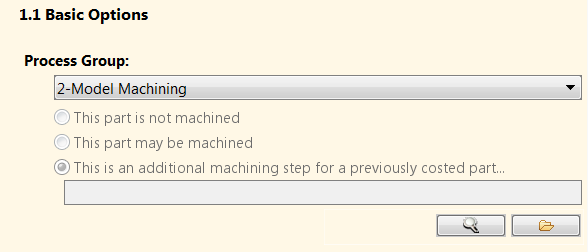
When you select 2-Model Machining, aPriori automatically selects the third radio option (This is an additional machining step) and disables the other radio options. Also, the Cost Guide displays some new fields for selecting the Source model.
-
If you have already costed the input model (as in this example), use the Search (magnifying glass) button to bring up the Search Tool and specify the correct scenario for the source model (see the "Using the Search Tool" section of the aPriori Professional User Guide). For example, you might have one scenario costing the source model with the USA Digital Factory, and another costing it with the Mexico Digital Factory. Make sure that you select the correct scenario.
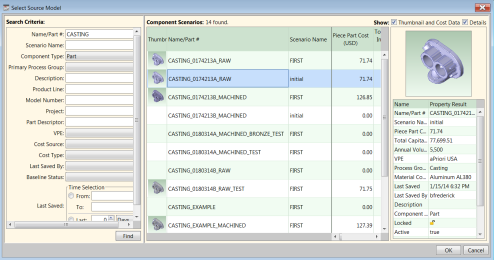


Note: If the source model is not yet costed, you can use the Uncosted CAD button to navigate to and open the CAD file, after which you can perform the steps described above for Cost the input source model. Then return here to complete the costing of the finished model. And if you do not yet have a source model at all, you can still cost the finished model and incorporate the input model when it becomes available (see Transitioning to 2-Model )
At this point, your 2-Model part is costed.
To visually inspect the model, see Source model GCD.