To move a Subcomponent from one Stage to another Stage, first ensure that the Staging tab is selected:

Then use one or more of the following operations:
Separate the Subcomponent from the other Subcomponents in its Stage: select a line in the Subcomponent’s Stage. Click the Separate icon Each Subcomponent in the Stage now resides in its own Stage.
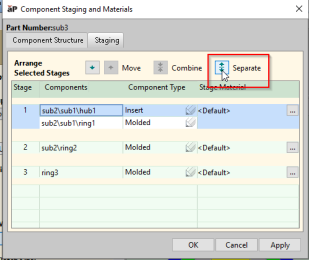
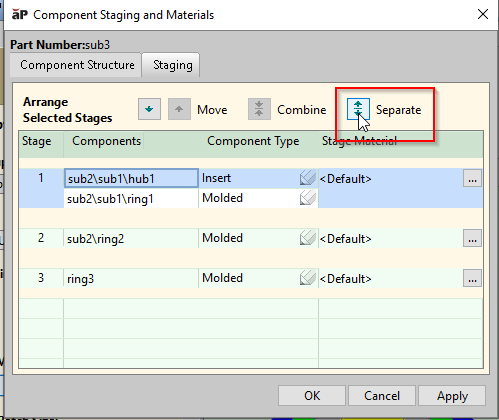
Move the Stage containing the Subcomponent: select a line in the Stage to be moved. Click the Move down-arrow or up-arrow as many times as necessary.
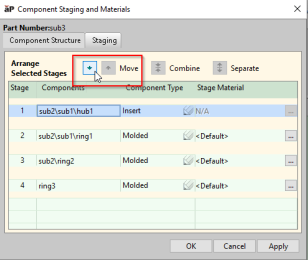
Alternatively, click a line in the Stage to be moved, and drag the mouse until a black line appears at the position to which you want to move the Stage.
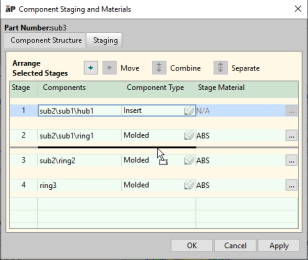


Combine the Subcomponent with those in another Stage or other Stages: select a line in the Stage containing the component. Control-click a line in one or more other Stages. Alternatively, Shift-click another Stage to select a range of Stages. Click the Combine icon.
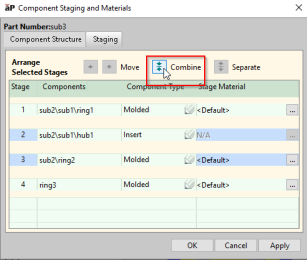
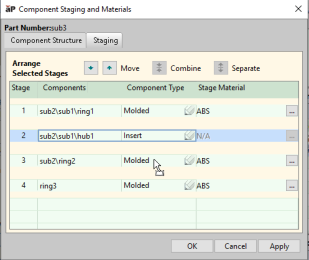
Alternatively, click a line in a Stage, and drag the mouse until the arrow points to another Stage.
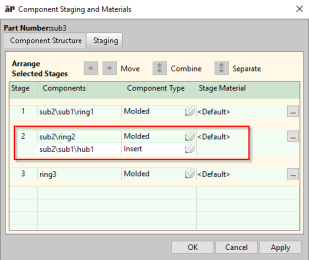
The components in the designated Stages are merged into a single Stage:


Note: You must be CAD-connected to re-cost after you change the assignment of Subcomponents to Stages.