With the Component Structure tab of the Component Staging and Materials dialog, you can do either of the following:
Direct aPriori to regard a sub-assembly as a single unit rather than multiple units. Such a sub-assembly will be treated as a single, assembled Subcomponent; its children will be treated as already assembled.
Exclude a Subcomponent from costing.
This can be useful when the CAD model structure doesn’t correspond to the actual manufacturing bill of materials.
Follow these steps:
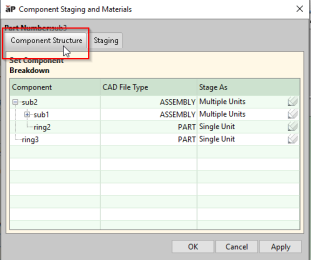
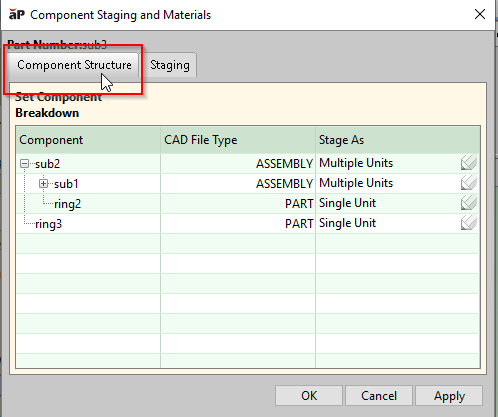
Ensure that the Component Structure tab is selected:
Double click the Stage As column in the line for the relevant Subcomponent. A dropdown list appears.
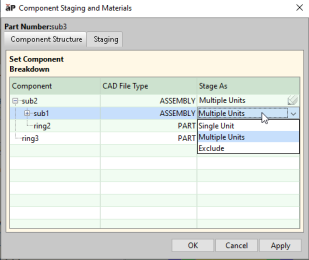

To direct aPriori to treat the selected Subcomponent as a single unit, select Single Unit from the dropdown menu. (In this case, the Subcomponent must be a sub-assembly.)
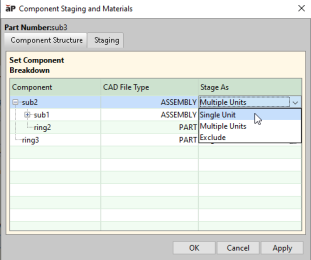
To exclude the selected Subcomponent from costing, select Exclude from the dropdown list.
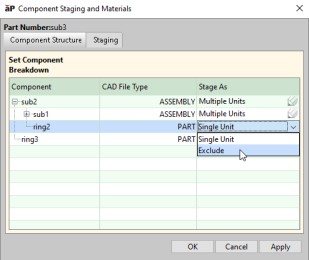
Click OK or Apply.


Note: You must be CAD-connected to re-cost after you make changes using the Component Structure tab.