Follow these steps to view and modify material types:
-
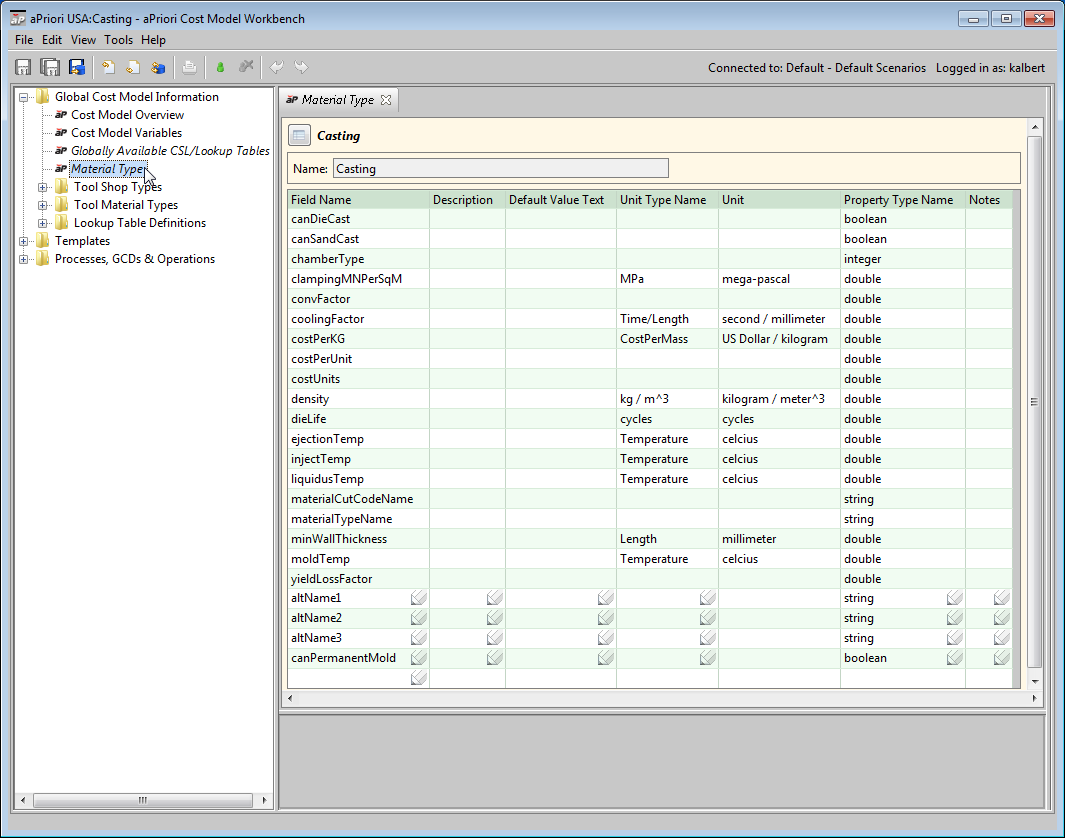
Expand Global Cost Model Information, and double-click Material Type. The editing pane displays the material type table.
The material type table has one row for each column of the current process group’s material table (that is, the type table has one row for each material attribute). Each row of the type table has the following fields:
-
Field Name
-
Description
-
Default Value Text
-
Unit Type Name
-
Unit
-
Property Type Name
-
Notes
-
-
Select Override Object from the CMWB Edit menu, or click the override icon,
 , in the toolbar.
 -
You can modify field values, and add and remove table rows.
- To modify a field value, click in the field and enter the new value, or (for the Unit Type Name field) double click in the field and select an item from the drop-down menu. Modifiable fields contain the pencil icon.
- To add a table row, click in the Field Name field in the (empty) last row of the type table, and enter a name. Enter values in the other fields of the same row. Manage the display of new material attributes as described in Working with Column Groups and Properties.
- To remove a row, right-click on it and select Remove.

-
Select Save from the File menu, or click
 in the toolbar, to save your changes.
 -
To incorporate your changes into the cost model, select Publish Cost Model and Digital Factory from the File menu, or click
 in the toolbar.


Adding or Modifying a Material Field for Multiple Process Groups
To add or modify a material field for multiple process groups at once, follow these steps (you can also perform these steps from the Digital Factory Manager, and a cost model need not be open.):
-
Select Add/Update Material Field from the Tools menu.
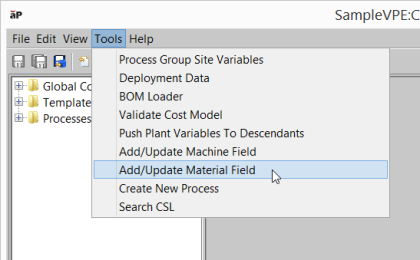
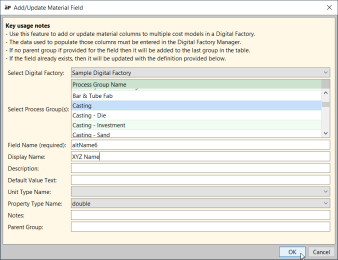
The Add/Update Machine Field dialog appears: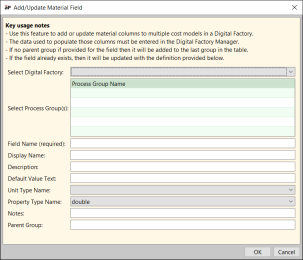
-
Fill in the following dialog fields:
-
Select Digital Factory: Digital Factory that contains the process groups whose material types you want to modify. Setting this field populates the dropdown list of choices for the Select Process Group(s) field.
-
Select Process Group(s): process groups whose material types you want to modify. Click to select the first process group; control click to select each subsequent process group. Shift click to mark the end of a range to be selected. Use Ctrl-A to select all process groups. Selected process groups that do not define any material type (such as secondary process groups) will be unaffected by the addition or modification of the field; such process groups will continue to lack any associated material type.
-
Field Name: name of the material field that you want to add or modify.
-
Display Name: optional name of the field as displayed to the end user. If you don’t supply one, the display name is the result of converting the Field Name to space-separated, initial-cap words.
-
Description: optional description of the field you want to add or modify.
-
Default Value Text: optional default value of the field you want to add or modify.
-
Unit Type Name: optional unit type (such as Mass, Length, or Time) used for the field value. This name must be a case-sensitive, exact match for an aPriori -supported unit type.
-
Property Type Name: CSL data type (such as double, int, or string) used for the field value.
-
Notes: optional annotation.
-
Parent Group: Optional column group for the new or modified machine field. See Working with Column Groups and Properties. If you don’t supply a group, the new machine field’s column group is Other.
-
-
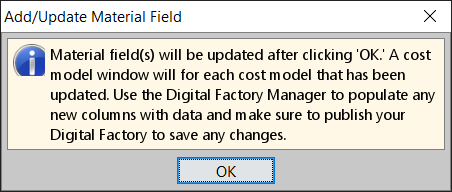
Click OK to override the material types and make the specified changes. A notification dialog appears:
-
Click OK in the notification dialog. aPriori opens the modified cost models in the CMWB, if they’re not already open.
Note: your changes are not saved to your private workspace until you publish the changes to the public cost model (see step 6, below). That is, unless you publish the changes, they will not persist across invocations of aPriori . -
Use the Digital Factory Manager to add or modify values for the new or modified material fields.
-
To incorporate your changes into the cost model, select Publish Cost Model and Digital Factory from the File menu, or click
in the toolbar.


