In the Part Details or Assembly Details views, you can double-click on a table cell to override the value in that cell. aPriori dynamically re-calculates any fields that depend on overridden values. For example, if you override either the Labor Rate or Number of Operators for a process, aPriori updates the value of the Labor Cost field for that process accordingly. This update is then propagated to values that depend on it, ultimately affecting the total labor cost for the part.
Note: A value depends on another value only if its formula takes the other value as an input. The exact inputs to each value’s formula are not always apparent. For example, some formulas for Material Cost, which can be calculated from Part Mass do not have Part Mass as an input, but rather have both Part Volume and Material Density as inputs. In these cases, Material Cost is not affected by an override of Part Mass. The Cost Model Workbench includes detailed information about each formula.
When you override a field value, you can optionally enter a comment to indicate the reason for the override. Editable fields are ded with a “pencil” icon. Overridden cells are displayed in red font.
-
Sourcing engineers find this cost override capability useful when they are trying to validate supplier quotes because they can input their supplier’s labor and overhead rates and profit margins, for example, to estimate the expected supplier cost.
-
Manufacturing and cost engineers, with their more in-depth knowledge of manufacturing practices and time standards, might wish to override lower levels of detail, including individual process cycle times.
Generally, aPriori recommends that you override fields at the specific process level rather than a higher level of the manufacturing tree. This is because the formulas that define relationships between various fields are generally defined at the process level, so updates to one field only ripple to other fields if they are applied at that process level.
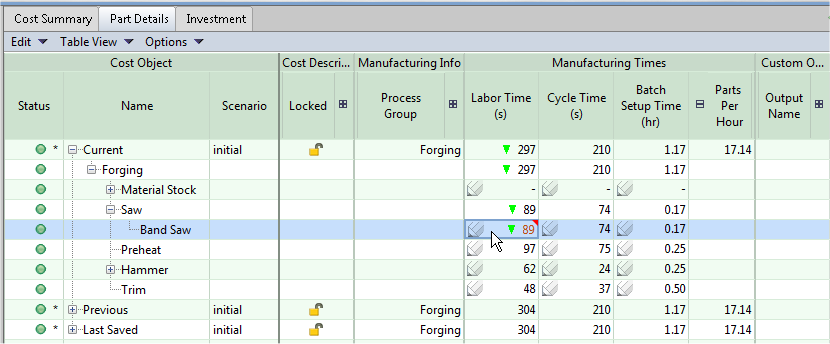
In the following example, aPriori enables you to override the Labor Time field for the Band Saw process, but not for the Saw node above it. The updates are then properly propagated up to the Saw row.
-
You cannot override the material's Utilization % in the Part Details tab. To override the material utilization, use the Material Selection dialog. See Material selection for more details.
-
In some cases, overriding a field does not have the expected affect on another field. This can happen if the manufacturing process cost model does not actually have equations defined that relate the second field to the first updated field. Please contact aPriori Customer Support if you have questions about cost overrides and unexpected behavior.
Enter overrides on the Details tabs
-
Double-click a cell with a pencil icon (
 ).
). -
Type the new value followed by Enter.

Note: When you override a formula, any cells that contribute to that formula display dashes and cannot be overridden.