The first part of the Production Scenario tab is used to input basic information about your component for costing:
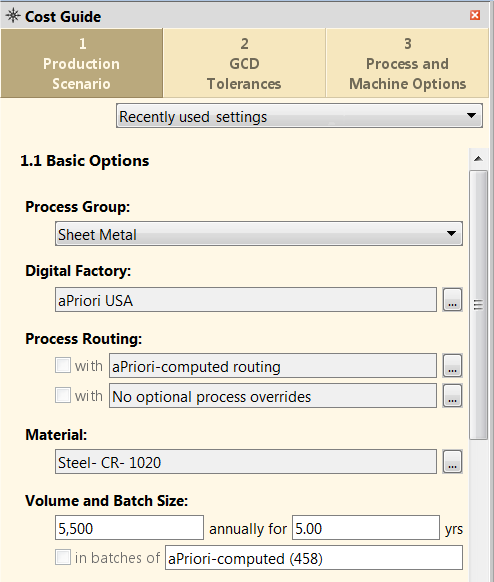
Recently used settings
If you have already costed other components, you can use input values from one of these components as a starting point for the current component:
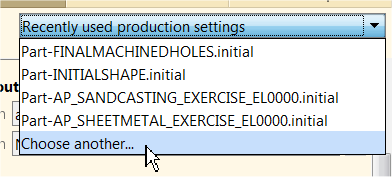
When you select a component, the Cost Guide is populated with all the input values used for that previous costing.
All routings and processes are copied, even if they do not apply to the new scenario. For example, if you copy from a scenario with 3-Axis Mill pinned, and 3-Axis Mill is not feasible for the new scenario, the routing is copied, but it fails costing.
Process Group
The Process Group tells aP Pro what kind of component it is.
It is essential to provide this information. For example, if your component is a roto-molded plastic milk jug, and you leave the default Process Group setting as Sheet Metal, aP Pro will route the milk bottle through a sheet metal process, which will not produce good results.
Note: If you select Manually Costed, a Currency field appears, enabling you to change the displayed currency. Additional options may also appear if you select the Casting, Forging, or 2-Model Machining . See the Cost Model Guide for details.
Digital Factory
The Digital Factory represents a virtual factory that defines production capabilities and related production cost factors such as available machines, materials, speeds and feeds, and labor rates, from one physical location.
aPriori provides a default set of Digital Factories, which typically are modified and associated to process groups by default by your Digital Factory Administrator. This default Digital Factory association for your component initially appears in the Production Scenario tab of the Cost Guide:
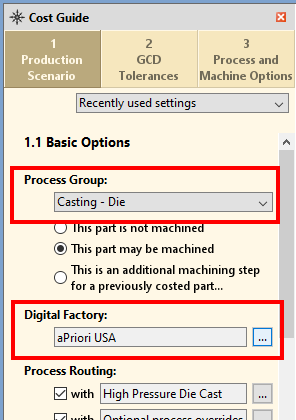
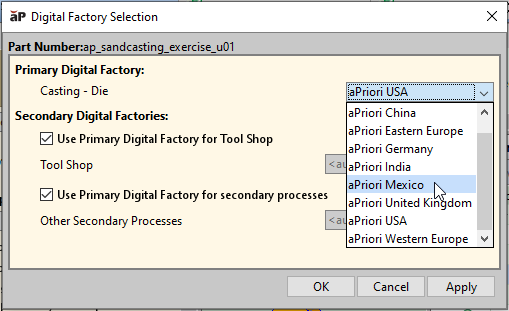
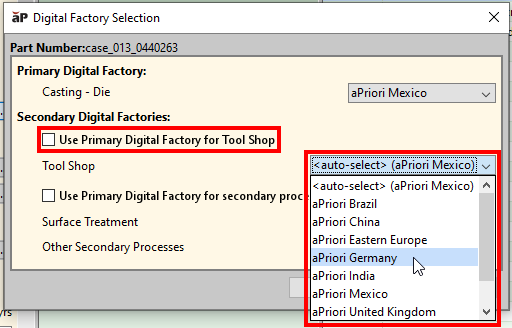
To override this default, click the ellipsis (...), then in the Digital Factory Selection window, select an item from the Primary Digital Factory dropdown list:
Select Digital Factories for Secondary Process Groups
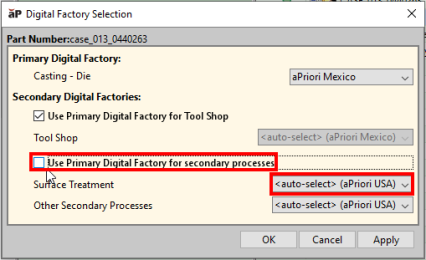
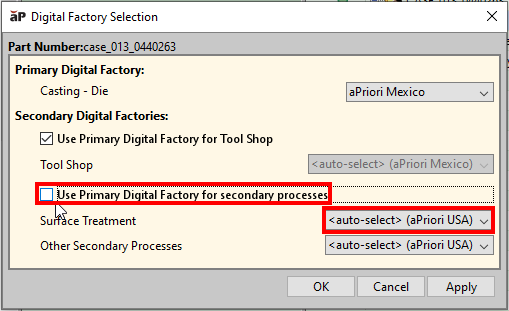
By default, aP Pro uses the same Digital Factory for all your routing processes. If your routing includes one or more processes from secondary process groups, such as Surface Treatment, you can override the default by deselecting the Use Primary Digital Factory for secondary processes checkbox and, for each process group, do one of the following:
-
To use the default Digital Factory associated with a secondary process group, select <auto-select>:
-
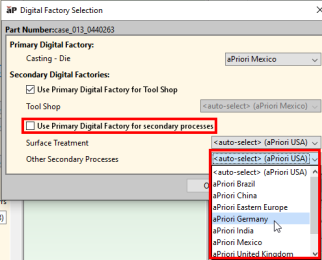
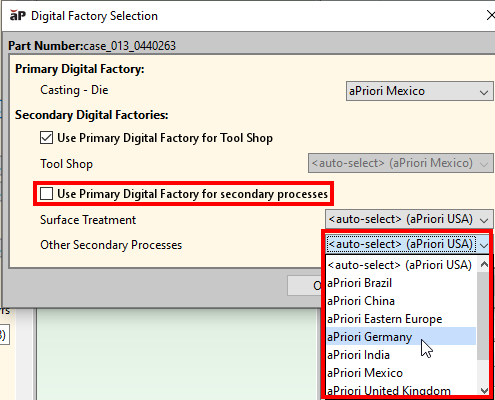
To specify a Digital Factory for a secondary process group, select a Digital Factory from the process group’s associated dropdown list.
Selecting Tool Shop Data
By default, the Digital Factory aP Pro uses for a particular primary or secondary process group provides the full range of data to the cost model for that group, including materials, machine, and wage data, lookup tables, cost model variables, and tool shop data. Tool shop data includes some or all the information about materials and costs for expendable and/or hard tooling.
You can override this default and specify a different Digital Factory that provides tool shop data to all the process groups in your routing.
For example, aPriori Mexico is the primary Digital Factory, but you want aPriori Germany to provide tool shop data to the primary process group as well as to any secondary process groups. To do this, deselect the Use Primary Digital Factory for Tool Shop checkbox and select a Digital Factory from the Tool Shop dropdown list.
Process Routing
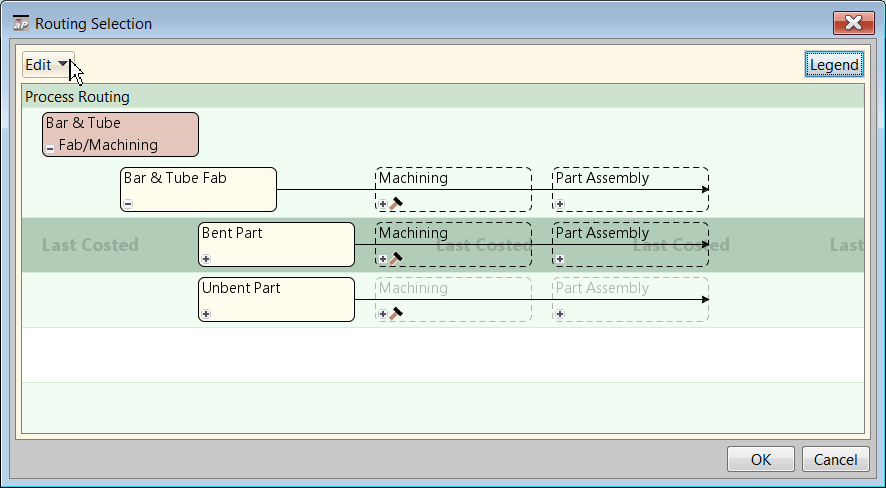
Process routing defines the manufacturing steps to create a component. Typically components may have multiple possible routings and costs. For example, a cast component may be created by either sand-casting, die-casting, or permanent-mold casting routings.
There are also secondary processes such as heat or surface treatments that you can add after the main work on the component has been completed. By default, aP Pro analyzes all possible routing options, determines which are feasible from a manufacturing perspective, then choose the most cost-effective one. However, you may be aware of specific constraints that make a specific routing necessary.
To specify the routing, click the ellipsis (...) next to aPriori-computed routing to display a Routing Selection window, then select the routing:
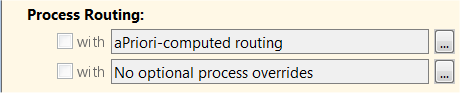
You can also specify secondary processes from the Cost Guide by clicking the ... next to the option in the Process Routing section:
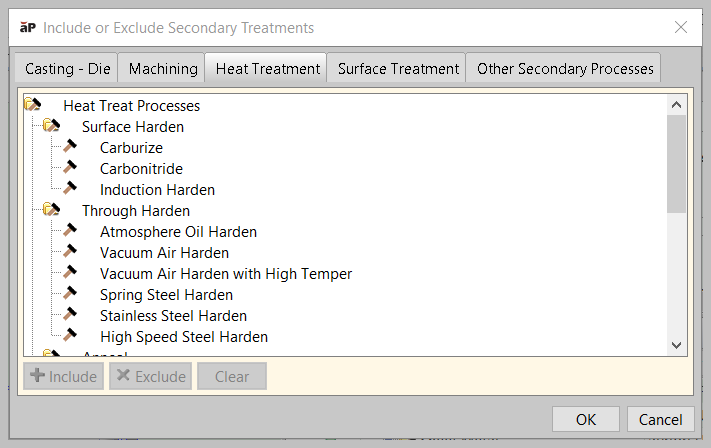
This displays the Include or Exclude Secondary Treatments window:
-
Select the treatment that you wish to control.
-
Click either Include or Exclude at the bottom of the window.
-
Click OK when done.
See also Selecting a Process Routing.
Material
To select the component material, click the ellipsis (...) next the Material field in the Cost Guide:
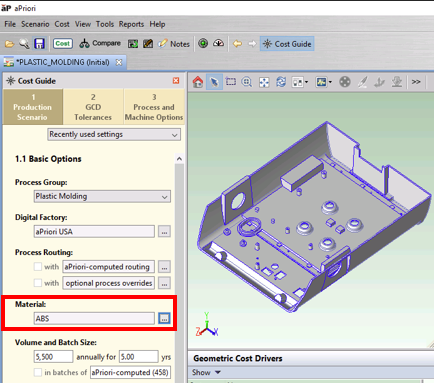
Use the Material Selection window to override the default material composition chosen by aPriori.
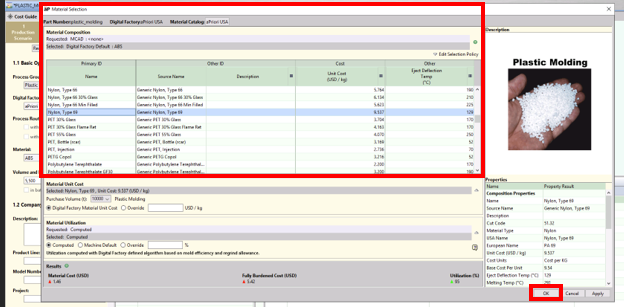
See Material selection for more details.
Volume and Batch Size
Set values for volume and years: how many units of this component do you expect to produce annually, and for how many years.
-
The batch size value is typically the expected monthly rate and is usually calculated as volume/12.
-
The batch value is used in many of the calculations shown in each of the process group chapters. You can either have aP Pro automatically calculate the batch value or specify it yourself if the field is enabled via preferences. You can set default values for all these settings through Tools > Preferences, see Set User Preferences.
Stock Form
For process groups that support stock forms (Bar & Tube Fab, Multi-Spindle Machining, and Stock Machining), you can either direct aPriori to analyze part geometry and automatically choose a stock form, or you can manually select a stock form. In either case, aPriori automatically determines how the part is aligned relative to the stock axis.
By default, aP Pro chooses a stock form automatically.
You can specify a stock form to use with the Stock Form field of the Cost Guide's Production Scenario tab:
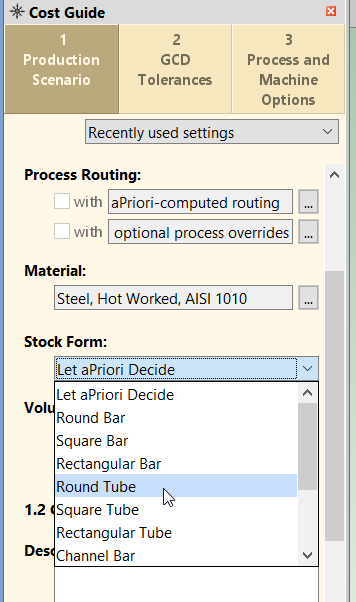
You can also specify a stock form using the Stock Form and Alignment tool from the Component Viewer. See Define Stock Form and Alignment.