Add Machining to an Assembly
When working from non-Creo sources, you can manually add common assembly milling operations to your assembly, including the operation type and other relevant geometric information such as number of setups.
Note: aP Pro can automatically detect assembly cuts, holes and other material removal features in CAD assemblies when working with the Creo CAD system in Direct Integration mode - see Working in Direct Integration mode.
-
Open the assembly.
-
In the Manufacturing Process window, click Edit > Routing Selection.
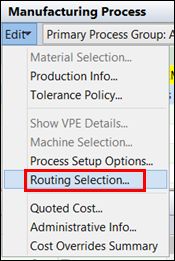
Tip: See Review Manufacturing Process Information for more details.
-
In the new window, expand the Machining node by clicking on the [+] icon.
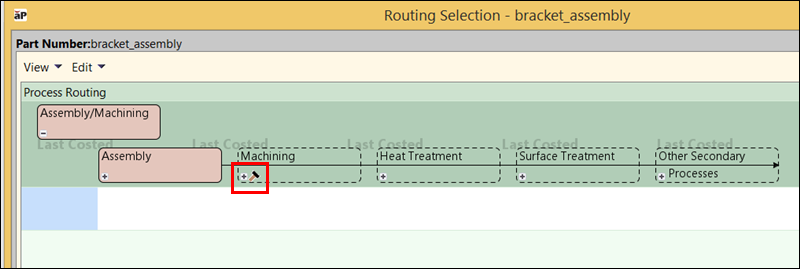
-
There will be a few machining types to select from. For this example, select 3 Axis Mill.
-
Expand the nodes until the Assembly Operations node appears.
-
Right-click the Assembly Operations node, select Process Setup Options.
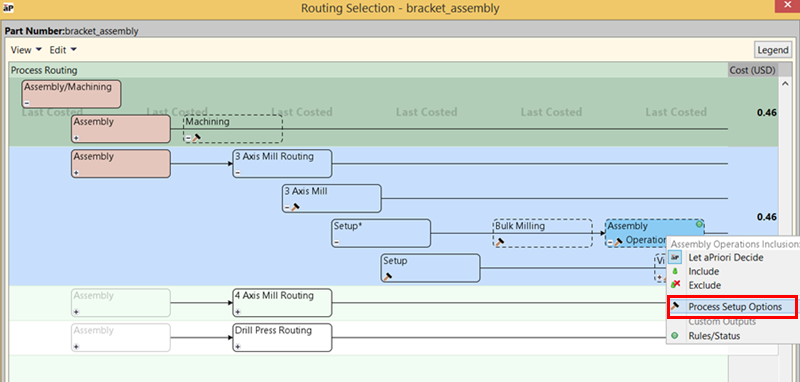
-
In the window, you can manually set the number of part setups (reorientations) required to machine the assembly, and the part setup time, overriding default values if required. Click OK.
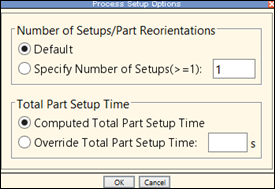
Tip: See Edit Process Setup Options for more details.
-
Expand the Assembly Operations node to view the available assembly operation types:
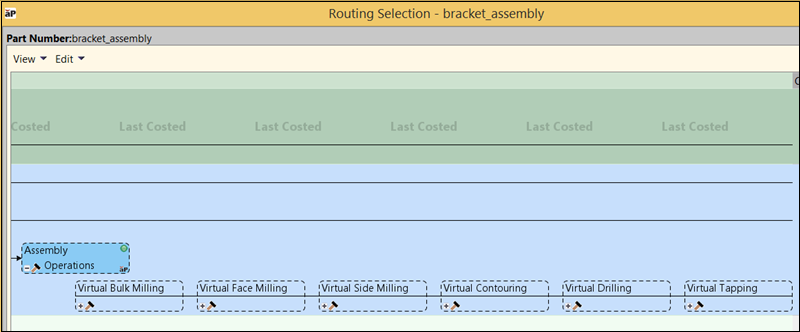
The assembly machining operations available for manual assignment are preceded with the word “Virtual” to identify that these are manually applied operations.
-
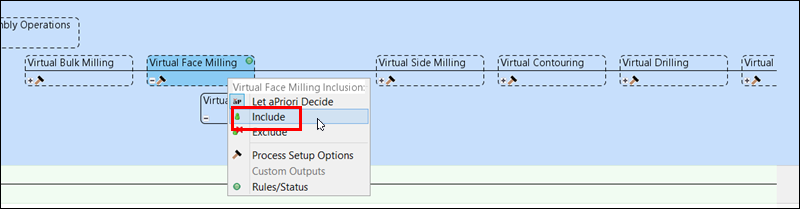
For each operation type required for the assembly, right-click the operation and select Include.
-
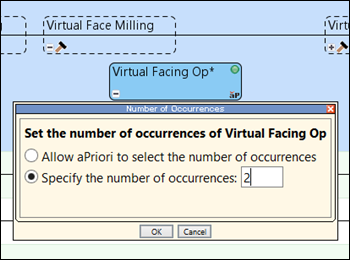
Right-click the operation again and select Process Setup Options. Indicate the number of occurrences of that operation type.
-
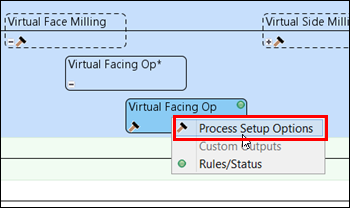
Expand the node again, right-click the operation, and select Process Setup Options.
-
This window will ask for more information related to the machining process. For example, with the screenshot below, provide the facing tool diameter and surface area to be faced for each instance.
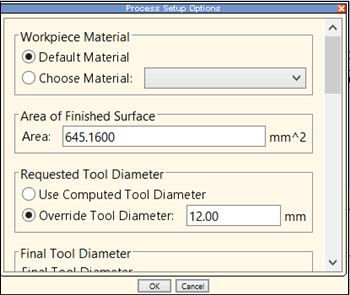
Tip: For details of process setup options in each process group, see the Cost Model Guide.