Platform and CAD Support Updates
aPriori 2026 R1 SP1 adds support for several recently released CAD versions, as described below. aPriori also announces de-support for specific older CAD versions. For a complete and up-to-date listing of all versions of supported CAD systems, operating systems, database platforms, and graphics cards and drivers, consult the aPriori 2026 R1 SP1 On-Premise System Requirements and aPriori 2026 R1 SP1 Cloud System Requirements.
This release also adds support for extracting surface roughness PMI (product and manufacturing Information) from files saved with SolidWorks release 2026 or later.
Updates to Supported CAD Systems and Versions
aPriori 2026 R1 SP1 adds support for the following CAD system versions, including providing compatible Analyze in aPriori plug-ins:
-
NX 2512
-
CATIA V5 R36
-
Solidworks 2026
-
SolidEdge 2026
aPriori 2026 R1 SP1 drops official support for the CAD system versions listed below. aPriori no longer will regularly test these older versions, and will not address issues that occur only in these older versions. The Analyze in aPriori plug-ins may not function properly for these older versions.
-
NX 2306 series
-
CATIA V5-6R2022 (R32)
-
Solidworks 2022
-
SolidEdge 2022
Note that even when aPriori no longer officially supports an older CAD version, aPriori generally will continue to be able to analyze CAD files saved in that version, via the Open CAD File option in aP Pro and the Import CAD File option in aP Design. However, aPriori reserves the right not to investigate or address issues that occur only in these older unsupported versions.
For more information about installing and configuring Analyze in aPriori plug-ins, please see the relevant Analyze in aPriori Plugin Installation Guide.
Roughness PMI Recognition with SolidWorks
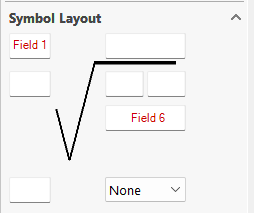
aPriori 2026 R1 SP1 adds support for extracting surface roughness PMI (product and manufacturing Information) from files saved with SolidWorks release 2026 or later. aPriori reads Ra (arithmetic mean roughness, SolidWorks Surface Finish Field 1) and Rz (mean roughness depth, Field 6).
The image below shows the SolidWorks Roughness definition, highlighting Field 1 and Field 6:
After costing, extracted roughness values are visible in both the aP Pro UI and the aP Design UI:
-
In aP Pro, roughness values are displayed in the Geometric Cost Drivers pane, in the Edit Tolerances dialog, and in the Tolerances section of the Validation and Design Guidance tabs.
-
In aP Design, roughness values are displayed in the Design Guidance / Tolerances tab and the Tolerance Overrides dialog.
To use this feature, ensure roughness annotations in SolidWorks are semantically defined. Each annotation must be explicitly associated with at least one surface in the model. Annotations not linked to specific surfaces cannot be read. SolidWorks 2026 or later is required; earlier versions are not supported for roughness PMI extraction.