You can create functional groups within a roll-up, to organize large product structures that may not be defined in CAD. Functional groups may help you:
-
Organize very large product structures for comparison across programs.
-
Establish the framework for costing dynamic product configurations in very large product structures.
-
Assign team responsibilities for function costs within a program.
Create Functional Groups
-
You can create functional groups one at a time, or you can import a functional group template, which generates the entire functional group structure in one step. For example, if you want to generate consistent functional group structures within multiple roll-ups, you can use your functional group template for multiple roll-ups.
-
Roll-ups can have functional groups applied both through the UI and through the BOM Loader. For more information, see the Digital Factory Administrator Guide.
The template is an XML file which describes the roll-up hierarchy to be created in the parent roll-up. The hierarchy represents your functional groups. You can create a template by using the Microsoft Excel spreadsheet Functional Group Template Generator.xls in the install-support\templates directory of your aPriori installation.
Reapply Functional Groups Templates
If you reapply a functional group template to a roll-up to which the template was previously applied, aP Pro:
-
Does not create new versions or scenarios for groups that were created by the previous application of the template.
-
Creates and adds a new group to the roll-up if the group was added to the template since the previous application of the template.
-
Does not remove any groups from the roll-up even if the group has been removed from the template.
Note: Before re-applying a functional group template, see Best Practices.
Naming Conventions
aPriori observes the following conventions when displaying roll-ups that have had a functional group template applied to their structure:
-
Roll-ups that were created by applying a functional group template are represented as different roll-ups, not as different scenarios of the same roll-up. The fully qualified name for a functional group is constructed as
<parent roll-up >.<functional group name> -
In the Details table, the Name column shows only the name of the roll-up, not the fully qualified name. For example, a group with the full name Rol1.drivetrain.engine” display “engine”.
-
In the manufacturing process tree, and in the tab name for an opened scenario, and in the Search dialog, the name is displayed.
Best Practices
Although you can re-apply a functional group template, aPriori recommends the following practice:
-
If you want to apply a functional group template to a roll-up that already has one applied, for example, you have updated the functional groups, or you applied the wrong functional group template to the roll-up and now you want to apply the correct one.
-
Create a new roll-up instead.
-
Apply the updated or correct functional group template to the new roll-up.
-
To create a functional group template
-
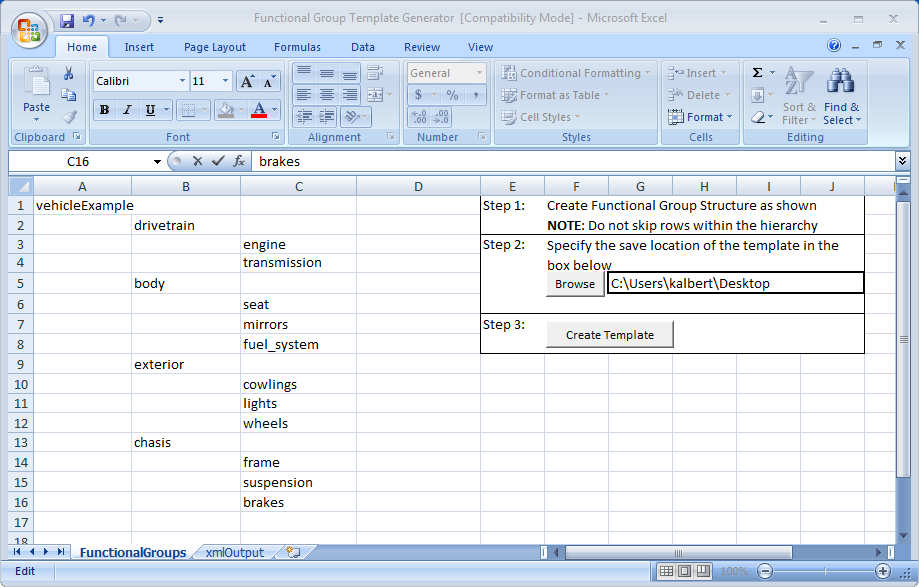
Open the Functional Group Template Generator.xls in the install-support\templates directory of your aPriori installation.
-
Enter the name of the functional group hierarchy in cell A1. This can be any name that you want, and it is used in the file name of the generated template.
-
Specify the functional group structure as follows:
- Enter names of top-level functional groups in column B.
- Put each child group in the column immediately to the right of its parent group.
- Put the first child on the line immediately below and to the right of the parent’s line.
- Put any additional children immediately below that.
- Do not leave entirely blank any row or column that is within the structure specification.
- Only one cell on each row should be used.
- Insert additional columns as needed.
-
Use the spreadsheet’s Browse button and/or the text field to enter or navigate to the directory used to contain the generated template.
-
Click the spreadsheet’s Create Template button.
-
The template file is created in the specified directory.
- The file name is the group name followed by .fgt.XML
-
-
You can use the spreadsheet’s xml Output tab to view the generated XML as shown in the following example:
-
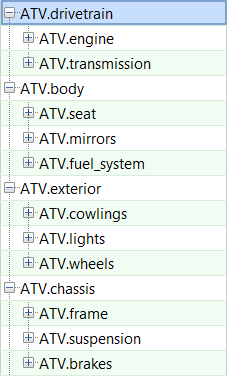
The spreadsheet generates the following functional group hierarchy:
-
In this example, the name of the parent roll-up is ATV, which precedes the node names of the functional groups that are created.
-
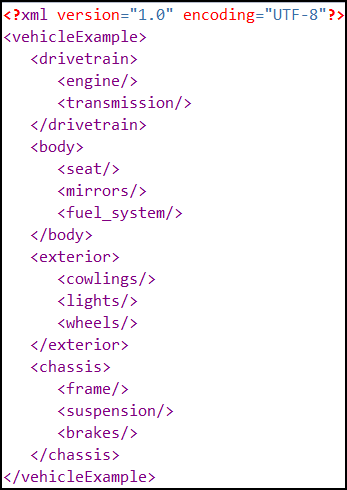
As an alternative to using the template generator spreadsheet, you can create the XML yourself. Use a format like the following:
-
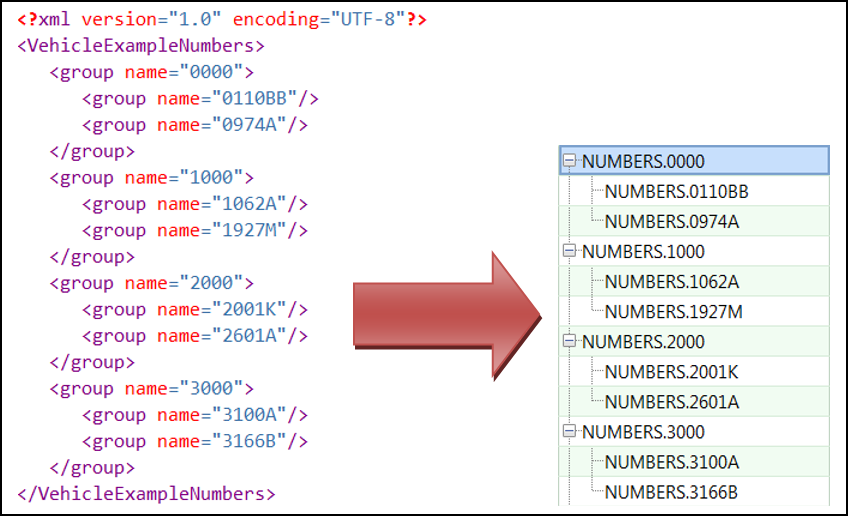
XML does not allow numeric element names, use the following format type to handle numerical functional group names:
-
Save the new file with the .fgt.XML extension so that aPriori can recognize the file as a functional group template. For example, a valid template filename is myFunctionalGroups.fgt.XML.
-
If you are editing with Notepad and do not save the file with this extension, the file is saved as a text file and aPriori can't import it.
Create Functional Groups Using Templates
-
Open a roll-up.
-
Select Tools > BOM > Apply Functional Group Template from the aPriori menu bar.
-
Navigate to the location of your functional group template file, select it, and click Open to create the structure described within your template in the open roll-up.