Using Matrix Costing
Matrix Costing automates the generation of multiple scenarios that differ only with respect to Digital Factory, production volume, and batch size. The Matrix Costing facility automatically loads the generated scenarios into the Bulk Costing facility, allowing you to cost them all at once and then compare the results.
To use Matrix Costing, follow these steps:
1 Open and cost a scenario for the part, assembly, or rollup that you want to work with. Use any Digital Factory, production volume, and batch size, but be sure all other scenario settings are those you want for the comparison. For assemblies, be sure to cost a scenario for each sub-component as well. See also Recommended Workflow.
2 Select Matrix Costing from the Cost menu.
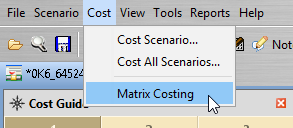
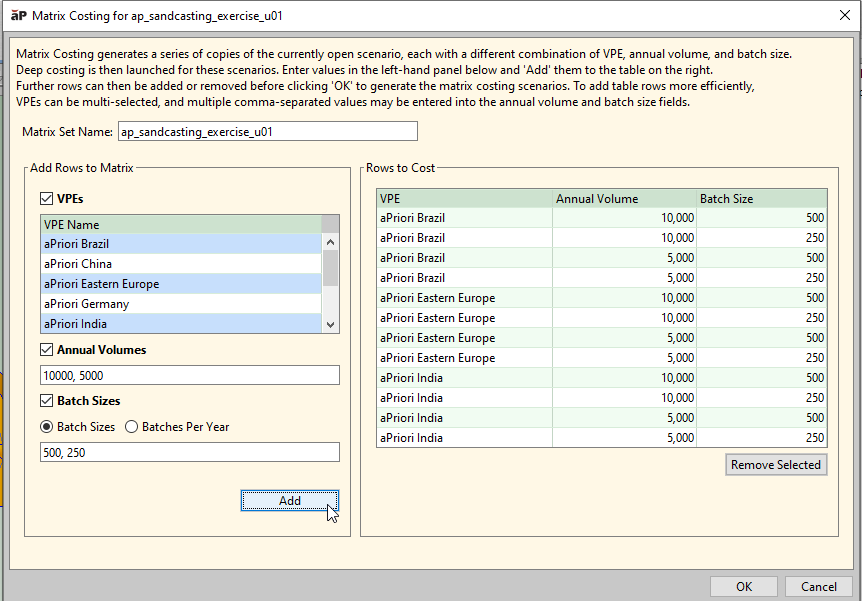
The Matrix Costing dialog appears.
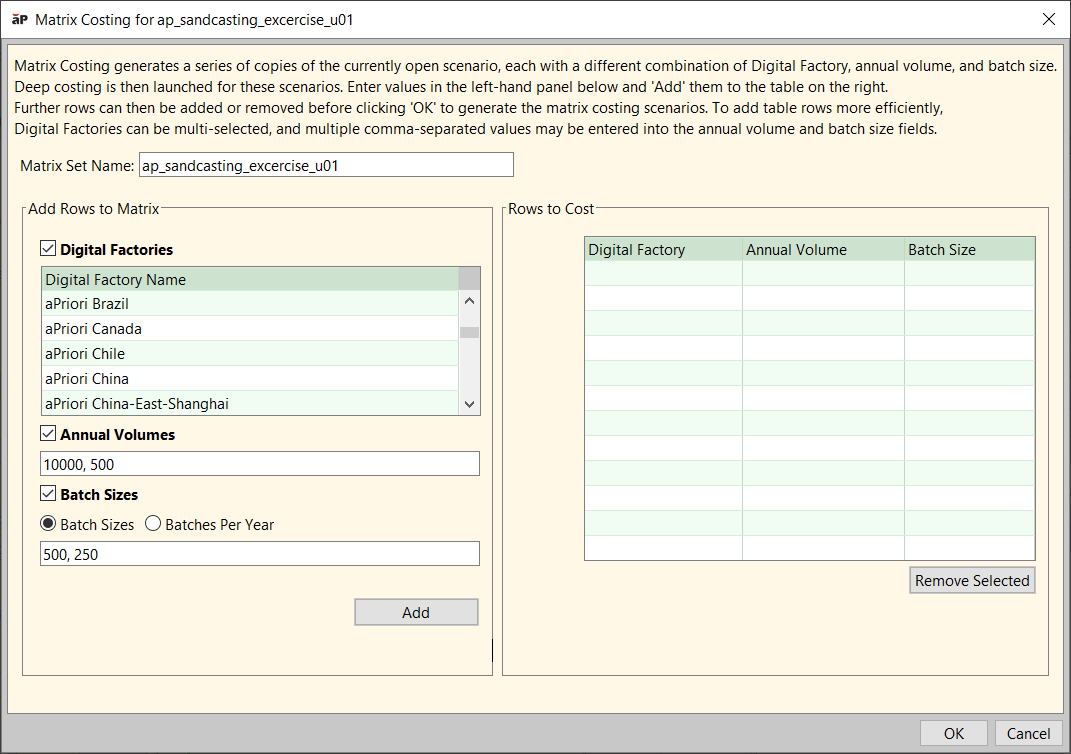
3 In the Matrix Set Name field, enter a name for the set of scenarios to be created and compared.
4 Select one or more Digital Factories from the Digital Factories list box. Click and then shift-click to select a range of Digital Factories. Use ctrl-click to select additional Digital Factories. If you don’t want to vary Digital Factories, uncheck the Digital Factories checkbox.
5 Enter one or more annual volumes in the Annual Volumes field. To enter multiple values, use a comma-separated list of values. If you don’t want to vary annual volumes, uncheck the Annual Volumes checkbox.
6 Click either the Batch Sizes radio button or the Batches Per Year radio button. In the next step, if you selected Batches Per Year, you will enter one or more values representing the number of batches to be run over the course of a year. In this case, aPriori will compute the batch sizes behind the scenes. If you don’t want to vary batch sizes, uncheck the Batch Sizes checkbox and skip to step 8.
7 If you selected Batch Size(s) in the previous step, enter one or more batch sizes.
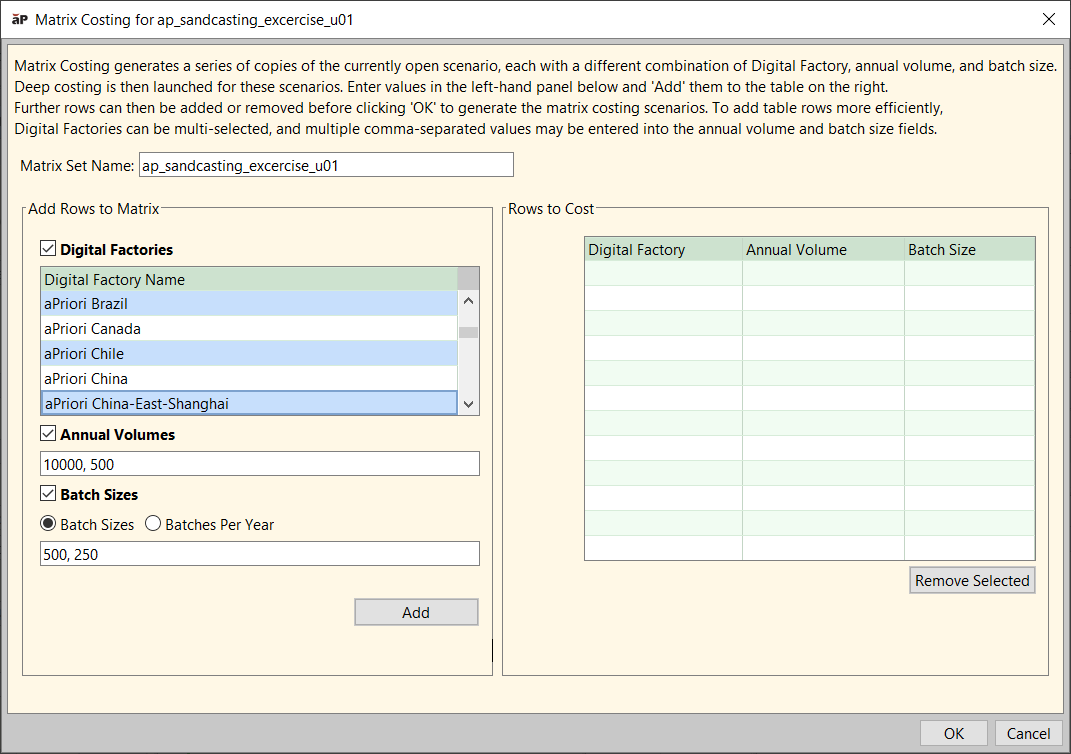
If you selected Batches Per Year on the previous step, enter one or more values representing the number of batches to be run over the course of a year.
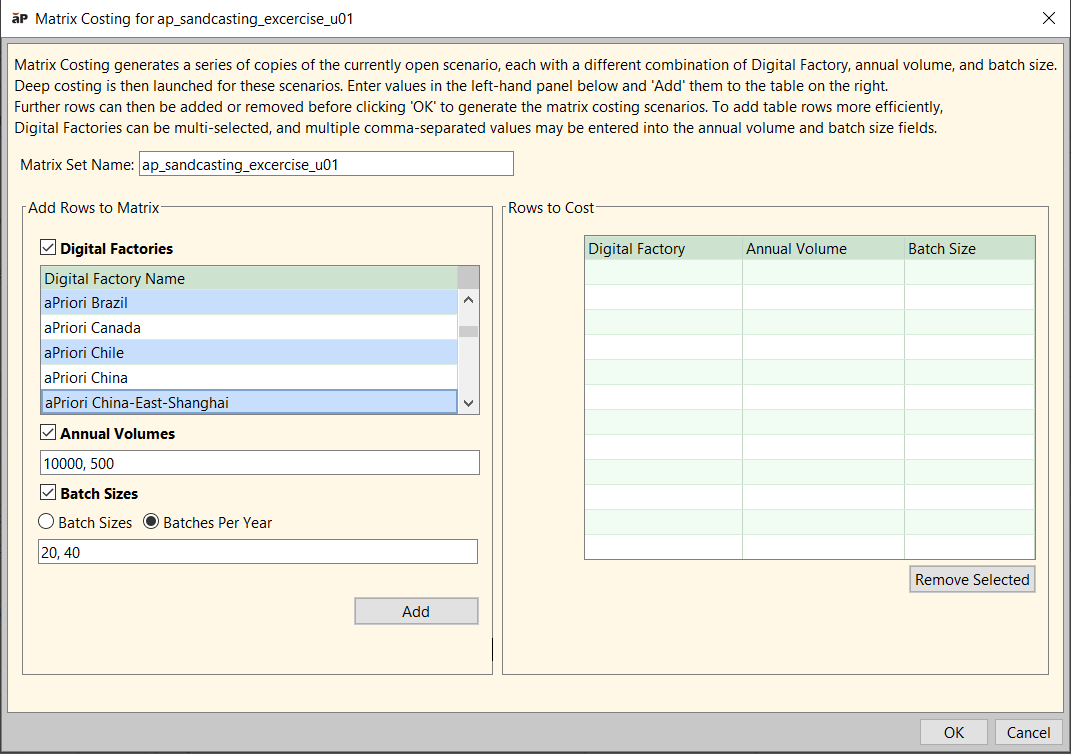
In either case, enter multiple values by using a comma-separated list of values.
8 Click Add.
aPriori populates the Rows to Cost table. Each row represents a scenario. There is one scenario for each possible combination of Digital Factory, production volume, and batch size from the values that you specified in the previous steps.
9 You can use the Remove button to remove selected rows in the Rows to Cost table (click and shift-click to select a range; ctrl-click to select additional rows).
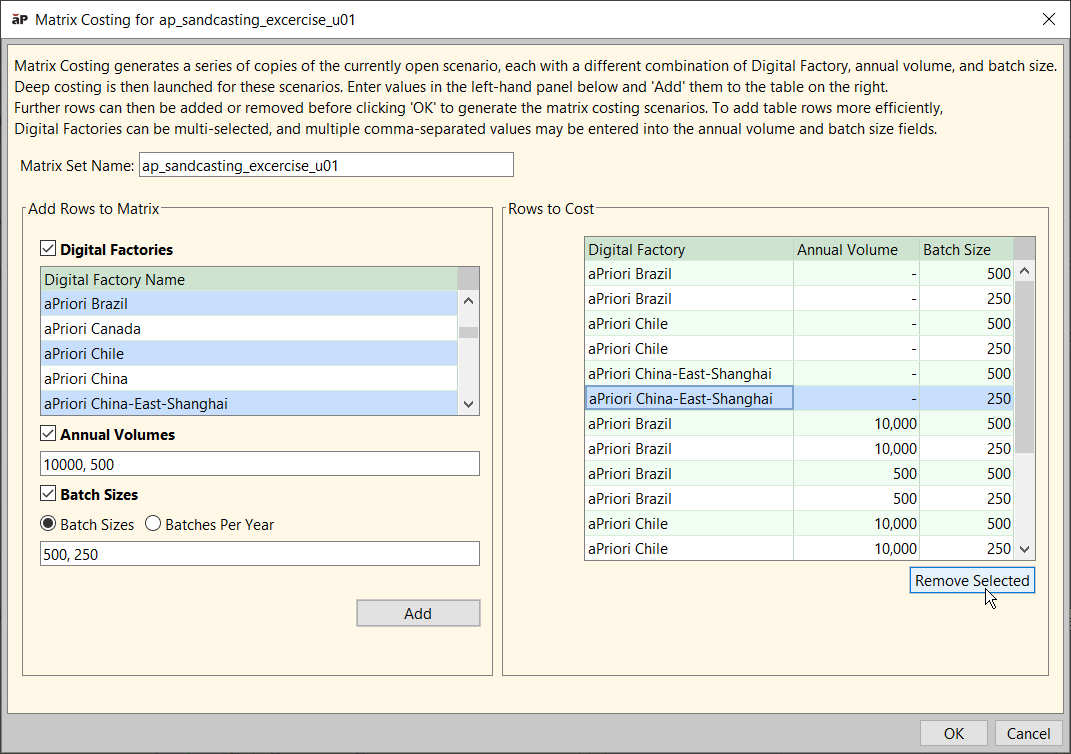
You can also add rows by repeating steps 4-8, above.
10 Click OK.
The aPriori Bulk Costing and Analysis window appears (see Bulk Costing and Analysis). It contains a line for each generated scenario.
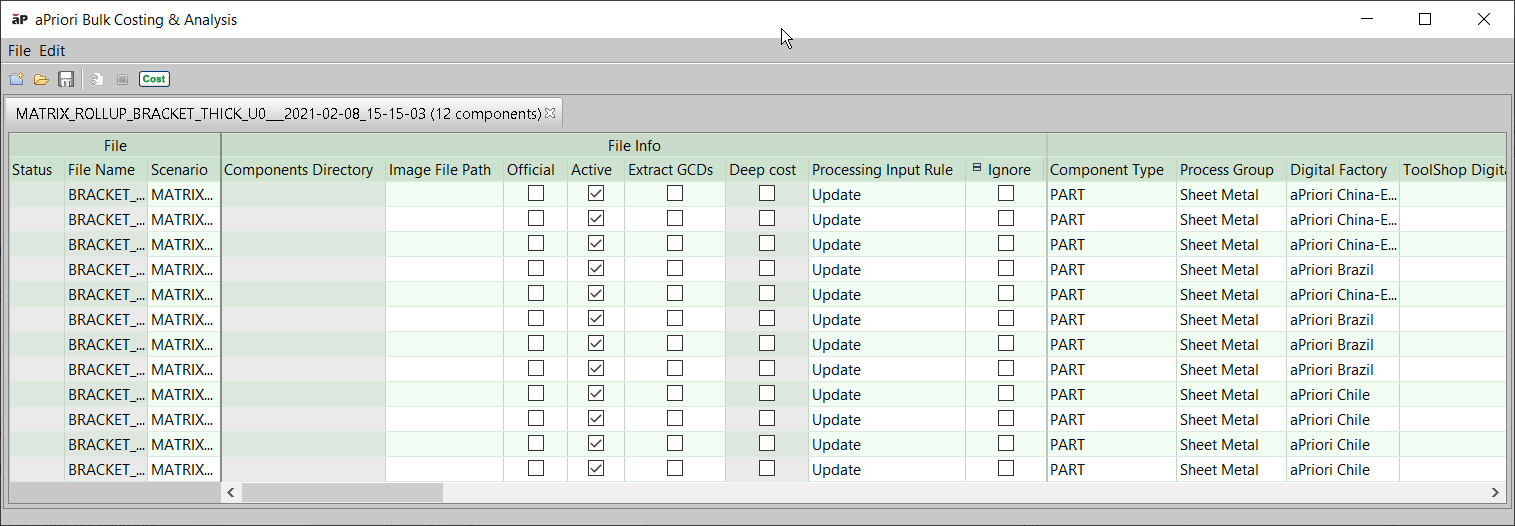
If you are matrix costing an assembly or rollup, the bulk costing window also contains scenarios for any sub-components or rollup members. The Annual Volume value(s) for sub-component scenarios will automatically be set appropriately, based on the specified values for the assembly/rollup and considering the number of instances (quantity) of sub-components in the assembly.
11 Click the Cost button at the top of the Bulk Costing & Analysis window to initiate costing of all scenarios. All the scenarios are cost in a background process; a message dialog is displayed upon completion.
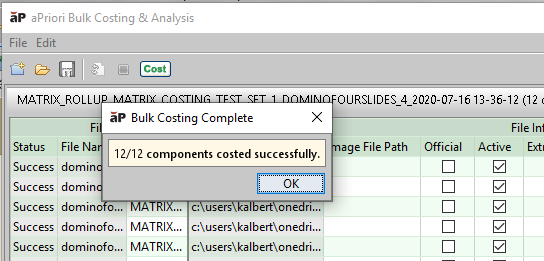
A new rollup is created which contains all the generated scenarios. The rollup has a name of the following form:
MATRIX_ROLLUP_<Matrix Set Name>_<Component Name>_<Time Stamp>
This rollup provides a convenient way to consolidate and review the different cost estimates for all the generated scenarios.
For more information, see the following sections:
Scenario Naming
Each scenario that is generated by Matrix Costing has the following form:
MATRIX_COST_<Matrix Set Name>_<Component Name>_<Digital Factory Name>_<Annual Volume>_<Batch Size>_<Time Stamp>
Consider, for example, the following generated name:
MATRIX_COST_Test01_bracket_aPriori Mexico_10000_834_2020-06-01 12-38-53
This name has the following constituents:
• Matrix Set Name: Test01
• Component name: bracket
• Digital Factory: aPriori Mexico
• Production Volume: 10000
• Batch Size: 834
• Time stamp: 2020-06-01 12-38-53 (June 1, 2020 at 12:38:53 PM)
This naming convention is used both to identify the component and the salient costing inputs and to ensure the uniqueness of the scenario name in the aPriori database, since other users also may be costing the same parts for other purposes.
Recommended Workflow
Before you invoke Matrix Costing for a part, be sure to cost a scenario for the part. Use any Digital Factory, production volume, and batch size, but, before this initial costing, be sure all other scenario settings (such as setup options, tolerances, routing, and operation assignments) are those you want for the comparison.
Before you invoke Matrix Costing for an assembly, be sure to cost a scenario for each sub-component of the assembly, as well as one for the assembly itself (for example, use Deep Costing on the assembly). In addition, before this initial costing, be sure that all settings (other than Digital Factory, production volume, and batch size) are those you want for the comparison. And be sure to add any desired welds and perform any desired, optional assembly operations.
If needed, costing inputs and settings can be modified further by using standard controls within the Bulk Costing & Analysis window—see Bulk Costing and Analysis.
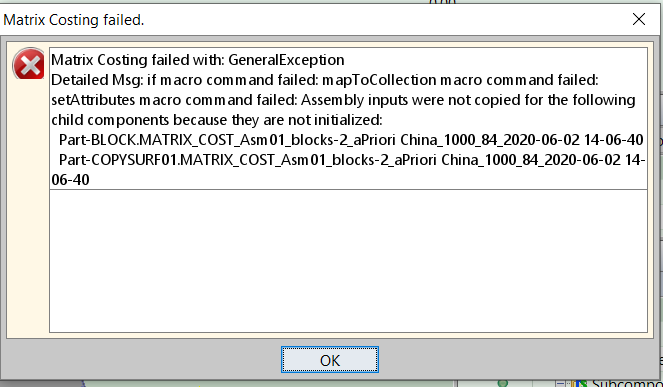
If you invoke Matrix Costing when one or more scenarios has not been cost, an error message dialog appears indicating which components were not initialized:
Scenario Cleanup
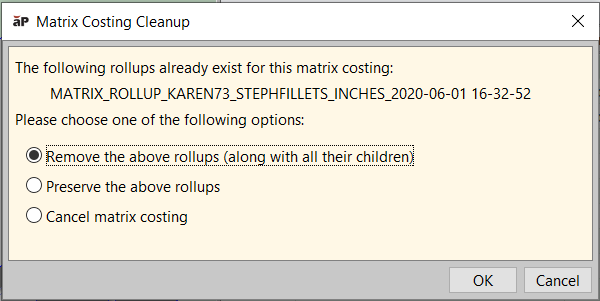
Matrix Costing can create a large number of scenarios in the aPriori database, since unique scenario names are generated each time it is run. To help prevent proliferation of scenarios, when you invoke a new matrix costing, aPriori automatically identifies any scenarios created by previous matrix costings of the same component, with the same matrix set name. aPriori provides an option to delete all scenarios generated from this earlier matrix costing, as these are likely to be outdated and obsoleted by the newer matrix costing results.
Limitations
Currently, there is not a way to save a Matrix Set or its definition, and therefore the matrix of inputs needs to be defined each time matrix costing is run.
Matrix Costing does not currently support nested rollups; if a rollup is used as the source scenario for matrix costing, it cannot itself contain other rollups.