Usability Enhancements
aPriori 2021 R1 provides these usability enhancements:
Independently Select Production and Tool Shop Digital Factories
Users now may specify a Tool Shop Digital Factory which is distinct from the part production Digital Factory, to easily estimate the cost of making the tooling for a part in a different location than the part itself is manufactured.
aPriori 2021 R1 provides users the ability to select the Digital Factory used for Tool Shop data independently of the Digital Factory used to manufacture the part. Tool Shop data is used to calculate tooling costs in process groups with hard tooling such as Casting – Die, Plastic Molding, and Sheet Metal – Transfer Die. Prior to this release, it was challenging, time-consuming, and/or involved additional manual calculations to estimate the cost of a part for which the tool was manufactured in a different factory/geographic region than the primary part production. Previously the user could either:
• Perform two separate costing events – one which uses the primary part production Digital Factory and a second which uses the Tool Shop Digital Factory, and then manually combine the piece part cost estimate from the first costing with the tooling cost estimate from the second costing.
• Request a specific Overlay VPE be created which inherits data from the primary production and Tool Shop Digital Factories of interest, to represent this specific combination of tooling and part manufacturing locations. (This approach requires the help of a Digital Factory administrator, or an aPriori Customer Success engineer)
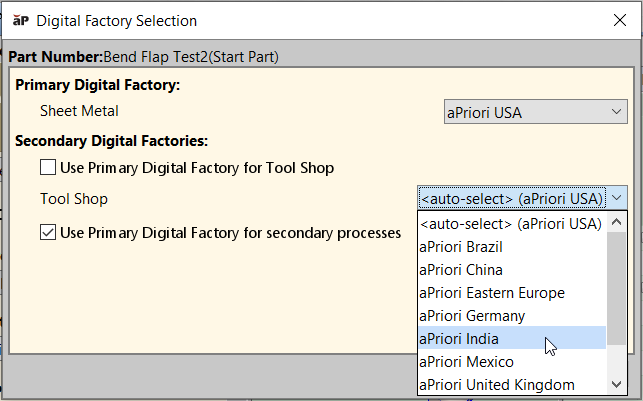
As shown below, in aPriori 2021 R1the Digital Factory Selection dialog now allows the user to specify either that theTool Shop and part production both occur in the same Digital Factory (default behavior), or to choose an alternative Digital Factory for the Tool Shop. The resulting cost estimate then automatically reflects the cost of producing tooling in one factory/region while producing the part in a separate factory/region.
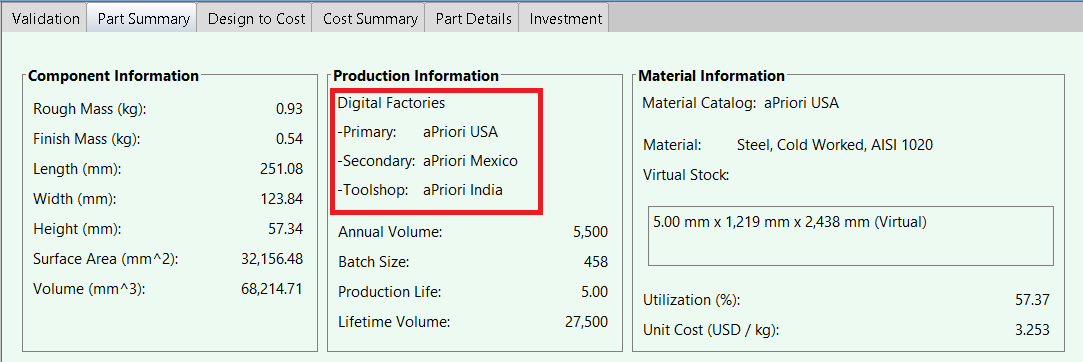
The Part Summary tab has been updated to display the Digital Factory that is used for estimating the primary processing, secondary treatments, and tool production, as shown.
Improved Tracking of User Overrides
aPriori 2021 provides visibility into the original calculated values of cost fields which were overridden by a user.
aPriori 2021 R1 provides greater insights into calculated values that have been overridden by a user. Previously, if a calculated value such as cycle time was changed in the Part Details tab, only the newly entered value appeared in the Cost Overrides Summary dialog; the original calculated value was not displayed. The new value appeared in the Override Value column while the Default Value entry remained blank. The only way to determine the original calculated value was to clear the override and re-cost the scenario. Now when a calculated value is overridden, the original value will appear in the Default Value column while the new value will appear in the Override Value column. Having visibility into both the original calculated value alongside the new overridden value provides more feedback to both end users – who have more context for why a particular field was changed – as well as to cost model workbench users who can use such feedback to adjust cost model assumptions
Known Limitations
This enhancement applies to calculated values only. For example, if a user manually overrides the selected machine, the originally selected machine is not displayed.
New scenario search criteria “Created by”
Users now may search for scenarios created by a specific user; this enhancement was requested by multiple aPriori customers.
aPriori 2021 R1 supports additional scenario search criteria. The scenario Search dialog now provides a “Created by” field which enables searching for scenarios created by a specific user. Previously the dialog enabled searching for scenarios “Last Modified By” a designated user, but not originally created by that user. Multiple customers requested this new search criteria to provide visibility into who created specific scenarios, for purposes such as tracking compliance with security regulations such as ITAR.
aPriori License Manager Service Configuration Settings for Setup Wizard
Provide your License Manage Service URL via the aPriori Professional Setup Wizard.
The aPriori License Manager Service manages the activation keys for all the aPriori applications and modules in your aPriori On-Premise deployment.
When you install a new version of aPriori Professional, you must specify the URL for License Management Service. You can specify the URL in the aPriori License Manager Service Configuration settings of the aPriori Professional Setup Wizard.
The Wizard can obtain and preset the URL from:
• A properties file in which your Database Administrator (DBA) has specified the URL
• A properties file from a previous aPriori installation
Otherwise, you can specify the URL directly in the configuration settings.