In Assembly Details or Roll-up Details view, you can select multiple sub-components and change them to either a specific scenario, or to their official scenarios.
In addition to the common scenarios, the top of the pop-out menu also shows "Official Scenario (<various>)", which allows you to switch to the official scenario for all selected components.
Note: "Initial". is the default scenario name in OOTB installations and therefore the first time you cost a component if you don't change the name, the official scenario gets the name "Initial". The official scenario doesn't always automatically update in other new assemblies because it depends on the setting in User Preferences.
When multiple components are selected, the pop-out menu does not display a green status dot next to the currently selected scenario since the status might be different for each component. A green dot appears only when one component is selected.
Similarly, if only one component is selected, aPriori displays its official scenario name at the top of the pop-out menu. Otherwise, (<various>) is shown.
If you attempt to switch to an inactive scenario, aPriori warns you that the geometry may not be up to date. See Active and Inactive scenarios for more information.
Note: When only one component is selected, the popup menu displays a Search for Scenario option. This displays the standard Search dialog, but with the Name/Part # and Component Type fields pre-populated and uneditable. See Using the Search tool for more information.
Switch scenarios of assembly components
-
From the Cost Object section of the Assembly Details view, select a component.
-
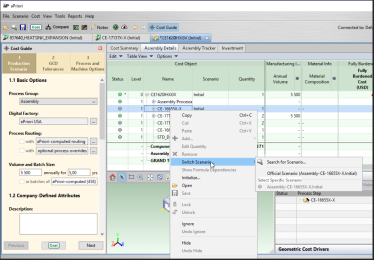
Right-click and select Switch Scenario.
-
Select either Official Scenario at the top of the pop-out menu or one of the options listed below Select Specific Scenario if available.

Note: You can select multiple components and change them to their Official scenario(s).
Non-official scenarios are not available during multi-select. When you have only one row selected, the Switch Scenario fan-out menu also provides a Search for Scenario option. See Using the Search tool for more information.
Managing performance when switching scenarios in assemblies
Note: Optimize performance by managing the number of scenarios you create and keep in your databases when using matrix costing to avoid any issues.
Typically when you right-mouse click on a scenario to switch to a different scenario, aPriori Professional scans and runs permissions on all scenarios, which can result in a time lag. The max to search value of 20 and max to display value of 8 are the OOTB default values
You can limit the number of scenarios against which aPriori scans and runs permissions by configuring the apriori.properties file, for example:
apriori.menu.switchScenarios.maxToSearch = 20

apriori.menu.switchScenarios.maxToDisplay = 8