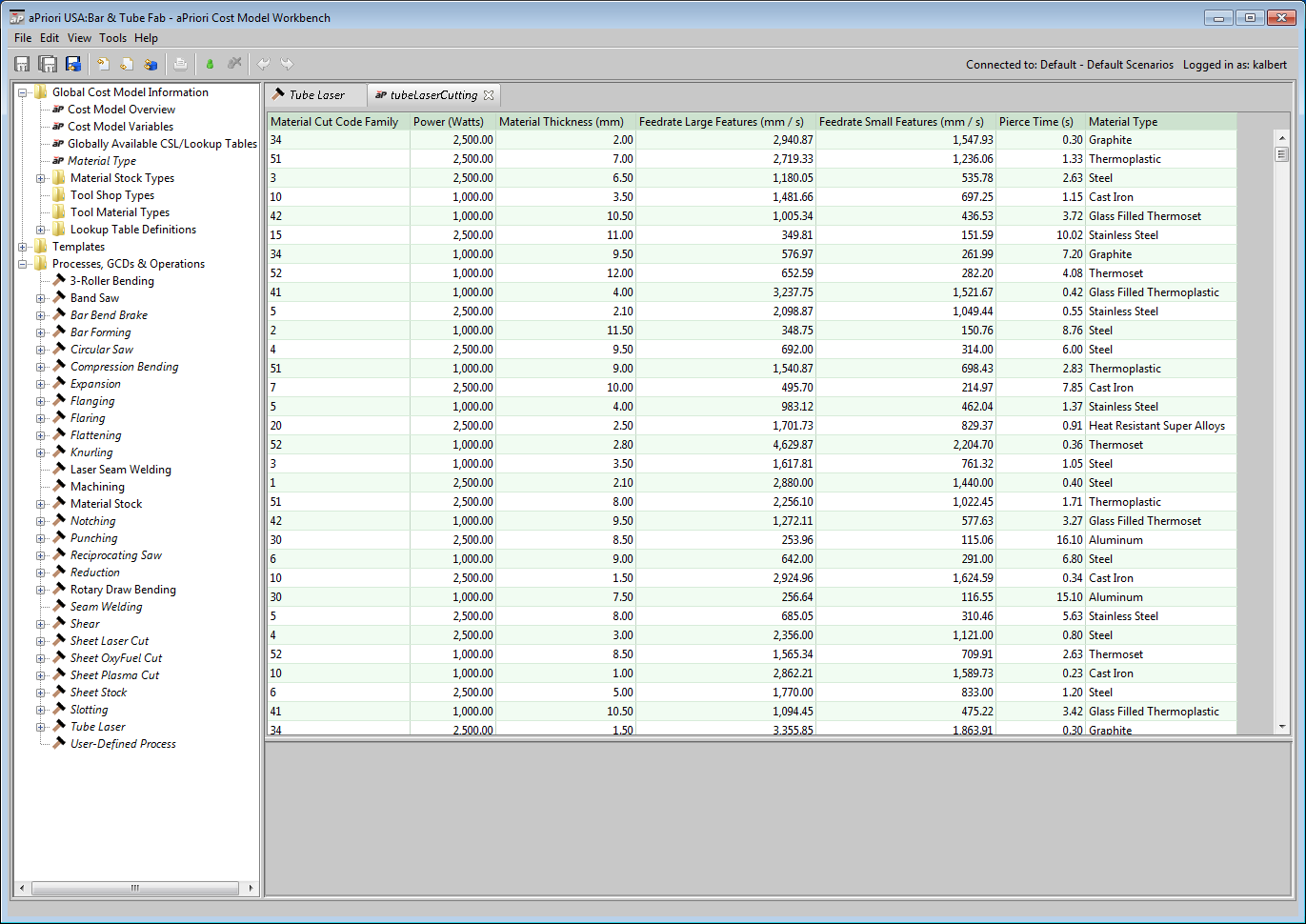
To view and modify a lookup table, follow these steps:
-
Navigate to the lookup tables for the desired lookup table’s associated node (see Navigating to Lookup Tables).
-
Click
 next to the name of the table you want to modify. The lookup table appears in the editing pane.
-
Select Override Object from the CMWB Edit menu, or click the override icon,
 , in the toolbar.
 -
You can modify field values, and add and remove table rows.
- To modify a field value, click in the field, enter the new value, and press return.
- To add a table row, click in a field in the (empty) last row of the lookup table, and enter a value. Enter values in the other fields of the same row.
- To remove a row, right-click on it and select Remove.
-
Select Save from the File menu, or click
 in the toolbar, to save your changes.
 -
To incorporate your changes into the cost model, select Publish Cost Model and Digital Factory from the File menu, or click
 in the toolbar.