You can login to aP Pro in the Cloud, and use it as a Cloud application, accessible via a web browser, without needing to install any applications or software locally.
The aP Pro Cloud application lets you open CAD files or scenarios and work with them just as you would with a desktop deployment of aP Pro. The difference is that the aP Pro Cloud application does not interact directly with your local file system. Instead, you use tools to transfer files and information between your local machine and the aP Pro Cloud application. See aP Pro Cloud Functions.
Tip: See also Access aP Pro in the Cloud aP Academy training course training course.
Log In to aP Pro in the Cloud
How you log in is defined by your organization. Enter the URL, your Customer Code, and credentials provided by your system administrator.
Your login process may include Multifactor Authentication (MFA) using a second device or Single Sign-On (SSO). See this Support article and our Login Instructions page for more info.
You can log in to aP Pro in the Cloud directly or from the Cloud Home portal.
Log in from Cloud Home
-
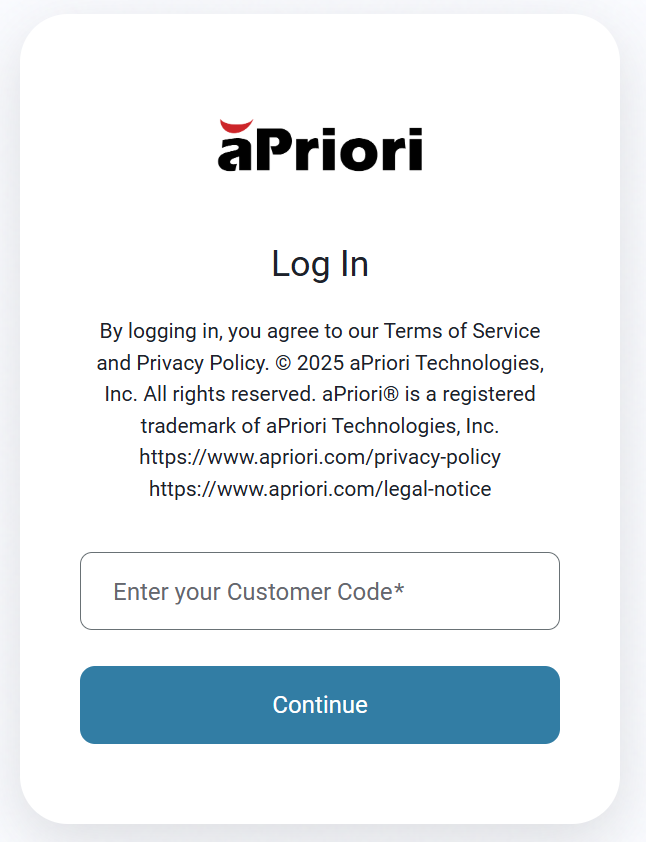
Navigate to the Cloud Home URL and enter your Customer Code (See Additional Information):
-
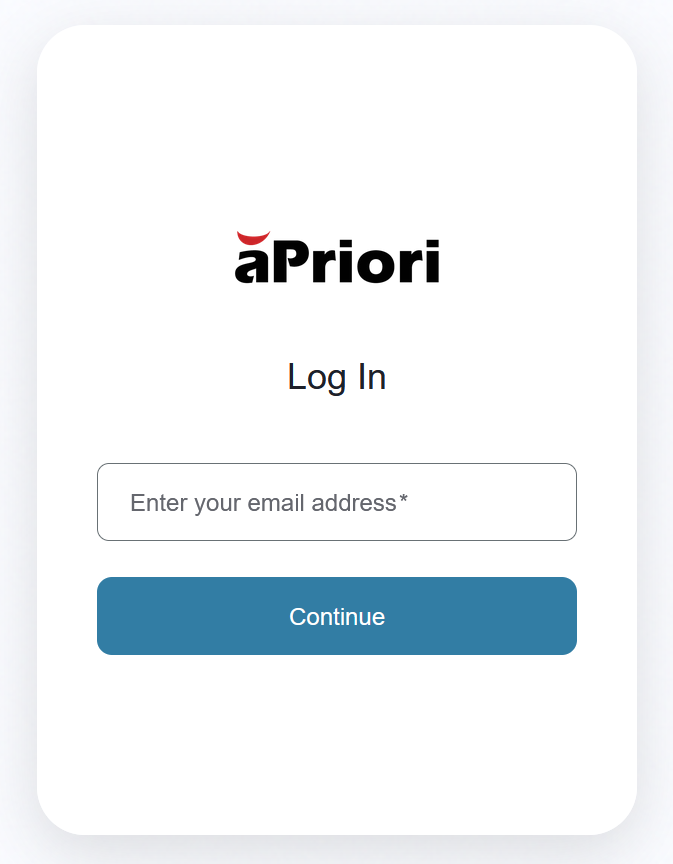
Enter your login credentials as supplied by your system administrator:
-
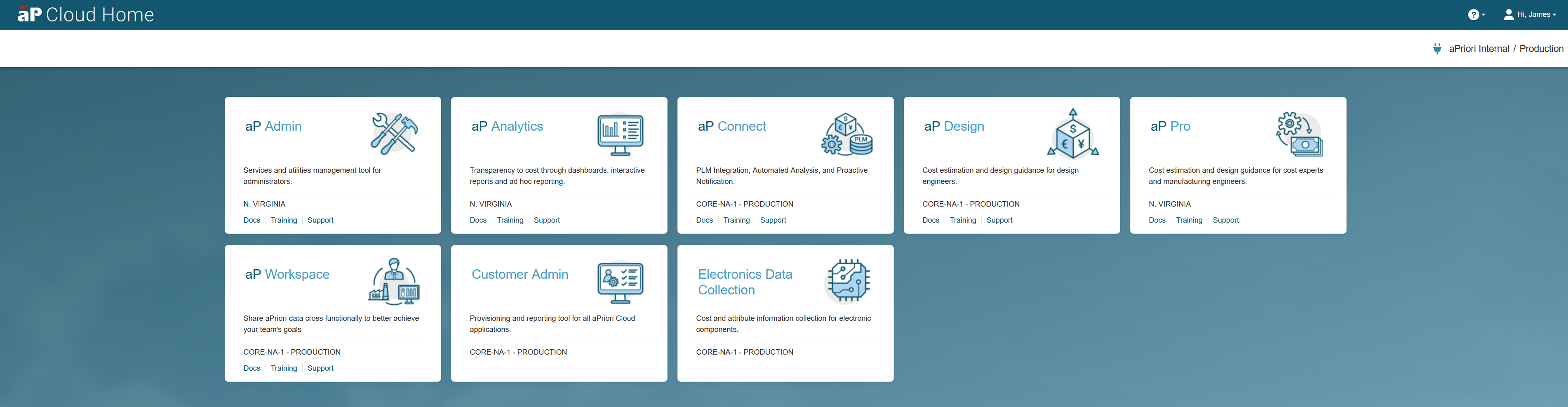
Select the aP Pro tile:
Log in Directly
To log in directly, enter the URL provided by your system administrator, followed by your Customer Code and login credentials.
aP Pro Initialization
A progress indicator appears whilst your session is prepared. Preparation time depends on several factors, including network latency.
When the session preparation is complete, a set of icons appear in your browser window, along with the aP Pro preparation page.
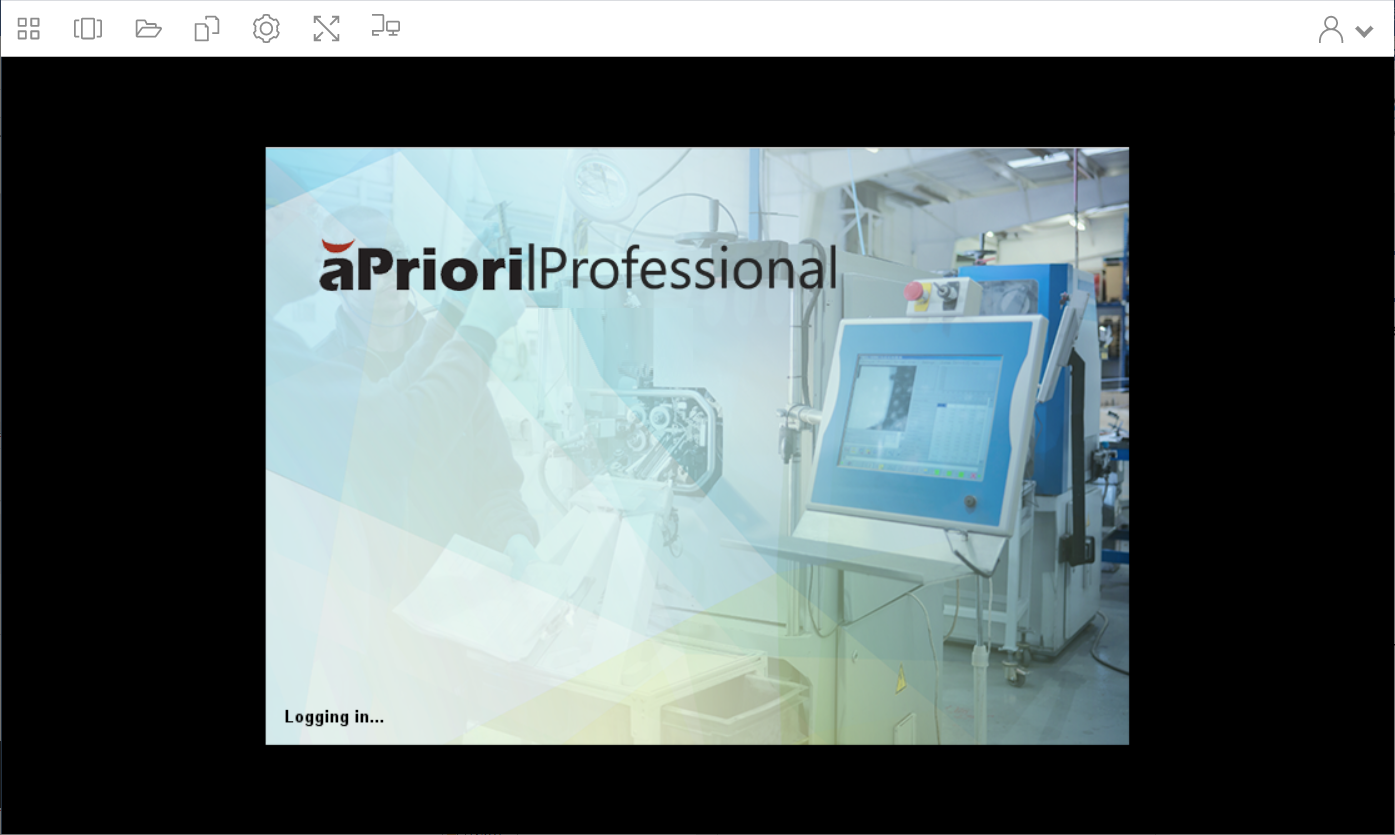
Once prepared, aP Pro appears in your browser window:
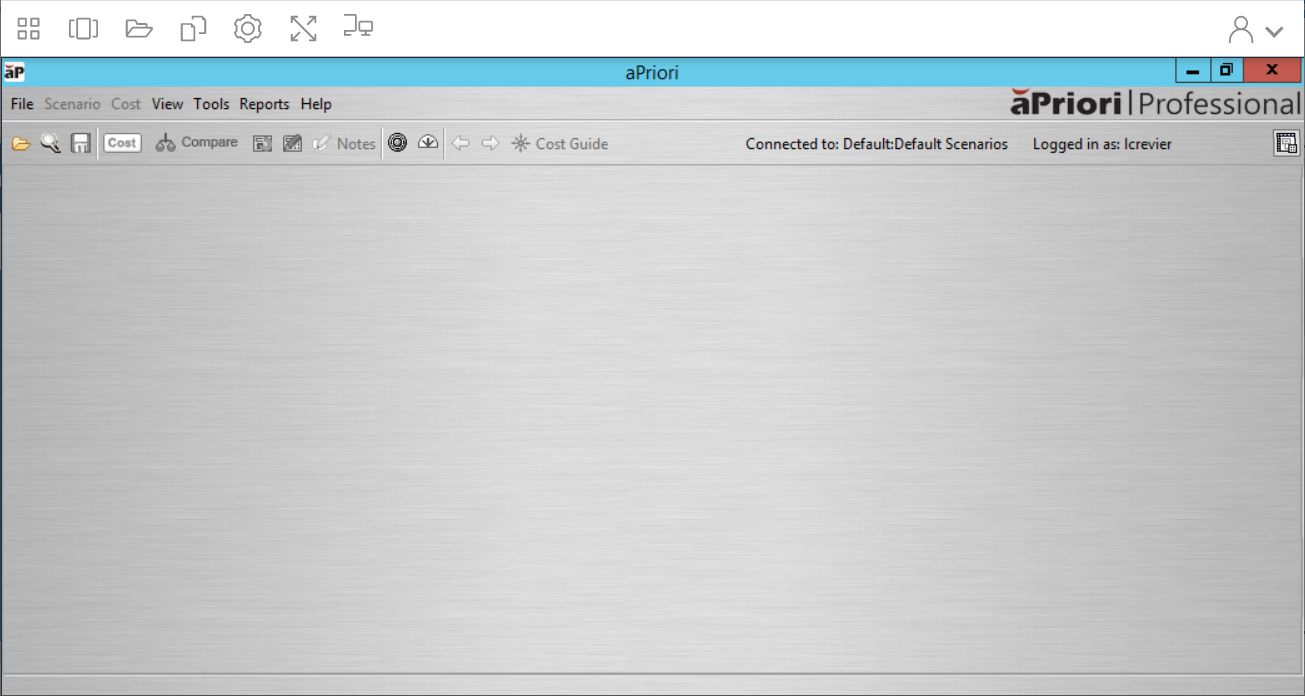
There is a short wait time while the Digital Factories and cost models for your deployment load to the document cache. The message text at the bottom of the aPriori application window shows the status of the Digital Factory and Cost Model caching.
Logging Out
To log out, from the toolbar, open the Profiles dropdown menu and select End session.
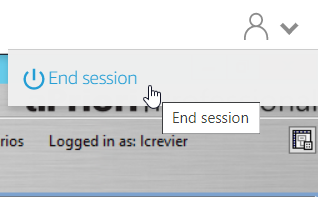
Confirm that you want to end the session, when prompted.
Reset Your Password
Depending on your login method, you can start a password reset from the aPriori Cloud Home login screen or from the login screen of any licensed aPriori Cloud application:
-
Navigate to the Cloud Home URL and enter your Customer Code
-
Enter your email address and select Continue, then choose Forgot password?
-
Follow the on-screen instructions to start the password reset process
Additional Information
Customer Code
Your Customer Code was previously provided in an email from aPriori or by your system administrator. It's required each time you log in.
If you are unsure of your Customer Code, please review the email you received (aPriori Customer Code) or contact your system administrator. For further information on Customer Codes see the following support articles:
Tip: Use a login link with your Customer Code already included
In Cloud Home, open your user profile (top right), select Customer Details, then choose Copy Link.
Use this link whenever you access Cloud Home so you don’t need to enter your Customer Code each time.
MFA options
If your organization requires MFA, select Remember this device for 30 days during login to reduce the number of times you’re prompted for authentication on the same device.
Need help?
Contact your system administrator or visit support.apriori.com for help with any login issues.