Configuring Validation and Design Guidance Display
This section describes how to configure validation and design guidance displays in the aP Pro User Interface.
For information on configuring issue severity and thresholds, see Configuring Design Guidance in the Cost Model Guide (requires login).
Configuring Validation Display
You can control which panels and metrics appear for which process groups in aP Pro.
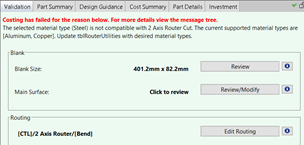
Figure: Validation tab
Configure the Validation tab with the lookup table validationDisplayControls in each process group. Set the Display column to either yes or no . Do not modify the Panel Name column.
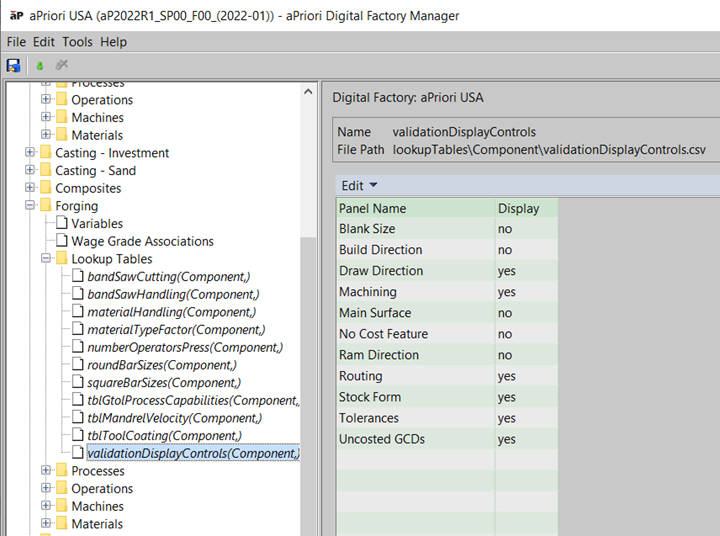
Figure: Configuring display for validation
To hide the Validation tab for a given process group, set the cost model variable genericValidation to false for that process group.

Configuring Design Guidance Display
The Design Guidance display includes Manufacturability Issues (see Review Manufacturability Issues) for supported Process Groups such as Forging, Machining, Plastic Molding, and Sheet Metal.
Tip: See also the Understanding Design Guidance aP Academy training course.
Use the adviceRules lookup table to configure which design guidance checks are evaluated by the process group. This ensures that aPriori flags only actionable issues and engineers receive only feedback that is relevant to their design standards.
To disable design guidance for an issue, set the Enabled column to false for the associated rule in adviceRules . For example, draft angles can sometimes be noted on 2D drawings and not modeled in 3D CAD. In such cases, Digital Factory managers can set InsufficientDraftAngle to false (shown below), deactivating unnecessary draft angle feedback.

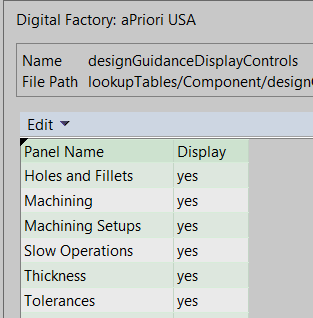
In addition, for the Forging and Sheet Metal, you can hide or show specific sections of the design guidance tab with the lookup table designGuidanceDisplayControls: