Review Manufacturability Issues
The Manufacturability Issues section in the Design Guidance tab includes a summary of issue types and issues found for that component, classified by severity (Critical, Major, and Minor).
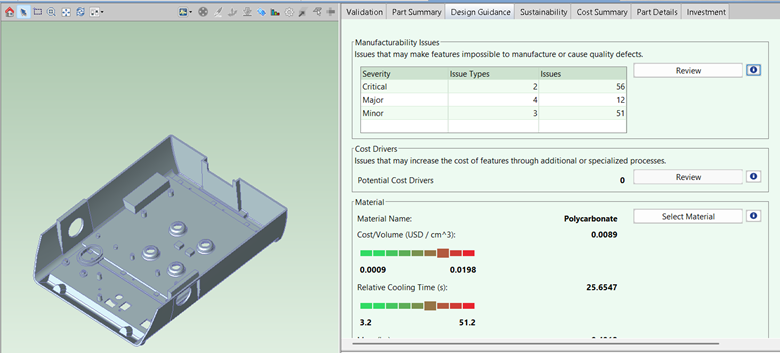
Use this information to identify issues early in the design phase, when aPriori’s actionable feedback can have the most significant impact.
You can also review issues with specific part geometry - see Review Manufacturability Issues.
Tip: See also the Understanding Design Guidance aP Academy training course.
View Issues
-
Click the Design Guidance tab.
The Manufacturability Issues table contains a row for each level of issue severity:
-
Critical: Issue that makes a feature unlikely to be manufacturable.
-
Major: Issue that poses a high risk of quality defects.
-
Minor: Issue that poses some risk of quality defects,
-
Unclassified: Issue that does not have a defined severity. If you are using an older version of the manufacturing process models that does not provide prioritized design guidance, all issues are listed as Unclassified:
Click on a row to highlight in the Viewer all the GCDs with issues of a given severity.
-
-
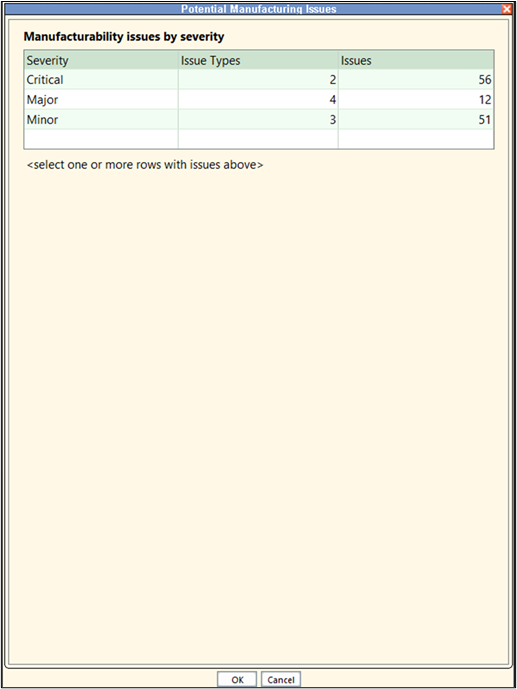
Click the Review button next to the Manufacturability Issues table to view the Potential Manufacturing Issues dialog, which you can use to display more details about the issue types and the GCDs with design issues:
-
Click a populated row in the first table to display more tables:
-
Issue types for selected severity: the types (such as Insufficient Draft Angle and Insufficient Fillet Radius) and counts of issues of the selected severity. Click a row to select an issue type.
-
Individual issues for selected issue type: GCDs with that issue type and severity, as well as the current and suggested values for the issue's associated threshold.
-
-
In the table Issue types for selected severity, select an issue type, The table Individual issues for selected issue type displays a row for each individual issue of the selected issue type.
For a description of the selected issue type, click the button Learn more about this issue type.

Note: For Forging, Plastic Molding, and Sheet Metal, Digital Factory managers can use the lookup table adviceRulesto configure which issue types are evaluated by the process group. For example, draft angles can sometimes be noted on 2D drawings and not modeled in 3D CAD. In such cases, Digital Factory managers can deactivate draft angle feedback—see Configuring Design Guidance Display.
-
Click a row in the table Individual issues for selected type to select an individual issue. Below the table, a description of the issue appears, including:
-
Impact of the issue (for example, that it poses a high risk of damage or poor surface finish).
-
Suggested remedy (for example, increasing the draft angle to >= 5.00 degrees).
Selecting an individual issue also highlights the associated GCD in the Viewer.
-
-
If the GCD associated with the issue has other manufacturability issues, the Review all issues on this GCD button appears at the bottom of the dialog, helpung you to efficiently address all issues at the same time.
Click this button to display a table with all the GCD's manufacturability issues of any severity or issue type, then click an issue to display a description of it. For example:
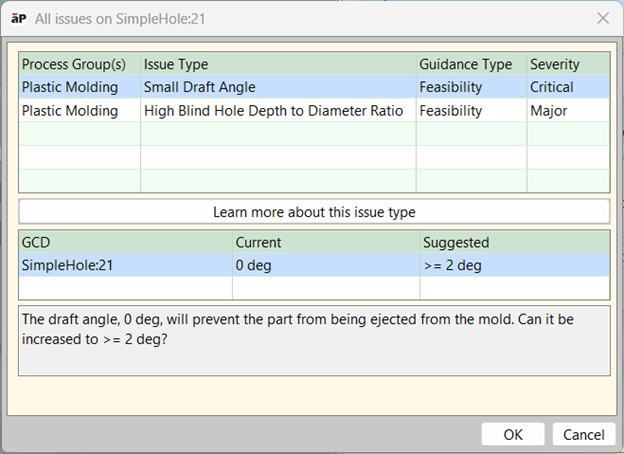
This shows that in addition to having a High Blind Hole Depth to Diameter Ratio issue (of Major severity) the feature also has a Small Draft Angle issue (of Critical severity).
Tip: The Part Details, Assembly Details, and Rollup Details tables also display a Design Guidance section. This enables you to assess the number and severity of manufacturability issues across a set of components in one view. See Part Details and Assembly Details Tabs for more details.
Examples
Critical Issues
In the example below, the part has two Critical issue types—a High Flow Ratio for the part which will cause a short-shot condition, and a Small Draft Angle condition which will make it difficult to eject the part from the mold without damaging part surfaces.
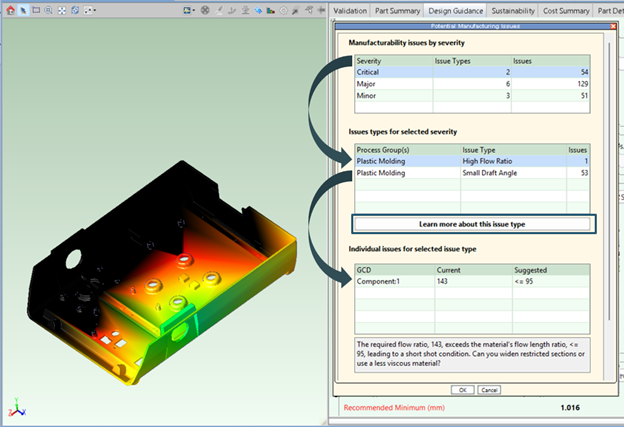
Selecting a GCD in the lower table highlights the issue on the CAD model in the Viewer window so you can visualize the problem. In this example, when you select the Component GCD, the Viewer displays a color-coded material flow simulation which illustrates that the material solidifies before the mold is filled, when gates are located on one edge of the part.
A message panel below the third table provides a short description of the design issue and some suggestions for resolving it.
Major Issues
This shows two GCDs on the part that have a High Blind Hole Depth to Diameter Ratio issue. You can see SimpleHole:21 is highlighted in yellow in the Viewer pane, and the message panel advises reducing that ratio.
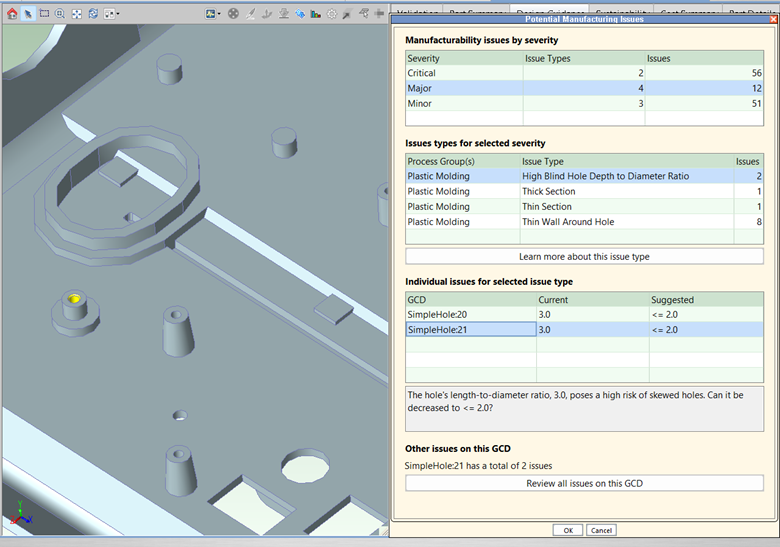
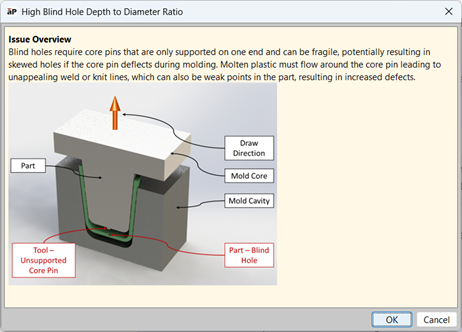
Clicking the button Learn more about this issue type displays a secondary help dialog that typically provides a picture and displays the physics-based root cause of the issue.