A Dynamic roll-up is populated automatically by aP Pro, when the search criteria you specify when creating that roll-up are met. This allows to to re-run that search at any point and see the most up-to-date information for your rollup.
For example, you can use dynamic roll-ups:
-
To track activity associated with projects, users, or process groups over the last 30 days, at defined recurring intervals.
-
For a pre-release engineering Bill Of Materials (BOM) being worked on by your organization's Design team.
-
To work on an engineering BOM that includes many purchased parts currently being quoted from an external supplier.
A Dynamic roll-up can contain parts, virtual parts, and assemblies, but not other roll-ups.
Tip: See also the Perform Dynamic Roll-ups aP Academy training course.
Dynamic or Static Roll-up?
To choose when to use a Dynamic Roll-up or a Static Roll-up, typically:
-
Use Static Roll-ups to give you a greater level of manual control over the contents in a roll-up. Also, you can create a part from scratch using static roll-ups.
-
Use Dynamic Roll-ups when you are working as part of a larger team, all of whom may be working on the same project and updating the contents of the roll-up. This allows you to see the latest version of your roll-up on a dynamic basis.
See Static Roll-ups for more details.
Creating and Editing Dynamic Roll-ups
Dynamic roll-ups are created with a unique name and Digital Factory. The Digital Factory determines the base currency for the Dynamic roll-up. However, a Dynamic roll-up can include components from multiple Digital Factories.
Create a Dynamic Roll-up
-
Select File > New Dynamic Roll-up.
-
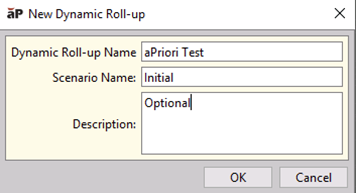
Enter the Name and any other details when prompted, then click OK:
-
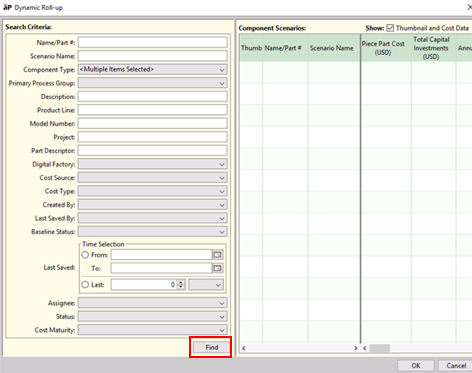
In the Dynamic Roll-up window that appears, enter search filters in the left-hand column, then click Find to run the search:
-
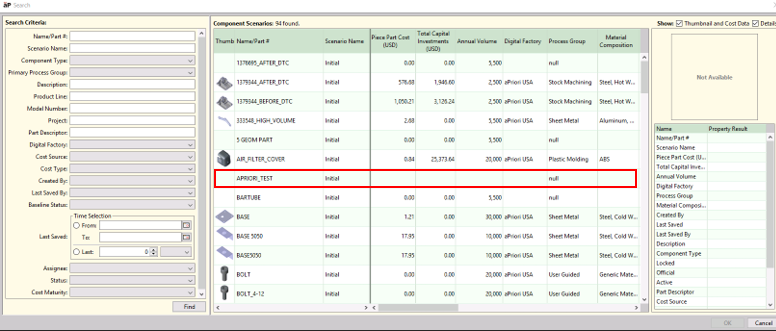
In the search results that appear, select an entry and click OK to open that entry:
-
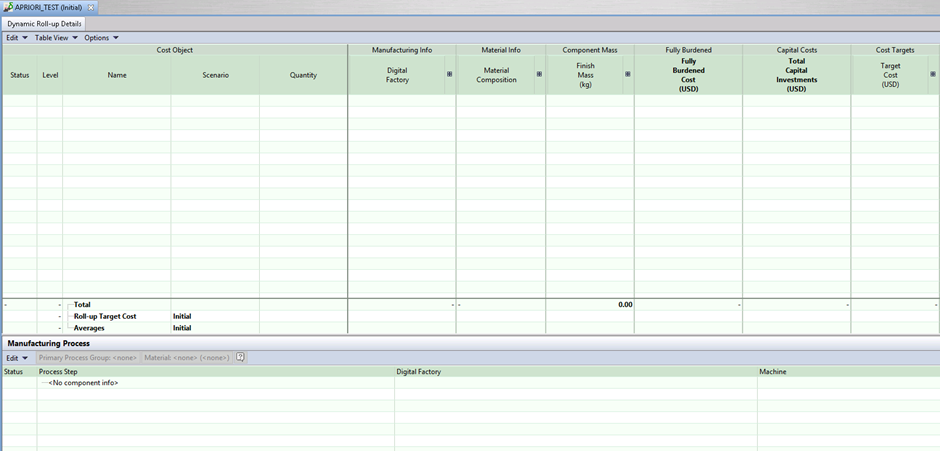
You can now review and edit the results for this entry, in the Dynamic Roll-up Details tab:
Edit a Dynamic Roll-up
-
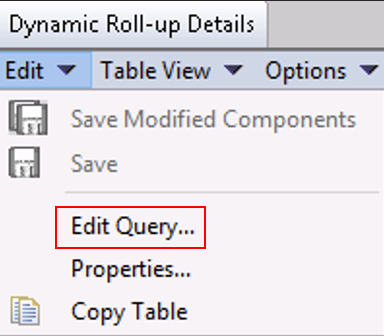
In the Dynamic Roll-up Details tab, select Edit > Edit Query:
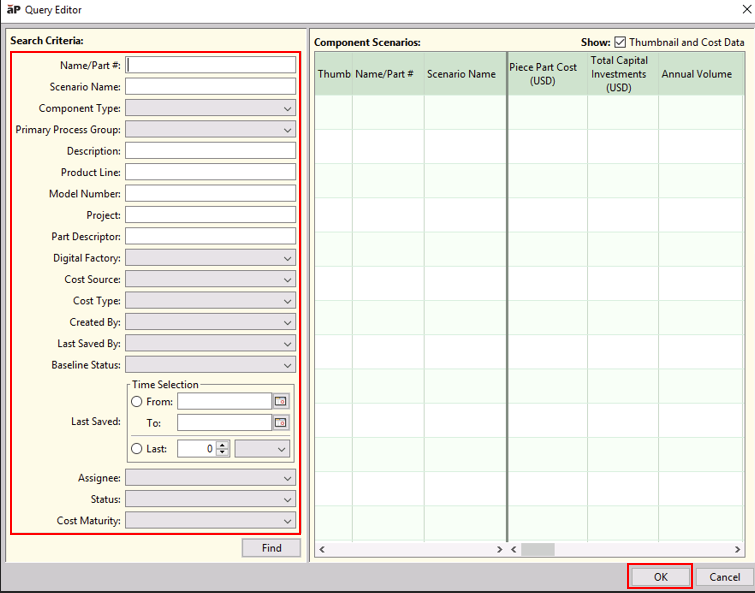
The Query Editor window opens. The Query Editor is identical in function to the Dynamic Roll-up window.
-
Edit your Dynamic Roll-up Criteria to refine your search.
-
Preview and select OK to return the updated list retrieved by your new criteria.
The Status column shows the status of a component’s costing:
-
Green: costing completed successfully.
-
Yellow: costing succeeded with a warning.
-
Red: costing failed.
Refresh View
To refresh the components returned in an open Dynamic roll-up, either close and reopen the Dynamic roll-up, or in the Dynamic roll-up tab, select Edit > Edit Query and select OK in the Query Editor.
Edit Dynamic Roll-up Properties
Edit a component in a dynamic roll-up
-
In the Dynamic Roll-up Details tab, select a component and edit the Manufacturing Process as desired.
-
New cost reflecting the changes is calculated. Red up-arrows indicate values that went up, green down-arrows indicate values that went down. An asterisk appears next to the component’s name to indicate that there are unsaved changes.
-
To save the changes, right-click the component and select Save.
View Previous Values
In the Dynamic Roll-up Details tab:
-
To view last saved values, select Options > Last Saved.
-
Similarly, to view current values, select Options > Current.
View dynamic roll-up components
Double-click a Dynamic roll-up component in the Dynamic roll-up table or in the navigation pane to open it in a new tab.