Log in to aP Workspace
How you log in is defined by your organization. Enter the URL, your Customer Code, and credentials provided by your system administrator.
MFA Login
Your login process may include Multifactor Authentication (MFA) using a second device or Single Sign-On (SSO). See this Support article and our Login Instructions page for more info.
Log in from Cloud Home
- Navigate to the Cloud Home URL and enter your Customer Code (See Additional Information):
- Enter your login credentials as supplied by your system administrator:
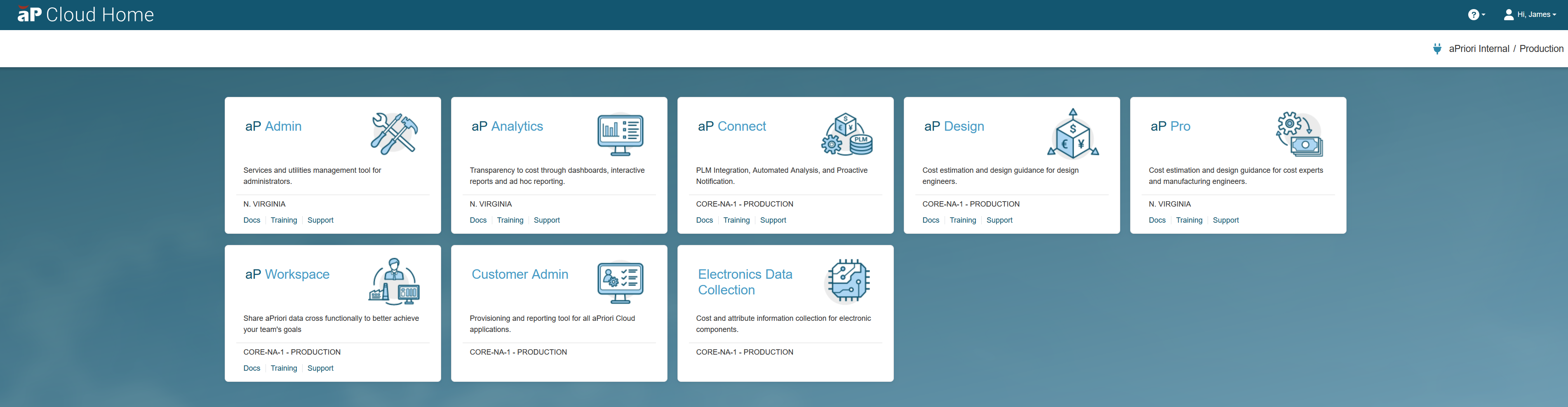
- Select the aP Workspace tile:
Additional Information
Customer Code
Your Customer Code was previously provided in an email from aPriori or by your system administrator. It's required each time you log in.
If you are unsure of your Customer Code, please review the email you received (aPriori Customer Code) or contact your system administrator. For further information on Customer Codes see the following support articles:
Quick access
Use a login link with your Customer Code already included. In Cloud Home, open your user profile (top right), select Customer Details > Copy Link. Use this link whenever you access Cloud Home, avoiding re-entering your Customer Code each time you log in.
MFA options
If your organization requires MFA (Multi-Factor Authentication), select Remember this device for 30 days during login to reduce the number of times you’re prompted for authentication on the same device.
Need help?
Contact your system administrator or visit support.apriori.com for help with any login issues.