File System Integration Physical Configuration Options
For a File System integration, you can connect multiple aP Connect Root Folders to aP Connect. For each aP Connect Root Folder that you want to connect to aP Connect, you must:
- Add and configure one connector in aP Connect.
- Create an aP Connect Root Folder on the PLM server or on a machine or server that you can access, read from, and write to.
- Install and configure one agent on the PLM server or on a machine or server that has full access for and control of the machine or server that contains the aP Connect Root Folder.
- Establish and verify the connectivity and functionality of the integration.
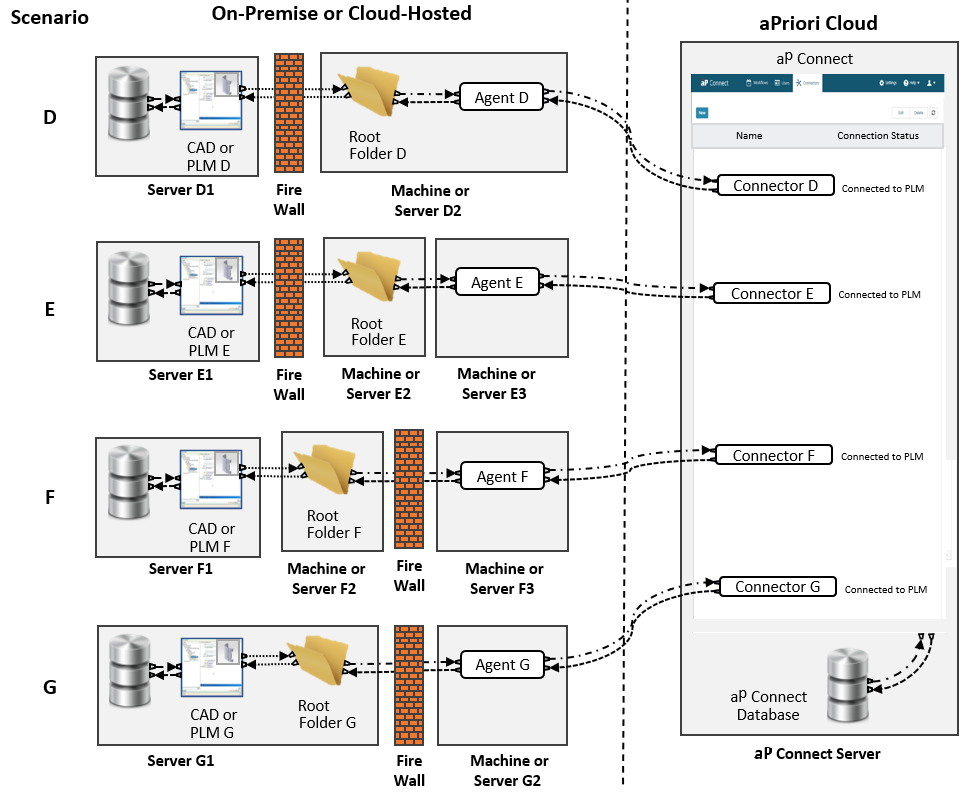
This diagram shows four possible scenarios for a single-agent File System integration.
Note:
- If the aP Connect Root Folder is not located on the machine or server that the Agent is installed on, the machine or server tat the agent is installed on must have full permission for and full control of the machine or server that the aP Connect Root Folder is installed on.
- To facilitate reconfiguring from Scenario E to Scenario F, or vice versa, create your aP Connect Root Folder on a machine or server that is separate from both the Agent and the PLM or CAD system.
- For each scenario, the aP Connect Server is deployed to the aPriori Cloud and there is a one-to-one ratio for agents and connectors:
- D – The Agent and aP Connect Root Folder are on the same machine or server, which is firewalled from the CAD or PLM Server.
- E – The Agent and aP Connect Root Folder are on separate machines or servers that are both firewalled from the CAD or PLM Server.
- F – The Agent and aP Connect Root Folder are on separate machines or servers. The Agent machine is firewalled from both the aP Connect Root Folder machine or server and the CAD or PLM Server.
- G – The aP Connect Root Folder is on the CAD or PLM Server, which is firewalled from the Agent machine or server.
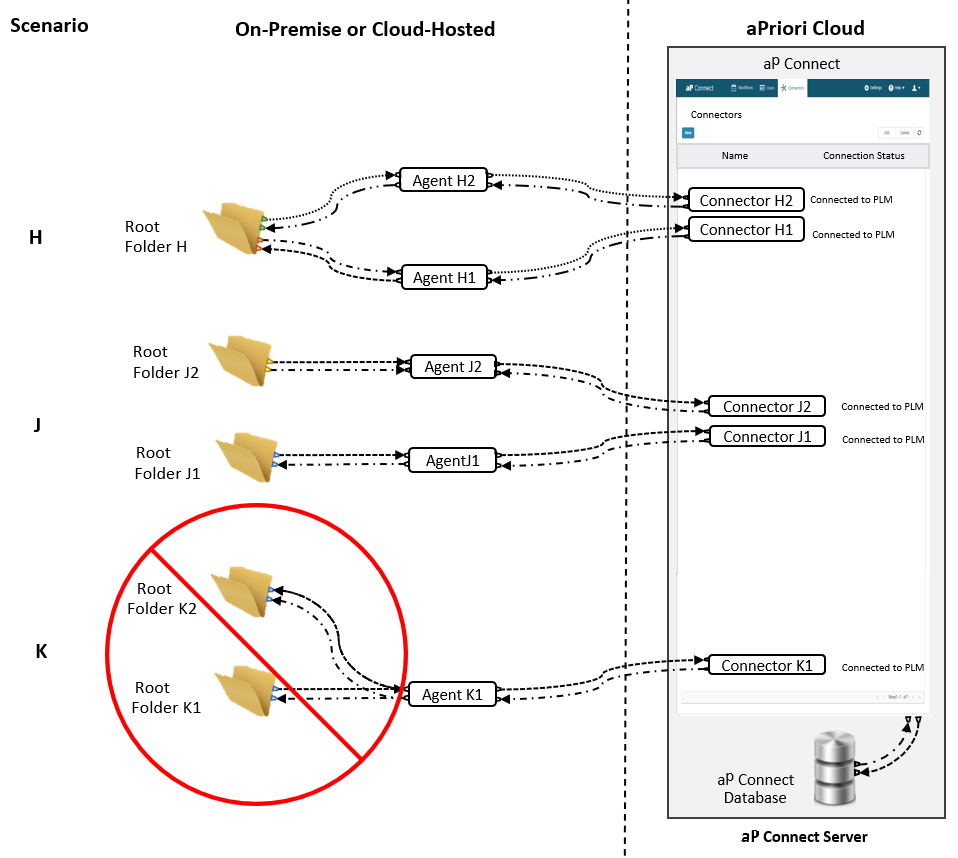
For a multi-agent File System integration:
- There must be a 1:1 ratio for Agents and Connectors.
- Each Agent must connect to only one aP Connect Root Folder.
- Each aP Connect Folder must connect to at least one Agents.
That is, as this figure shows, you can connect two Agents to the same aP Connect Root Folder, as in Scenario H, but you cannot connect one Agent to two aP Connect Root Folders, as shown in scenario K.
Note:
For clarity, the figure does not show:
- The PLM or CAD systems or servers
- The machines or servers that contain the aP Connect Root Folders and Agents
- Firewalls
As shown in Scenario J, a multi-agent File System integration can have a 1:1:1 ratio for aP Connect Root Folders, Agents, and Connectors.
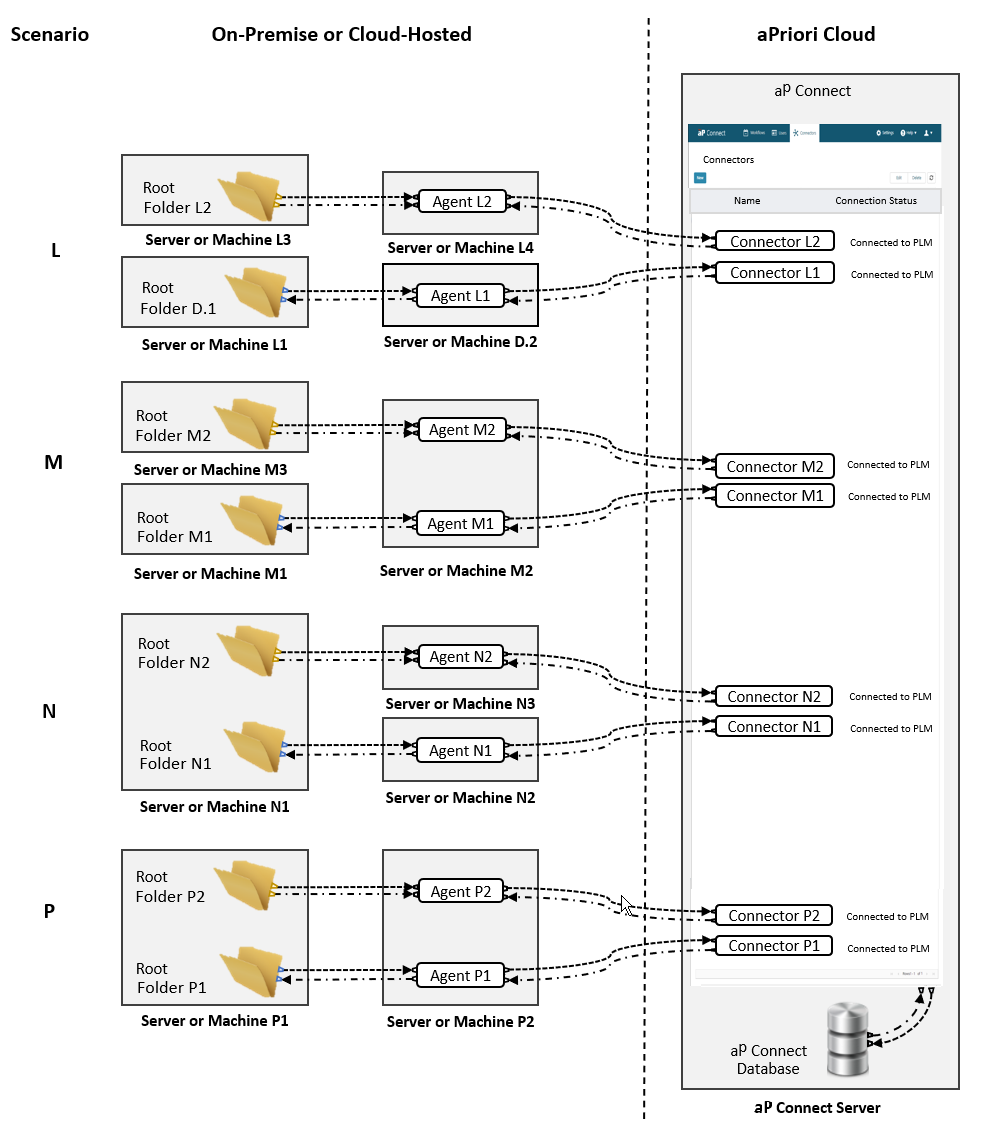
This figure shows four (L, M, N, and P) potential scenarios for a multi-agent File System integration that includes two aP Connect Root Folders, two Agents, and two Connectors.
Note:
- For clarity, the figure does not show any firewalls, PLM or CAD systems, or PLM or CAD servers.
- In each scenario, because the aP Connect Root Folder is not located on the machine or server that the Agent is installed on, the machine or server that the agent is installed on must have full permission for and full control of the machine or server that the aP Connect Root Folder is installed on.
For each scenario, the aP Connect Server is deployed to the aPriori Cloud and there is a one-to-one ratio for agents and connectors:
- L – The aP Connect Root Folders are installed on the same machine or server and the Agents are both installed on a single separate machine or server.
- M – The aP Connect Root Folders are installed on the same machine or server and each Agent is installed on a separate machine or server.
- N – The Agents are installed on the same machine or server and each aP Connect Root Folder is installed on a separate machine or server.
- P – Each Agent and aP Connect Root Folder is installed on a separate machine or server.