Root Folders for File System Integrations
File System integration allows aP Connect Workflows to read from and write to an aP Connect Root Folder that you create on your machine or server. The aP Connect Root Folder stores the inputs, CAD models and other production and manufacturing information (PMI), for the Workflow job.
You create the aP Connect Root Folder as a prerequisite to the File System Agent installation. You also create a Connector in aP Connect as a prerequisite to the File System Agent installation. Then, when you install the Agent, you associate it with both the Connector in aP Connect and the aP Connect Root Folder on your machine or server. When you create a Workflow that uses the Connector that is associated with the Agent, aP Connect populates the aP Connect Root Folder with a subfolder named <WorkflowName> where WorkflowName is the name of the newly created Workflow. The <WorkflowName> subfolder contains these two subfolders:
- inputs – The inputs folder contains a:
- Subfolder that is named cad-files – Folder for storing CAD models for aP Design analyses.
- Spreadsheet that is named cig-input.xlsx – Spreadsheet for storing production and manufacturing inputs for aP Design analyses.
- outputs – Folder for storing production and manufacturing outputs for aP Design analyses.
Note
For File System integrations, aP Connect assumes UTC as the time zone when it reads input data of the Date Time data type from Excel spreadsheets. Therefore, if you map an aP Connect field to a PLM Field for Date Time data, the data for the corresponding field in aPriori applications, such as aP Design and aP Pro (via AppStream), may display differently than the data in the corresponding PLM Field in the Excel Spreadsheet that is in the input folder of the Root Folder. aP Design displays the data in your browser local time, and aP Pro (via AppStream) displays the data in your preferred time zone as set through Regional Settings. For more information, see the documentation for using AppStream for aP Pro.
For example, the figure shows a root folder that is named Root Folder. It contains a folder for a Workflow that is named Workflow. The Workflow folder contains an inputs subfolder and an outputs subfolder. The inputs subfolder contains a subfolder for CAD-files and a spreadsheet for manufacturing and production inputs.
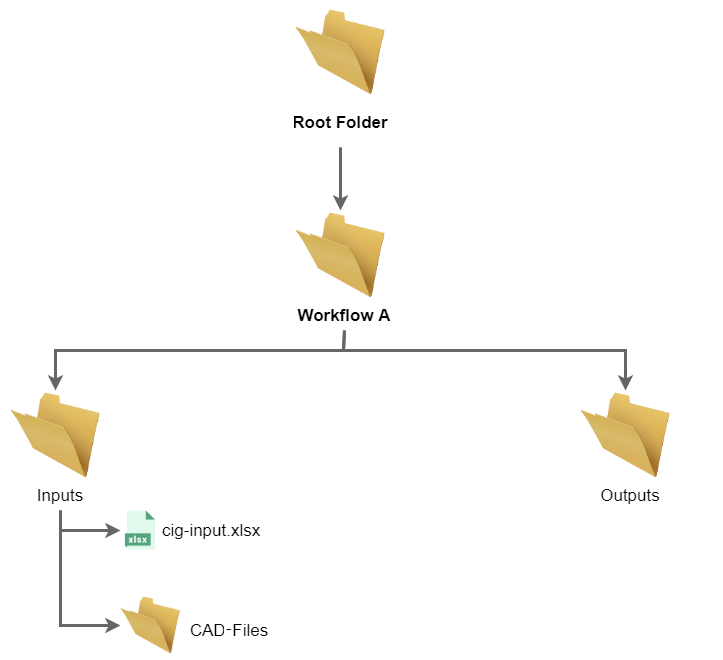
Before you can run the Workflow, you must manually add relevant:
- CAD files to the CAD-files subfolder
- Production and manufacturing information to the cig spreadsheet
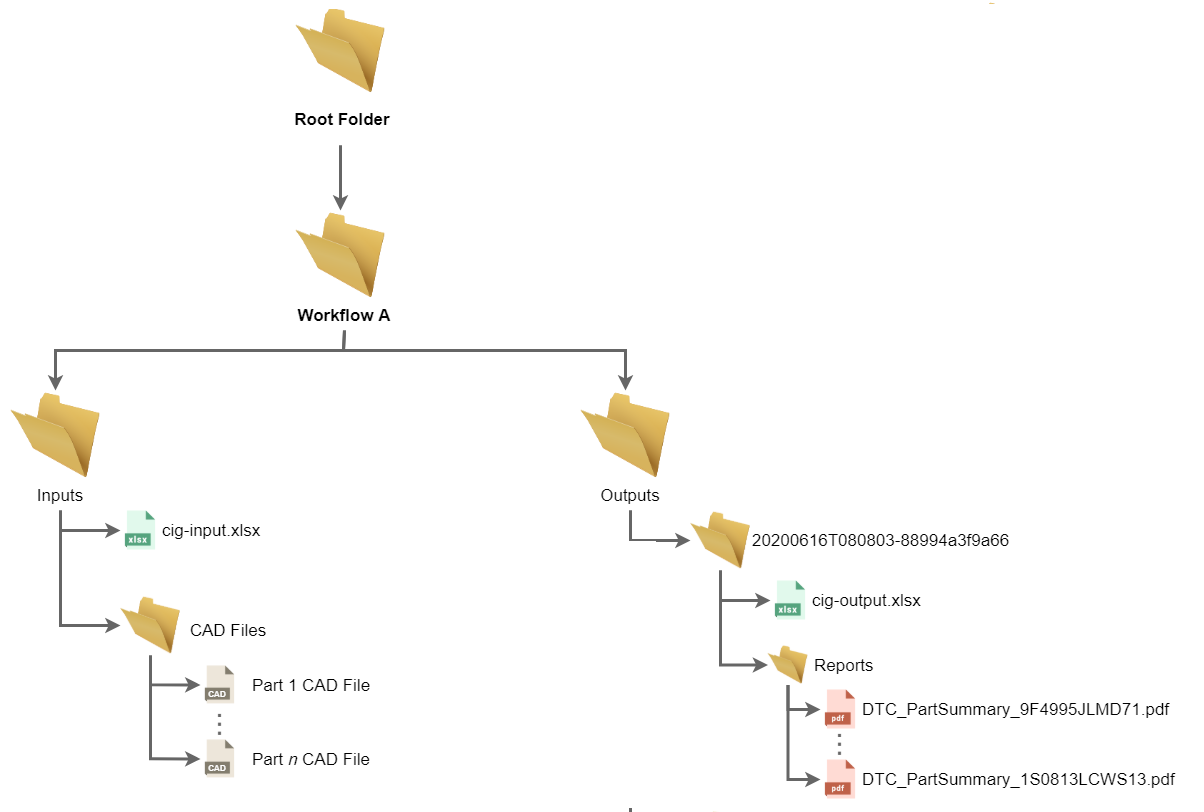
This figure shows that, after you run the Workflow, in accordance with the Workflow action settings, aP Connect writes a spreadsheet that contains relevant outputs and selected reports to the outputs folder.
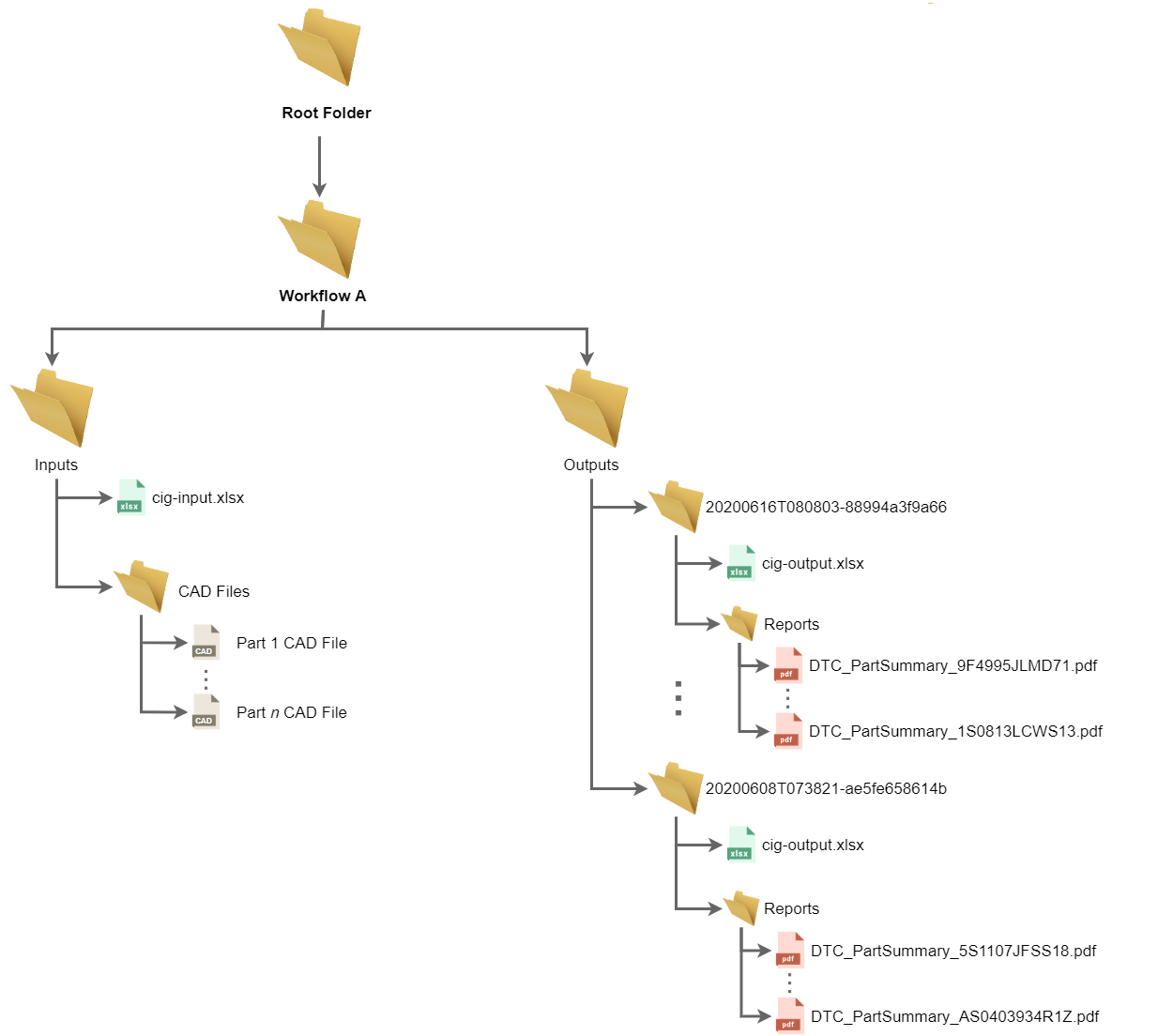
This figure shows that aP Connect creates and populates an additional outputs folder each time the Workflow runs.
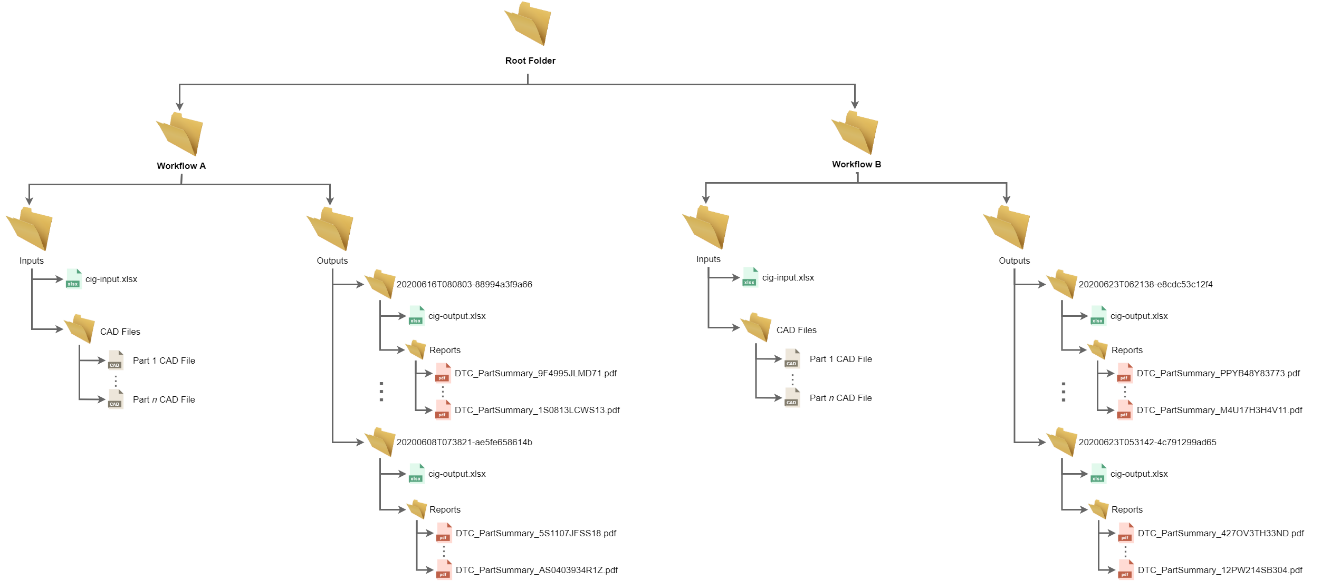
As this figure shows, aP Connect creates an additional Workflow folder for each Workflow that uses the Connector that is associated with the Agent that is associated with the root folder on your machine or server.