Edit a Connector
You can edit aP Connectors, but due to potential downstream issues, you cannot delete pre-existing mappings or edit these settings for a pre-existing Connector:
- The Type in the Details settings
- The aP Connect Field, Usage, or Data Type for a pre-existing mapping in the Mappings settings.
You can:
- Modify the Connector name and description. If you modify a Connector name, Connector name is automatically updated in any associated Workflows.
- Modify the PLM Field for any pre-existing mappings.
- Add mappings for Standard Fields or Additional PLM Fields.
Edit a Connector:
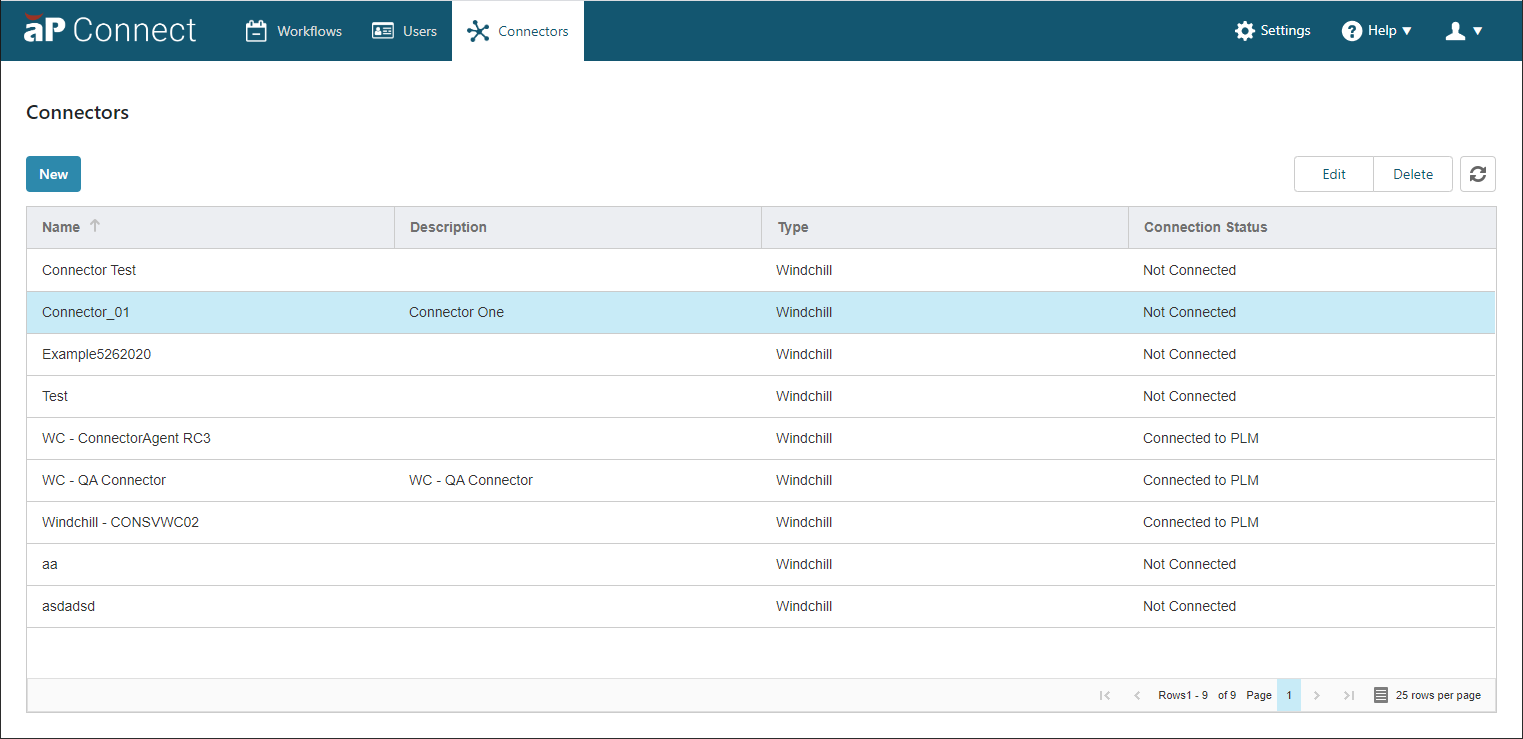
- Open the Connectors page. In the aP Connect header bar, click Connectors.
-
In the Connectors page, navigate to and select the Connector that you want to edit.
-
Click Edit.
-
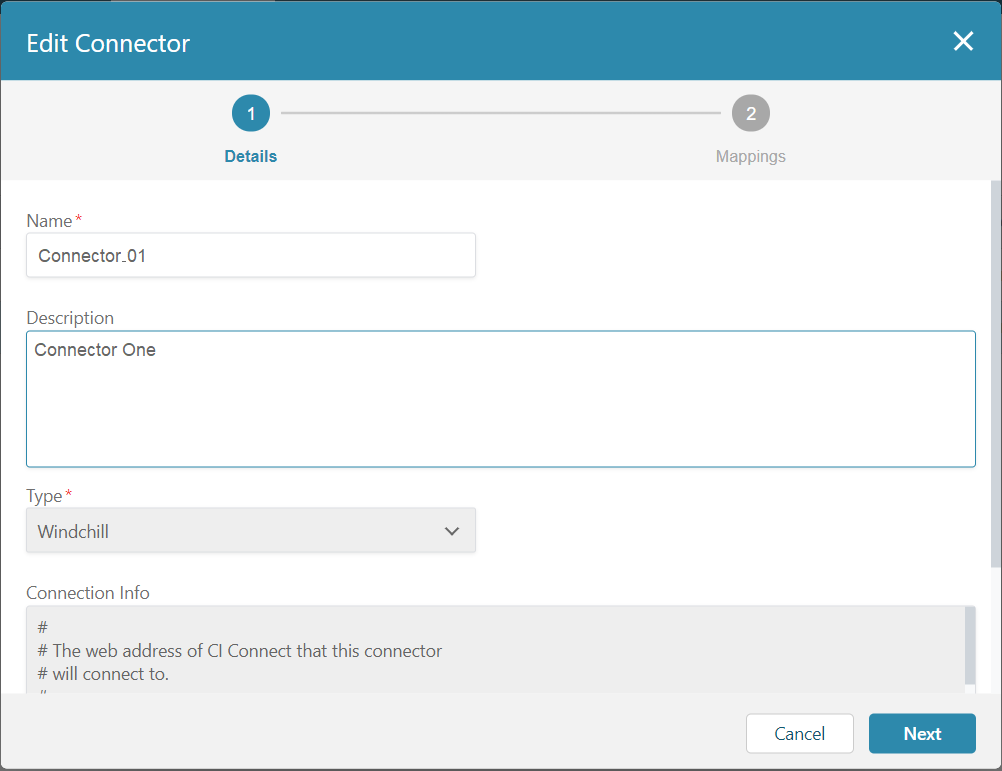
The edit Connector window opens to the Details settings. To edit the Connector Name or Description, modify or overwrite the pre-existing value.
You cannot edit the Type or the Connection Info.
-
Click Next.
-
The Mapping settings open to the Standard Fields tab.
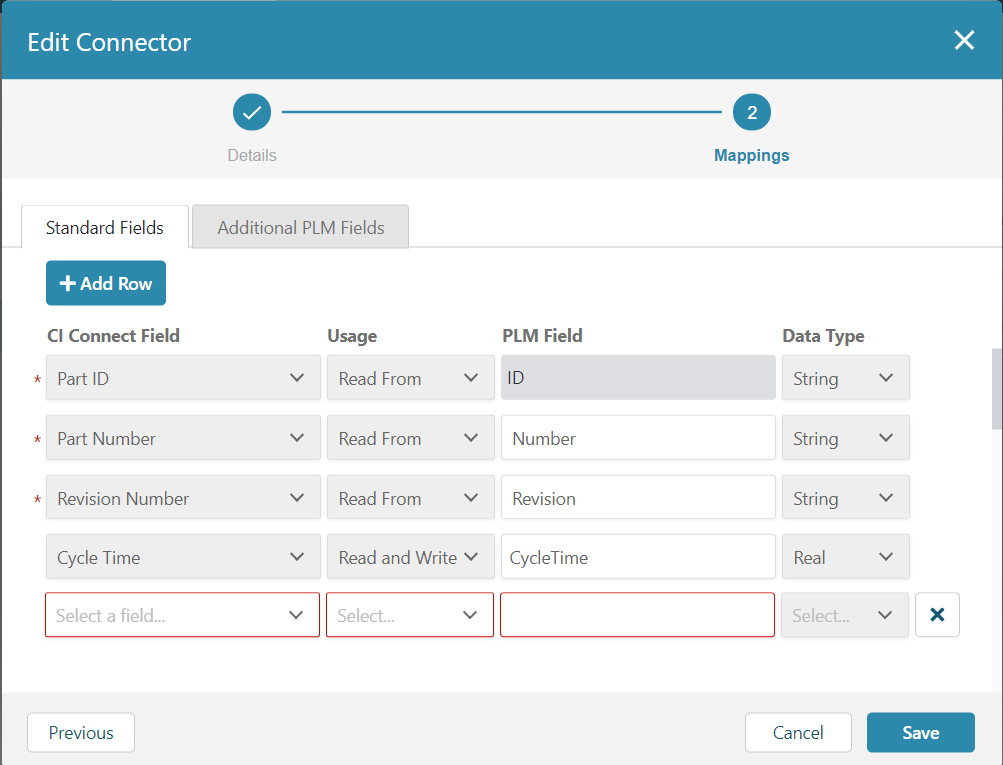 To edit the PLM Field for a pre-existing mapping – Modify or overwrite the value in the field. The new value must be different than the PLM Field value for other mappings because multiple aP Connect Fields can map to only one PLM Field.
To add a new mapping – Click Add a Row and then configure these settings:
To edit the PLM Field for a pre-existing mapping – Modify or overwrite the value in the field. The new value must be different than the PLM Field value for other mappings because multiple aP Connect Fields can map to only one PLM Field.
To add a new mapping – Click Add a Row and then configure these settings:-
aP Connect Field – Name for the mapped field in the aP Connect database. Select the value from the dropdown menu. The value must be different than the aP Connect Field value for mappings of other Standard Fields or Additional PLM Fields because multiple PLM Fields cannot map to the same aP Connect Field.
-
PLM Field – Name for the mapped field in the PLM database. Enter the value in the field.
-
Usage – Whether aP Connect reads data from, writes the data to, or can both read the data from and write the data to the PLM database field. Select the value from the dropdown menu.
The Data Type for standard Cost Insight fields is automatically set as a function of the value that you select for the aP Connect Field. Possible data types are String, Number, Date Time, Integer, or Email.
NOTES
-
You cannot delete or edit the aP Connect Field, Usage, or Data Type setting for a pre-existing mapping.
-
If you want to write data to a field in your PLM system, you must map the field with Usage set to Write To or Read and Write in the Mappings settings of the Connector that you associate with the Workflow.
-
-
To edit mappings for non-standard fields, click the Additional PLM Fields tab.
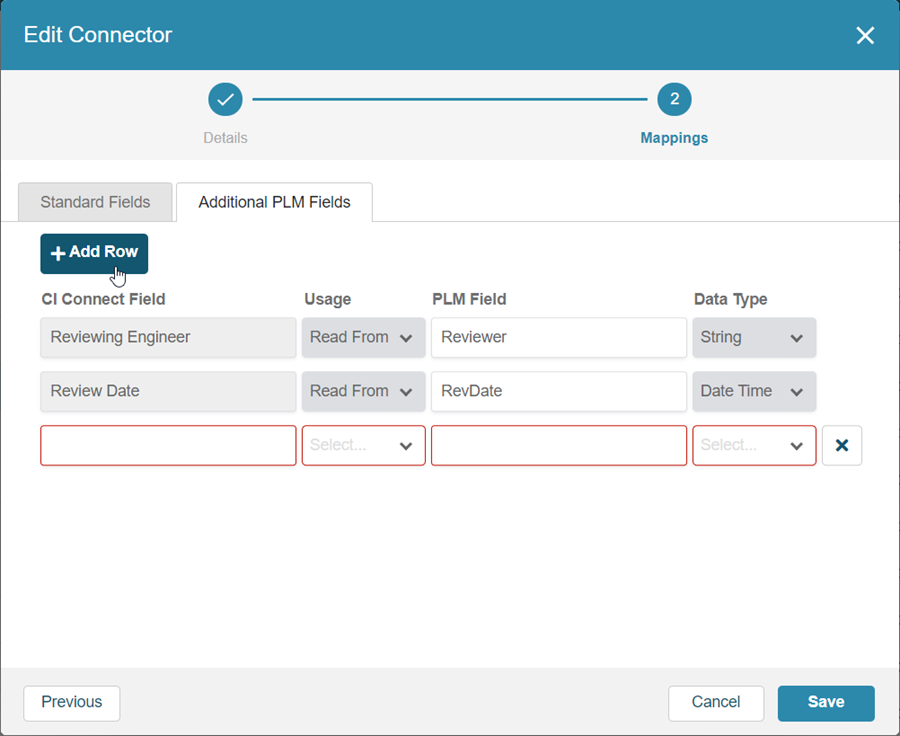 To edit the PLM Field for a pre-existing mapping – Modify or overwrite the value in the field. The new value must be different than the PLM Field value for other mappings.
To add a new mapping – Click Add a Row and then enter or select values for each of these settings:
-
aP Connect Field
-
PLM Field
-
Usage
-
Data Type
Note:
You cannot delete or edit the aP Connect Field, Usage, or Data Type setting for a pre-existing mapping.
-
-
To save the edited Connector, click Save.