Publish Workflow Results
When you create or edit a Workflow, you can use the Publish Results settings to configure the Workflow to write data to your PLM or File System. However, you can write data only to fields that are mapped, with Usage set to Write To or Read and Write, from your PLM or File System to an aP Connect Field in the Mappings settings of the connector that is associated with the Workflow.
By default, the components for which data is written are the components that meet the criteria that is defined by the Workflow query definition. However, if you want to write data for only some of the components that meet the Workflow query definition criteria, you can define and apply a filter.
For a PLM Integration, you can also configure a Workflow to generate and attach a DTC Part Summary to your PLM system on a part-by-part level. For more information, see DTC Part Summary Report.
For a File System Integration, you can also configure a Workflow to generate and attach a DTC Part Summary Report, Part Cost Report, or Part Carbon Report to your File System on a part-by-part level. For more information, see DTC Part Summary Report, Part Cost Report and Part Carbon Report.
Note:
To view the data in a Part Cost Report or Part Carbon Report you may have to enable the spreadsheet for editing.
Likewise, by default, the components for which reports are generated are the components that meet the criteria that is defined by the Workflow query definition. However, if you want reports generated for only some of the components that meet the Workflow query definition criteria, you can define and apply a filter.
The figure shows the default states of the Write Fields, Attach Report, and Filter tabs in the Publish Results settings.
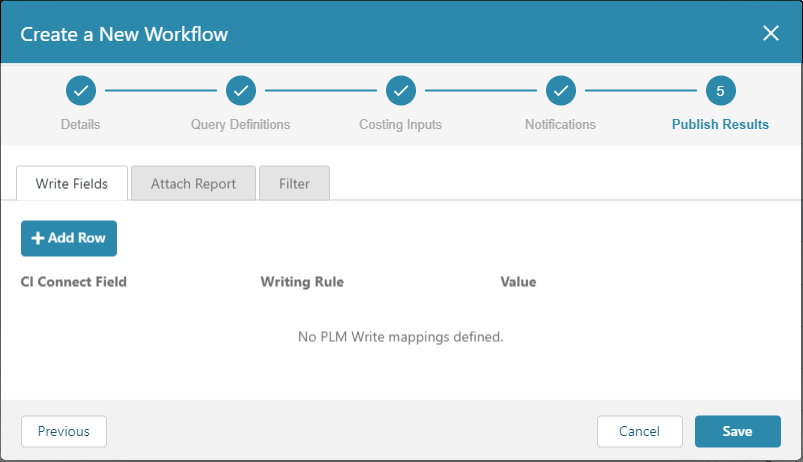
To configure a Workflow to send a write data or attach a report to your PLM or File System use these tabs in the Publish Results settings:
- Write Fields – Specify the fields that you want to write data to and choose between writing the Workflow generated value or a specified constant value.
- Attach Report – Optionally, configure and attach a single part report to your PLM or File System.
- Filter – Optionally, create a filter that determines which components have data written to them and reports generated about them.
Write Fields Settings
A Workflow can write data to a field in your PLM or File System if the field is mapped to an aP Connect Field and has Usage set to Write to or Read and Write in the Mappings settings of the Connector that is associated with the Workflow. When you create or edit a Workflow that uses a Connector that has mappings for writeable fields, you can use the Write Fields tab in the Publish Results settings to configure the Workflow to write data to your PLM or File System.
This figure shows how the settings appear after the first row is added to the Write Fields tab in the Notifications settings.
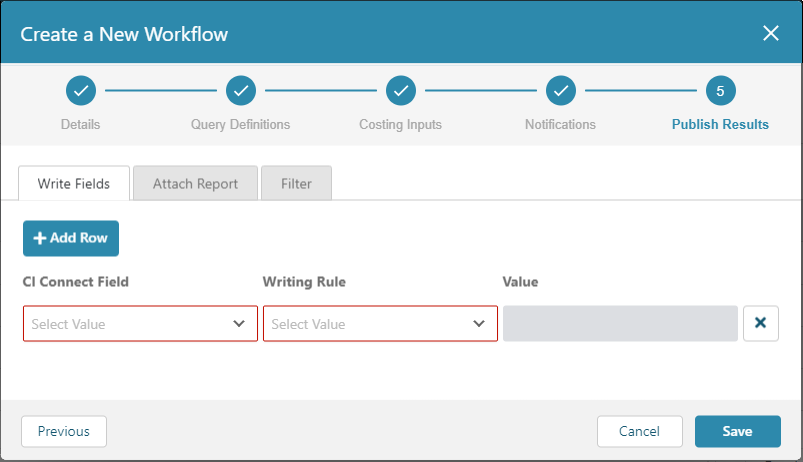
The settings on the Write Fields tab are:
- aP Connect Field – Dropdown menu options correspond to the aP Connect fields that are mapped, with Usage set to Write To or Read and Write, in the Mappings settings of the Connector that is associated with the Workflow.
-
Writing Rule – Rule that determines the source of the value that the Workflow writes to your PLM or File System. There are two options:
-
Workflow Generated Value – The Workflow writes the value that is determined by aP Design.
-
Constant – The Workflow writes the value that you specify in the Value field.
-
Value – Enabled only if Writing Rule fs set to Constant. Specify the value that you want the Workflow to write back to your PLM or File System.
Attach Report Settings
When you create or edit a Workflow for a PLM system, you can configure a workflow to generate and attach a DTC Part Summary report back to your PLM system on a part-by-part level. When you create or edit a Workflow for a File System Integration, you can configure the workflow to generate either a DTC Part Summary Report, a Part Cost Report, or Part Carbon Report back to your File System on a part-by-part level.
To configure a Workflow to attach a report back to your PLM or File system, use the Attach Report tab in the Publish Results settings.
This figure shows the default settings for the Attach Report tab in the Publish Results settings.
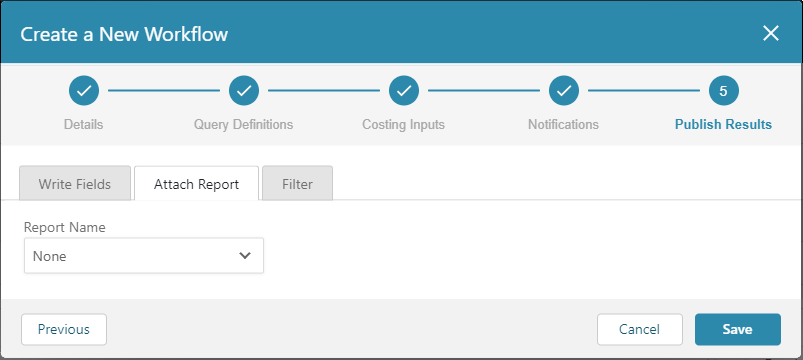
The Report Configuration settings are:
-
Report Name – The options are:
-
None – The Workflow does not attach a report to your PLM or File System.
- DTC Part Summary – The Workflow generates and attaches a DTC Part Summary report to your PLM or File System.
- Part Cost – The Workflow generates and attaches a Part Cost report to your file system.
-
Part Carbon – The Workflow generates and attaches a Part Carbon report to your file system.
-
Report Configuration – Available only if Report Name is set to DTC Part Summary.
-
Currency Code – Display currency. Available only if Report Name is set to DTC Part Summary.
- Cost Rounding – Option to round the cost to the nearest integer. Available only if Report Name is set to DTC Part Summary.
Note:
To view the data in a Part Cost Report or Part Carbon Report, you may have to enable the spreadsheet for editing.
Filter Settings
When you create or edit a Workflow, if the Workflow is configured to write fields or attach reports to your PLM or File System, you can define a filter on the Filter tab in the Publish Results settings. The filter determines which of the components that meet the Workflow Query Definitions criteria have data written to them or reports generated about them.
This figure shows the default settings for the Filter tab in the Publish Results settings.
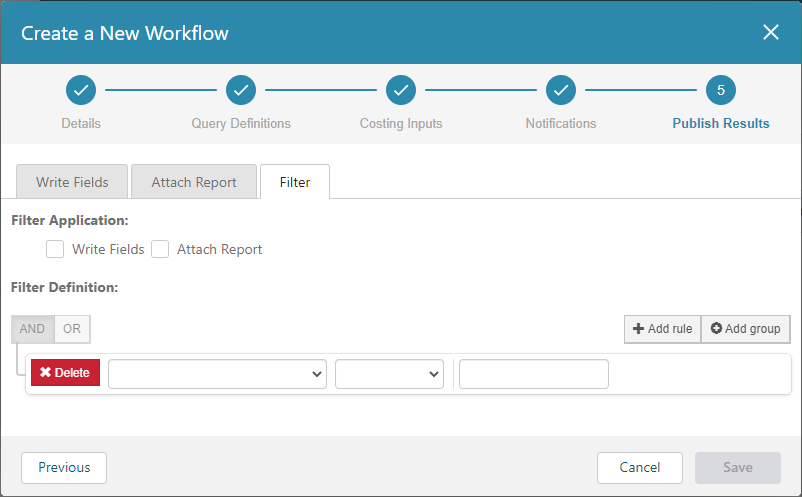
To apply the filter that determines the components that data is written to, select the Write Fields check box. To apply the filter that determines the components that reports are generated for, select the Attach Report check box. To apply the filter to both the Write Fields and Attach Report actions, select both checkboxes.
To build the query statements that define the filter, you can use AND operators, OR operators, and nesting. For each query statement in the filter, select a property, select an operator, and specify a value.