Managing Workflows
aP Connect Workflows allow you to automate and schedule processes in the aP Generate solution. The figure shows the aP Generate architecture for a PLM integration.
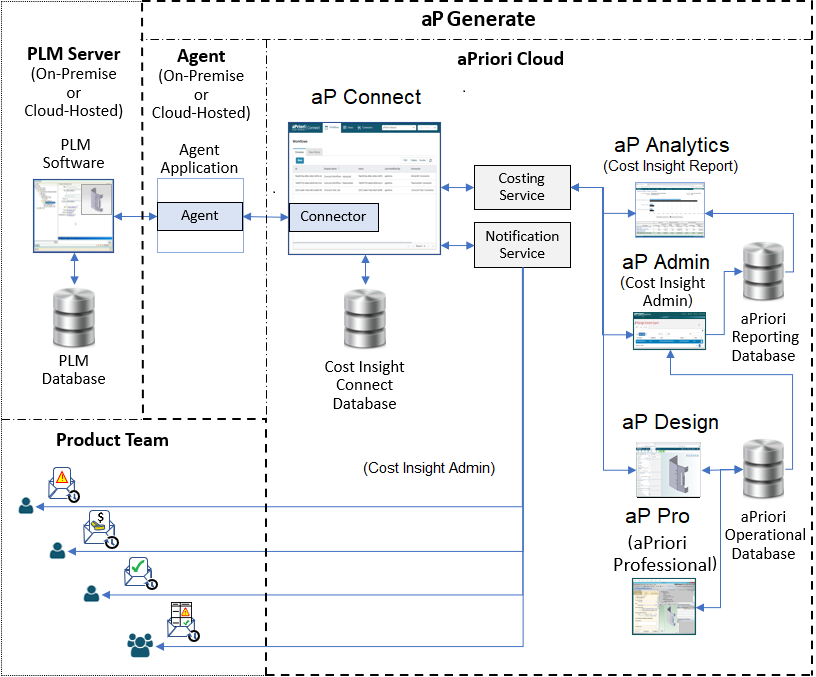
Workflows can automatically
- Fetch data from the PLM database (or for a File System integration, a Cost Insight Root Folder).
- Cost components in aP Design.
- Export cost results to aP Analytics via aP Admin.
- Generate reports in aP Analytics.
- Notify the product team about the results of the cost analysis and about any design issues.
-
Write cost and design data to the PLM database (or for a File System integration, a Cost Insight Root Folder).
Note:
For PLM integrations, to ensure that aP Connect does not write attributes that are out of sync with the current version of a component, if the CAD model or attributes for a component have been updated after a Workflow that is configured to write back attributes for the component has been initiated but before the Workflow has written back the attributes, the Workflow will not write back the attributes.
Workflow management includes:
-
Creating Workflows – For each Workflow that you create, you must configure the Workflow details, define a query, and specify actions.
In the Details settings, you must provide a name and associate a Connector for the Workflow. You can also provide a description, configure a schedule, and enable the Workflow to run in accordance with the schedule. Alternately, you can disable the schedule so that it executes only when manually invoked.
The query that you define in the Query Definition settings determines which components the Workflow pulls from your PLM system for costing. You build queries using conjunction (AND) and disjunction (OR) logic statements using aP Connect fields that are mapped to PLM fields by the Connector that is associated with the Workflow.
The actions that you select in the Notifications settings determine what aP Connect does with the costing results. For example, you can choose to have aP Connect generate a report, send an email notification, or write data back to the PLM system.
Optionally, you can also configure mapping rules and supply default values for costing input fields in the Costing Inputs settings.
-
Invoking Workflows – Manually executing Workflows.
- Reviewing Workflow job details – Viewing the Workflow history to examine the status and results for the component costings.
- Editing Workflow settings – You can change edit all settings except for the associated Connector.
-
Deleting Workflows – As required by project or system updates, you can easily delete a Workflow.
Note:
You can handle some management processes by using either aP Connect or the aP Connect Agent REST API. For more information, see the aP Connect Agent REST API Reference Guide.