Edit a Workflow
You can edit Workflows. However, you cannot edit Workflow that is Locked. aP Connect locks Workflows that are executing to prevent changes that can impact the Workflow configuration or diminish the execution performance.
For a pre-existing Workflow, you also cannot change the associated Connector. Otherwise, you can modify any setting when you edit the Workflow.
Edit a Workflow:
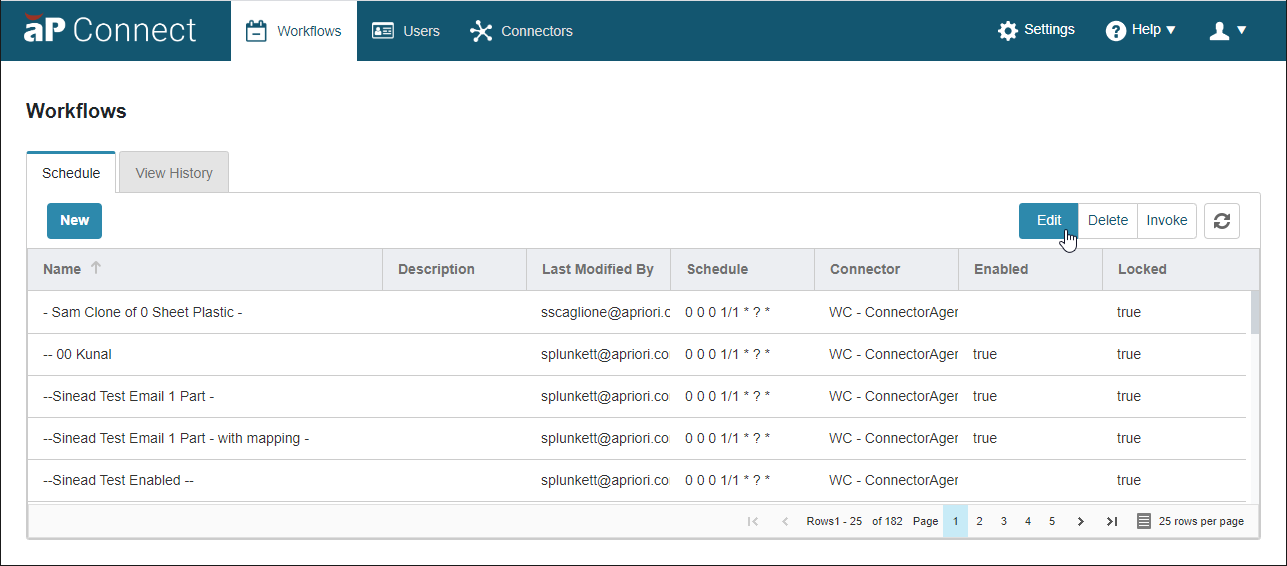
- Open the Workflows page. In the aP Connect header bar, click Workflows.
- Open the Schedule tab. Click Schedule.
-
Scroll or sort to and then select the row that contains the Workflow that you want to edit.
The selected row becomes blue.
Note:
You cannot edit a locked Workflow.
-
Click Edit.
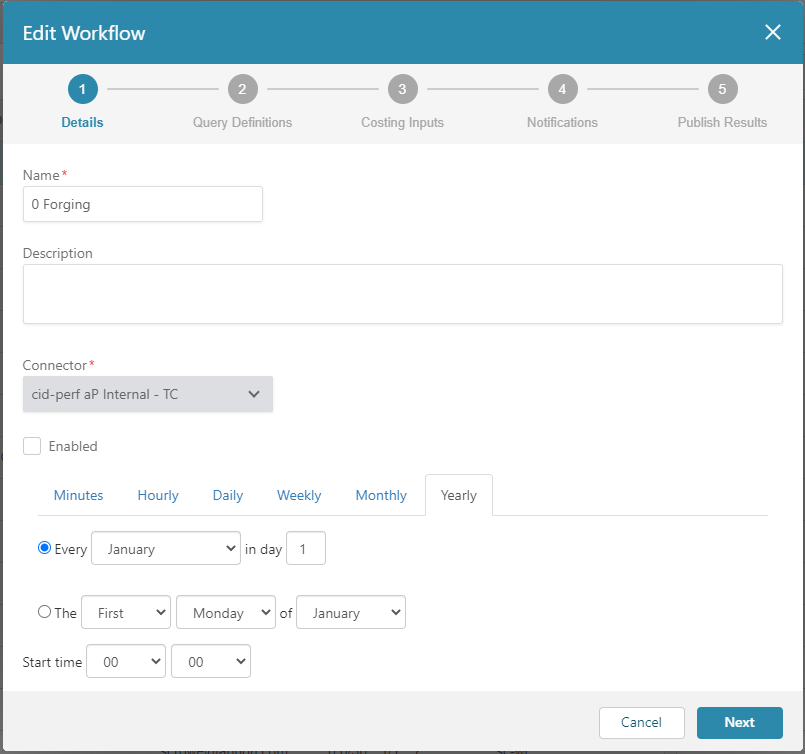
The Edit Workflow window opens.
Note:
The Connector is greyed out because you cannot change an associated Connector.