Workflow Details
When you create a Workflow the first settings that you configure are the Details settings.
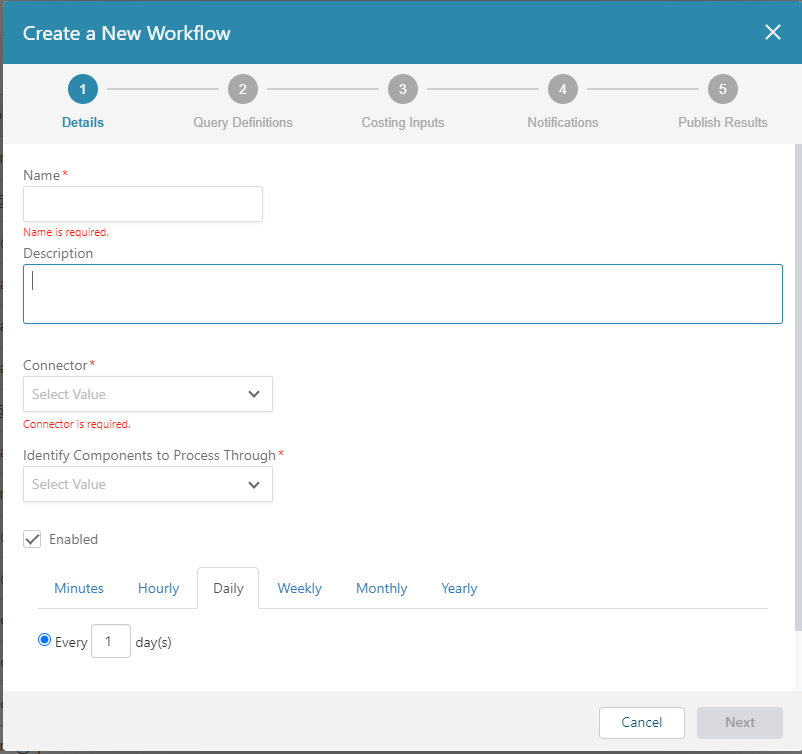
In the Details settings, you must assign a Name to the Workflow. You also have the option of entering a Description for the Workflow.
You must associate a Connector to the Workflow. The Connectors that are available are the PLM and File System connectors that have already been created by you or another System Administrator in aP Connect. The Connector maps PLM attribute fields to aP Connect attribute fields.
The Details settings also includes the Identify Components to Process Through field, a mandatory field via which you select the method that the Workflow will use to identify components. If the Connector that you select is a:
- PLM System Connector – The Workflow can select components by using either a Query Definition or a REST API Request.
- File System Connector the Workflow selects components from an Input Spreadsheet. Optionally, you can enable or disable the Workflow. An enabled Workflow executes automatically in accordance with the Workflow schedule. A disabled Workflow executes only if it is manually invoked.
You can also configure a recurring schedule for the Workflow in the Details settings. The schedule frequency options are Minutes, Hourly, Daily, Weekly, Monthly and Yearly. The default schedule is a Daily schedule that starts at 00:00 and executes every day. All start times correlate to the server local time.
Using a Workflow Schedule that is Based on Minutes
There is one option for a schedule frequency based on Minutes.
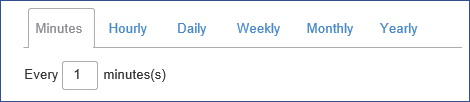
The start time is constant at 00:00:00.
In variable terms, the Workflow is scheduled to run every x minutes, where x is a positive integer and the default value for x is 1.

Therefore, by default, the Workflow starts the first run at 00:00:00 the morning after it is enabled. The second run starts at 00:01:00 (12:01 am) and a new run starts at one-minute intervals thereafter.
To change the schedule, enter a different number in the dialog box. For example, to schedule a Workflow run to start every twenty minutes, enter 20 in the dialog box. Per the new value, the Workflow starts the first run at 00:00:00 the morning after it is enabled. The second run starts at 00:20:00 (12:20 am) and a new run starts at twenty-minute intervals thereafter.
Using an Hourly Workflow Schedule
There are two options for an hourly schedule frequency.
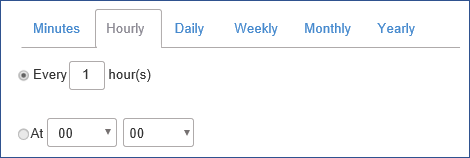
The Hourly options are:
-
Every [1] hour(s) – In variable terms, the Workflow is scheduled to run every x hours, where x is a positive integer and the default value for x is 1.
 The start time is constant at 00:00:00.
Therefore, by default, the Workflow starts the first run at 00:00:00 the morning after it is first enabled. The second run starts at 01:00:00 (1:00 am) and a new run starts at one-hour intervals thereafter.
To change the schedule, enter a different number in the dialog box. For example, to schedule a Workflow to start a run every three hours, enter
3in the dialog box. Per the new value, the Workflow starts the first run at 00:00:00 the morning after it is enabled. The second run starts at 03:00:00 (3:00 am) and a new run starts at three-hour intervals thereafter. -
At [00] [00] – In variable terms, the Workflow is scheduled to run every day, at h:m, where h represents the hours and m represents the minutes of a 24-hour clock.
 The default value is for h:m is 00:00. Therefore, by default, the Workflow is scheduled to run every day at 00:00:00.
To change the schedule, use the dropdown menus to select new values for the hour and minute. For example, to schedule the Workflow to start a run at 17:45:00 (5:45 pm) every day, select 17 for the hours (h) and 45 for the minutes (m) from the Start time dropdown menus.
Using a Daily Workflow Schedule
There are two options for a daily schedule frequency.
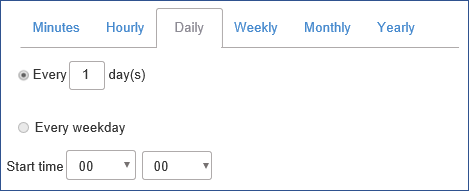
The Start time [00] [00] applies to both Daily options. In variable terms, the Start time is h:m, where h represents the hours and m represents the minutes of a 24-hour clock.

The default value is for h:m is 00:00. Therefore, by default, the Workflow starts each designated run at 00:00:00.
You can select a new start time by using the Start time dropdown menus.
For example, to schedule the Workflow to run at 17:45:00 (5:45 pm) instead of 00:00:00, select 17 for the hours (h) and 45 for the minutes (m) from the Start time dropdown menus.
The Daily options are:
-
Every [1] day(s) – In variable terms, the Workflow runs every x days, where x is a positive integer and the default value for x is 1.
 Therefore, by default, the Workflow starts the first run at 00:00:00 the morning after it is enabled. It starts the second run at 00:00:00 on the next morning and runs at 00:00:00 on each morning thereafter.
To change the schedule, enter a different number in the dialog box. For example, to run the Workflow every three days, enter
3in the dialog box. Per the new value, the Workflow starts the first run at 00:00:00 the morning after it is enabled. It starts the second run at 00:00:00 in the morning three days later and runs every three days at 00:00:00 in the morning thereafter.If you also select a different Start time the Workflow starts at the new time on each day that it is scheduled to run.
-
For example, to schedule the Workflow to start the daily run at the end of the day (23:59:00), instead of at 00:00:00 in the morning, select 23 for the hours (h) and 59 for the minutes (m) from the Start time dropdown menus.
-
Every weekday – The Workflow is scheduled to run once a day on each weekday (Monday, Tuesday, Wednesday, Thursday, and Friday). The Workflow is not scheduled to start a run on weekend days (Saturday and Sunday).
 Therefore, by default, the Workflow starts the first run at 00:00:00 in the morning on the first weekday after it is enabled. It then starts a new run at 00:00:00 in the morning on every weekday thereafter.
If you also select a different Start time the Workflow starts at the new time on each weekday.
For example, to schedule the Workflow to start a run at the end of the day, instead of at 00:00:00 in the morning, Monday through Friday, set the Start time to 23:59.
Using a Weekly Workflow Schedule
The weekly schedule frequency allows you to schedule a Workflow to start a run at the same time on one or more days of the week, every week.
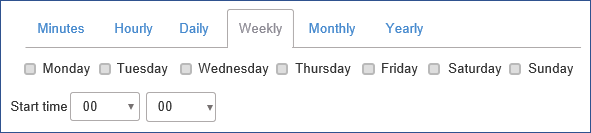
To configure a schedule to start a Workflow run on a weekly basis, select the check box for one or more days. The Workflow is then scheduled to run once per selected day.

For example, to schedule the Workflow to run every Wednesday and Friday select the checkboxes for Wednesday and Friday
The Start time [00] [00] applies to each day that you select. In variable terms, the Start time is h:m, where h represents the hours and m represents the minutes of a 24-hour clock.
The default value is for h:m is 00:00. Therefore, by default, the Workflow is scheduled to run at 00:00:00 in the morning of each selected day.
You can select a new start time by using the Start time dropdown menus.
For example, to schedule the Workflow to start the daily run at the end of the day (23:59:00), instead of at 00:00:00 in the morning, select 23 for the hours (h) and 59 for the minutes (m) from the Start time dropdown menus.
Using a Monthly Workflow Schedule
There are two different options for a monthly schedule frequency.
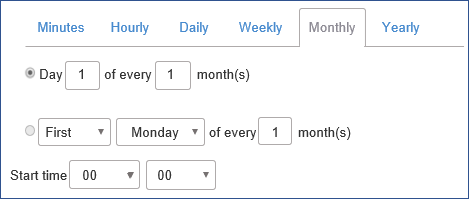
The Start time [00] [00] applies to both Monthly options. In variable terms, the Start time is h:m, where h represents the hours and m represents the minutes of a 24-hour clock.
The default value is for h:m is 00:00. Therefore, by default, the Workflow starts each designated run at 00:00:00.
You can select a new start time by using the Start time dropdown menus.
For example, to schedule the Workflow to run at 17:45:00 (5:45 pm) instead of 00:00:00, select 17 for the hours (h) and 45 for the minutes (m) from the Start time dropdown menus.
The Monthly options are:
-
Day [1] of every [1] month(s) – In variable terms, the Workflow runs on day a day of the month, every b months, where:
-
a is a positive integer with an upper range of 31.
Caution:
If you enter a value that is greater than 31, an error is generated when you try to save the Workflow.
-
b is a positive integer.
 The default value for both a and b is 1.
Therefore, by default, the Workflow is scheduled to run at 00:00:00 in the morning of first day of every month.
To change the schedule, enter a different number in the dialog boxes. For example, to run the Workflow every fourth month, on the 28th day of the month:
-
Enter
28in the first (a) dialog box. -
Enter
4in the last (b) dialog box. Per the new schedule, the Workflow starts the first run at 00:00:00 in the morning on the 28th day in the fourth month after it is enabled. It starts the next run four months later, at 00:00:00 in the morning of the 28th day in the month.If you also select a different Start time the Workflow starts at the new time on each day that it is scheduled to run.
For example, to schedule the Workflow to start the monthly run at the end of the day (23:59:00), instead of at 00:00:00 in the morning, select 23 for the hours (h) and 59 for the minutes (m) from the Start time dropdown menus.
-
-
[First] [Monday] of every [1] month(s) – In variable terms, the Workflow is scheduled to run on the x y of every z months, where:
- x = First, Second, Third, or Fourth.
- y = Monday, Tuesday, Wednesday, Thursday, Friday, Saturday, or Sunday.
-
z is a positive integer. The default value for x is First, y is Monday, and z is 1.
 For example, to schedule the Workflow to run on the third Friday of every 4th month, select:
 -
Select Third, using the dropdown menu in the first (x) dialog box,
- Select Friday using the dropdown menu in the second (y) dialog box
-
Enter
4in the last (z) dialog box.Per the new schedule, the Workflow starts the first run at 00:00:00 in the morning on the third Friday in the fourth month after it is enabled. It starts the next run four months later, at 00:00:00 in the morning of the third Friday day in the month.
If you also select a different Start time the Workflow starts at the new time on each day that it is scheduled to run.
For example, to schedule the Workflow to start the monthly run at the end of the day (23:59:00), instead of at 00:00:00 in the morning, select 23 for the hours (h) and 59 for the minutes (m) from the Start time dropdown menus.
Using a Yearly Workflow Schedule
There are two different options for a yearly schedule frequency.
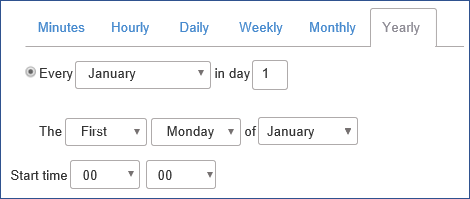
The Start time [00] [00] applies to both Yearly options. In variable terms, the Start time is h:m, where h represents the hours and m represents the minutes of a 24-hour clock.
The default value is for h:m is 00:00. Therefore, by default, the Workflow starts each designated run at 00:00:00.
You can select a new start time by using the Start time dropdown menus.
For example, to schedule the Workflow to run at 17:45:00 (5:45 pm) instead of 00:00:00, select 17 for the hours (h) and 45 for the minutes (m) from the Start time dropdown menus The Yearly options are:
-
Every [January] in day[1] – In variable terms, the Workflow is scheduled to run every a on the b day of the month, where:
- a = January, February, March, April, May, June, July, August, September, October, November, or December.
-
b is a positive integer and the upper boundary for b is the number of days in the month that is selected for a.
Caution:
If you enter a value for b that is greater than the number of days in the month that is selected for a, an error is generated when you try to save the Workflow.
The default value for a is January and for b is 1.
 For example, to schedule the Workflow to run every December 31:
 -
Select December using the dropdown menu in the first (a) dialog box,
-
Enter
31in the last (b) dialog box.Per the new schedule, after it is enabled, the Workflow starts the first run at 00:00:00 in the morning on December 31. It starts the next run one year later, at 00:00:00 in the morning on December 31.
If you also select a different Start time the Workflow starts at the new time on each day that it is scheduled to run.
For example, to schedule the Workflow to start the yearly run at the end of the day (23:59:00), instead of at 00:00:00 in the morning, select 23 for the hours (h) and 59 for the minutes (m) from the Start time dropdown menus.
-
The [First] [Monday] of [January] – In variable terms, the Workflow is scheduled to run on the x y of z, where:
- x = First, Second, Third, or Fourth.
- y = Monday, Tuesday, Wednesday, Thursday, Friday, Saturday, or Sunday.
-
z = January, February, March, April, May, June, July, August, September, October, November, or December. The default value for x is First, y is Monday, and z is January.
 For example, to schedule the Workflow to on the fourth Friday of every December:
 -
Select Fourth using the dropdown menu in the first (x) dialog box.
- Select Friday using the dropdown menu in the second (y) dialog box.
-
Select December using the dropdown menu in the last (z) dialog box.
Per the new schedule, after it is enabled, the Workflow starts the first run at 00:00:00 in the morning the last Friday of the next December. It starts the next run one year later, at 00:00:00 in the morning on last Friday of the following December.
If you also select a different Start time the Workflow starts at the new time on each day that it is scheduled to run.
For example, to schedule the Workflow to start the yearly run at the end of the day (23:59:00), instead of at 00:00:00 in the morning, select 23 for the hours (h) and 59 for the minutes (m) from the Start time dropdown menus.