File System Integrations
A aP Generate File System Integration allows you to run automated Workflows without integrating a supported PLM server with the aPriori Cloud. As this diagram shows for a File System integration, instead of connecting your PLM (or CAD) system to aPriori Cloud via a PLM Agent, you connect an aP Connect Root Folder to the aPriori Cloud via a Files System Agent.
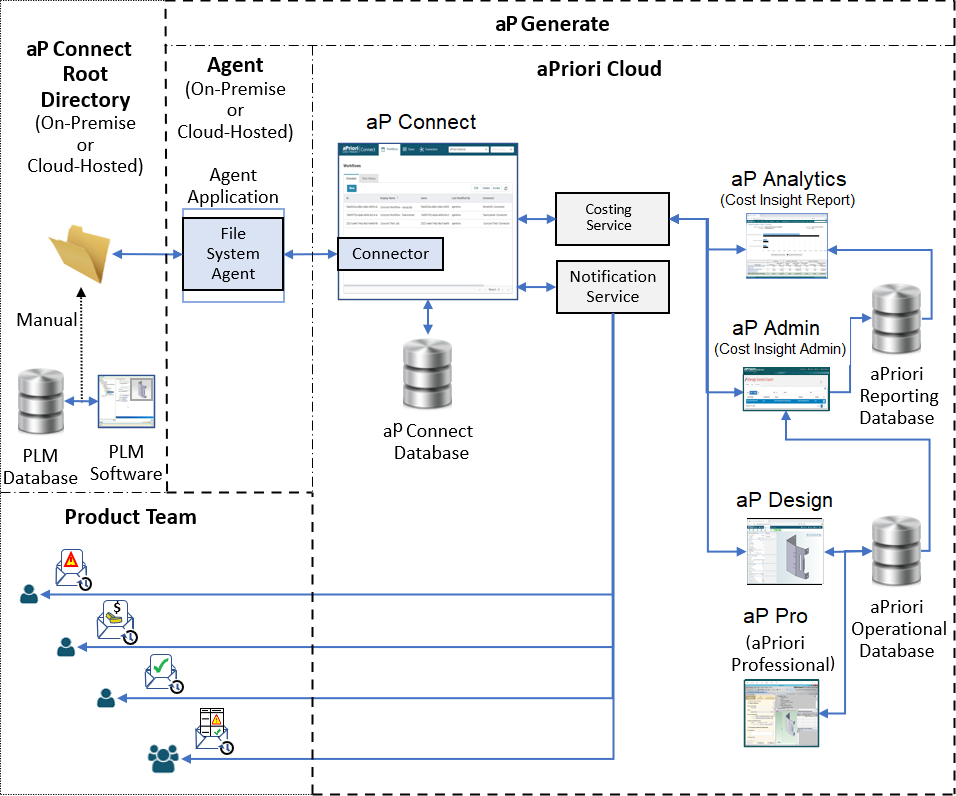
A aP Connect Root Folder is directory that you create on an on-premise or cloud-hosted machine (laptop or desktop) or server. You can create an aP Connect Root Folder on the machine or server that contains your PLM (or CAD) system or on any machine or server that you can:
- Read and write aPriori inputs (CAD files and production and manufacturing information, PMI) to and read and write aPriori outputs (manufacturability and cost analysis results) from.
- Access and control from the machine or server that you install the File System Agent on.
After you manually transfer aPriori inputs from your PLM or CAD system to the aP Connect Root Directory, aP Generate can automatically pull the aPriori inputs (CAD files and PMI) into aP Connect via the File System Agent. Once the parts in the CAD files have been analyzed for manufacturability and cost, aP Generate can push the analysis results and any associated reports back to the aP Connect Root Folder. You can then manually transfer the results to your PLM system or to any other database.
A File System integration is useful if:
- You want to sample aP Generate before committing to a PLM integration.
- Your security requirements prevent you from connecting an internal server to external applications and services.
- Your PLM system is not supported by aP Generate.
- You do not use a PLM system to manage your CAD files or any related production and manufacturing information (PMI).
- You want to use both a PLM integration and a File System Integration.