PLM Integration Physical Configuration Options
For a PLM integration, you can connect multiple PLM systems to aP Connect. For each PLM system that you want to connect to aP Connect, you must:
- Add and configure one Connector in aP Connect.
- Install and configure one agent on the PLM server or on a server that can access, read from, and write to the PLM server.
- Establish and verify the connectivity and functionality of the integration.
This diagram shows three of many possible scenarios for connecting a PLM integration.
Note:
You can deploy agents from a multi-agent scenario to different servers even though both agents in each of the multi-agent scenarios in the figure are deployed to a single server.
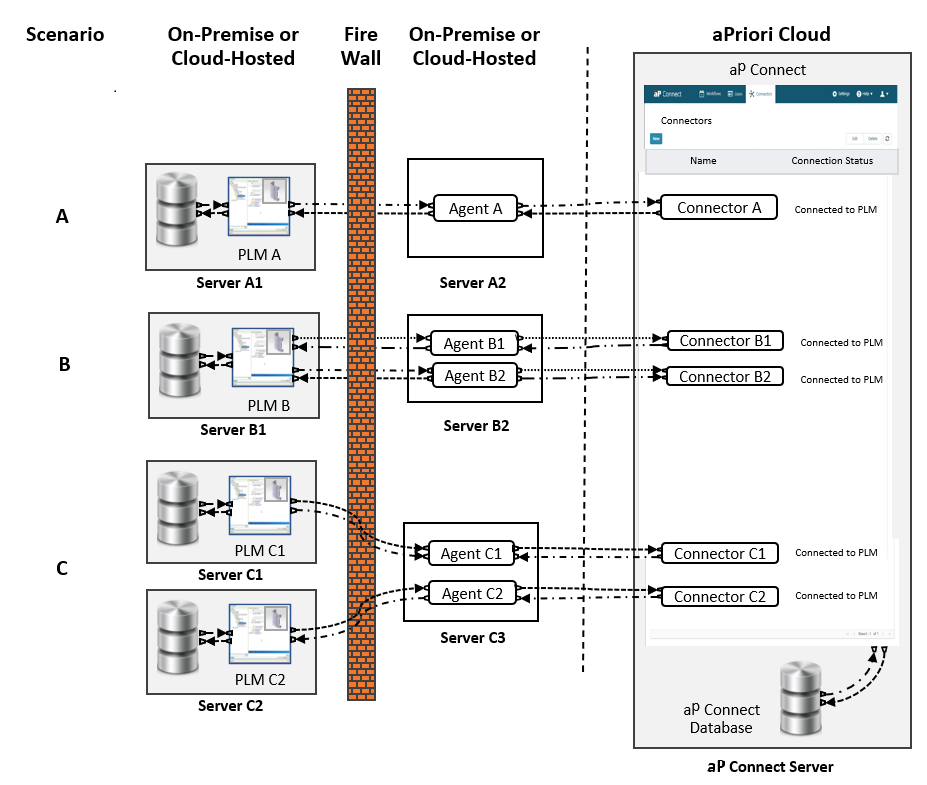
For each scenario, the aP Connect Server is deployed to the aPriori Cloud and there is a one-to-one ratio for agents and connectors:
- A – One PLM System, one agent, and one connector. PLM A is deployed to Server A1, which is fire-wall protected. Agent A is installed on Server A2, which is on the other side of the firewall. Connector A is in aP Connect. PLM A connects to Agent A which connects to Connector A.
- B – One PLM System, two agents, and two connectors. PLM B is deployed to Server B1, which is fire-wall protected. Agent B1 and Agent B2 are both installed on Server B2, which is on the other side of the firewall. Connector B1 and Connector B2 are both in aP Connect. PLM B connects to both Agent B1 and Agent B2. Agent B1 connects to Connector B1 and Agent B2 connects to Connector B2.
- C – Two PLM Systems, two agents, and two connectors. PLM C1 is deployed to Server C1. PLM C2 is deployed to Server C2. Server C1 and Server C2 are both fire-wall protected. Agent C1 and Agent C2 are both installed on Server C2, which is on the other side of the firewall. Connector C1 and Connector C2 are both in aP Connect. PLM C1 connects to Agent C1 which connects to Connector C1. PLM C2 connects to Agent C2 which connects to Connector C2.