Workflow Notifications
When you create or edit a Workflow, you can use the Notifications settings to configure the Workflow to generate and send a DFM Part Summary notification email or a job monitoring notification email.
DFM Part Summary notification emails are useful for communicating critical cost and design issues to members of your team and to key stakeholders. For more information, see DFM Part Summary Report.
By default, the components that are included in the DFM Part Summary are the components that meet the criteria that is defined by the Workflow query definition. However, if you want only some of the components that meet the Workflow query definition criteria to be included in the DFM Part Summary, you can define and apply a filter to the email.
If a Workflow is configured to send a DFM Part Summary notification email, you can also configure it to generate and attach a DTC Part Summary, Part Cost, Part Carbon, or DFM Multiple Parts Summary report to the email. For more information, see DTC Part Summary Report, Part Cost Report, Part Carbon Report and DFM Multiple Parts Summary Report.
By default, the components in the attached report are the components that meet the criteria that is defined by the Workflow query definition. However, if you want the report to contain only some of the components that meet the Workflow query definition criteria, you can apply a filter to the attached report.
Job monitoring notification emails are useful for communicating job execution details, such as the job status, job duration, the number of components processed, and the number of components errored to system administrators.
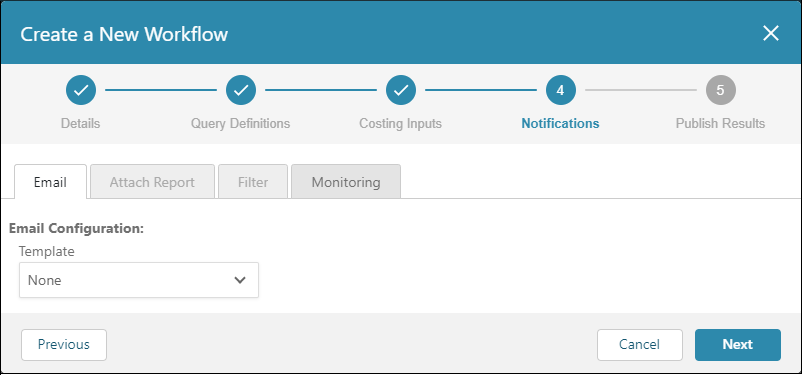
The figure shows the default states of the Email, Attach Report, Filter, and Monitoring tabs in the Notifications settings.
To configure a Workflow to send a DFM Part Summary notification email use these tabs in the Notifications settings:
- Email – Specify email recipients and select the cost settings for the DFM Part Summary report.
- Attach Report – Optionally, configure and attach either a single or multiple part report to the email.
- Filter – Optionally, create a filter that determines which components are included in the DFM Part Summary or in an optionally attached reports.
To configure a Workflow to send a job monitoring notification email, use the Monitoring tab in the Notifications settings.
Email Settings
When you create or edit a Workflow, you can configure the Workflow to send a DFM Part Summary notification email on the Email tab in the Notifications settings.
This figure shows the default settings for the Email tab in the Notifications settings.
The Email Configuration settings are:
-
Template – The options are:
- None – The Workflow does not generate and send a DFM Part Summary notification email. If this option is selected, no other fields are available.
- DFM Part Summary – The Workflow generates and sends a DFM Part Summary notification email.
-
Recipient – Email recipient. This field is not available if Template is set to None. The options are:
- Constant – Enter an email address or a comma-separated list of email addresses.
- Field – Select the mapped field that contains the email address for the notification recipient. This option is applicable only if at least one individual email address or list of comma separated email addresses is mapped in the connector that is selected for the workflow.
-
Email Configuration:
- Cost Rounding – Whether to round the cost that displays in the DFM Part Summary to the nearest integer. Select Yes or No.
- aPriori Cost – Select the type of cost to include in the DFM Part Summary that appears in the email. The options are Fully Burdened Cost, Piece Part Cost, or Material Cost.
After you configure the Email settings, you can attach a report to the email and filter the components that are included in the DFM Part Summary notification email or in the attached report.
Attach Report Settings
When you create or edit a Workflow, if the Workflow is configured to send a DFM Part Summary notification email in the Notifications > Email settings, then you can use the Attach Report tab to attach a report to the email.
This figure shows the default settings for the Attach Report tab in the Notifications settings.
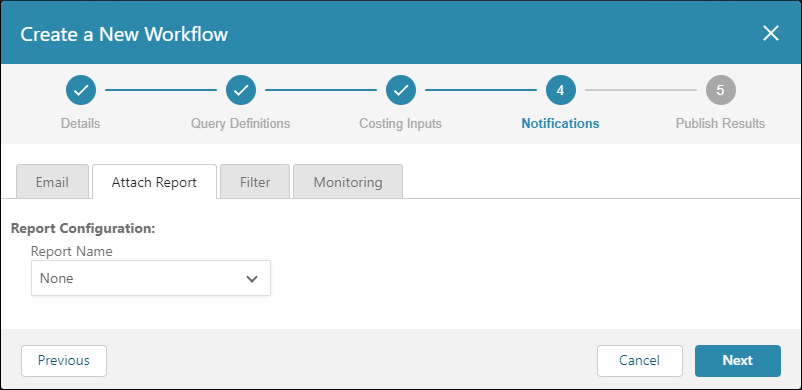
The Report Configuration settings are:
-
Report Name – The options are:
- None – The Workflow does not attach a report to the DFM Part Summary notification email.
- DTC Part Summary – The Workflow generates and attaches a DTC Part Summary report to the DFM Part Summary notification email.
- Part Cost – The Workflow generates and attaches a Part Cost report to the DFM Part Summary notification email.
- Part Carbon – The Workflow generates and attaches a Part Carbon report to the DFM Part Summary notification email.
- DFM Multiple Parts Summary – The Workflow generates and attaches a DFM Multiple Parts Summary report to the DFM Part Summary notification email.
-
Report Configuration – Available only if Report Name is set to DTC Part Summary or DFM Multiple Parts Summary.
- Cost Metric – Option to display the Fully Burdened Cost or the Piece Part Cost. Available only if Report Name is set to DFM Multiple Parts Summary.
- Currency Code – Display currency. Available only if Report Name is set to DTC Part Summary or DFM Multiple Parts Summary.
- Mass Metric – Option to display the Rough Mass or the Finish. Available only if Report Name is set to DFM Multiple Parts Summary.
- Cost Rounding – Option to round the cost to the nearest integer. Available only if Report Name is set to DTC Part Summary.
- Risk Rating – Select one or more of these values: All, Critical, High, Medium, or Low. The Workflow includes only the components that receive the selected ratings in the attached report. Available only if Report Name is set to DFM Multiple Parts Summary.
- Sort Metric – Whether to sort the components in the attached report by Process Group, Risk Rating, or Part Number. Available only if Report Name is set to DFM Multiple Parts Summary.
Note:
To view the data in a Part Cost report or a Part Carbon report, you may have to enable the spreadsheet for editing.
Filter Settings
If a Workflow is configured to send a DFM Part Summary notification email in the Notifications > Email settings, you can define a filter that determines which of the components that meet the Workflow Query Definitions criteria are included in the DFM Part Summary in the email when you create or edit the Workflow. If the Workflow is configured to attach a report to the DFM Part Summary notification email, you can also apply the filter to the attached report. Alternatively, you can define and apply a filter to the attached report but not to the DFM part summary.
This figure shows the default settings for the Filter tab in the Notifications settings.
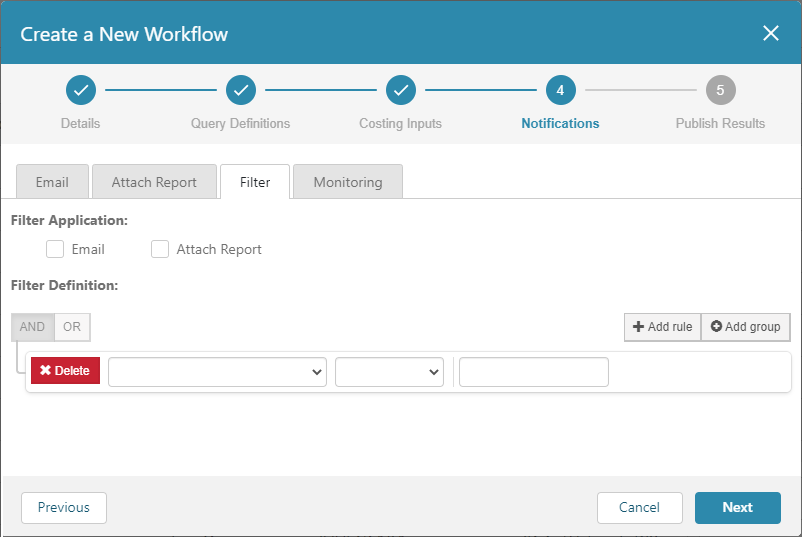
To apply the filter to the DFM Part Summary, select the Email check box. To apply the filter to the attached report, select the Attach Report check box. To apply the filter to both the DFM Part Summary and the attached report, select both checkboxes.
To build the query statements that define the filter, you can use AND operators, OR operators, and nesting. For each query statement in the filter, select a property, select an operator, and specify a value.
Monitoring Settings
Job monitoring notification emails are useful for informing system administrators about job execution details, such as the job status, job duration, number of components processed, number of components errored, and associated status details. When you create or edit a Workflow, you can use the Monitoring tab in the Notifications settings to configure the Workflow to send a job monitoring notification email.
This figure shows the default settings on the Monitoring tab in the Notifications settings.
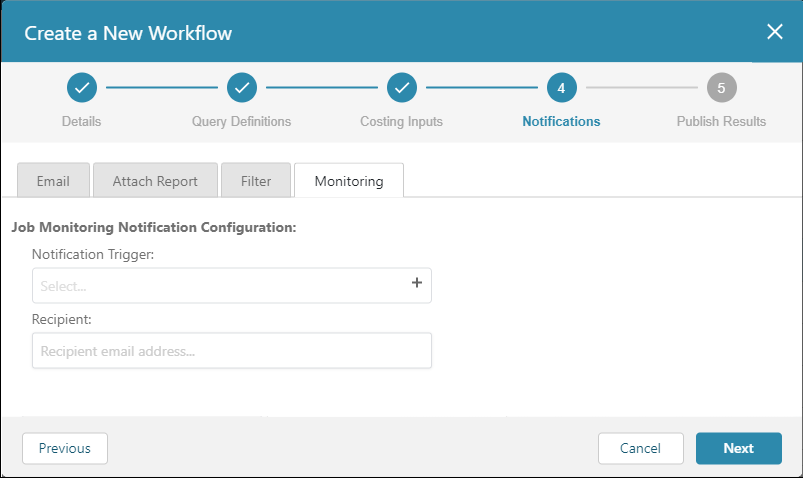
The Job Monitoring Notification Configuration settings are:
-
Notification Trigger – Trigger options, which are not mutually exclusive:
- Failed Job – Job that ends in an errored state. If the job failure is due to a connection issue, the notification indicates which connectors are not functioning correctly.
- Errored Components – Job that ended in a non-errored state with one or more components that failed
- No Errored Components – Job that ended in a non-errored state with zero components that failed
-
Recipient – Email address of the recipient of the job monitoring notification email. To specify more than one recipient, use a comma-separated list.
Note:
If all three trigger conditions are selected, aP Connect sends a job monitoring notification for every job upon completion.