What's New
The 2023 R1 version of Cost Insight Connect provides these enhancements.
Connection Monitoring Notifications
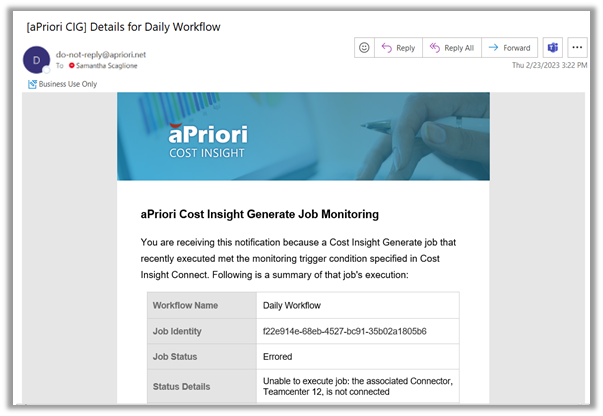
Cost Insight ConnectEnable your team to respond quickly to connectivity disruptions by using automated email alerts.
Your workflows cannot run if the connection between your PLM system and your Agent or the connection between your Agent and Cost Insight Connect is lost. Previously, you had to manually verify that your connections were intact. Now, you can configure Cost Insight Connect to monitor both sets of connections and to automatically send an email alert whenever either connection is disrupted. Connection monitoring notifications enable your administrators to keep workflows running by responding quickly to connection issues.
You can specify a recipient or list of recipients and define notification triggers in either the Create a New Workflow > Notifications > Monitoring or the Edit Workflow > Notifications > Monitoring dialog.
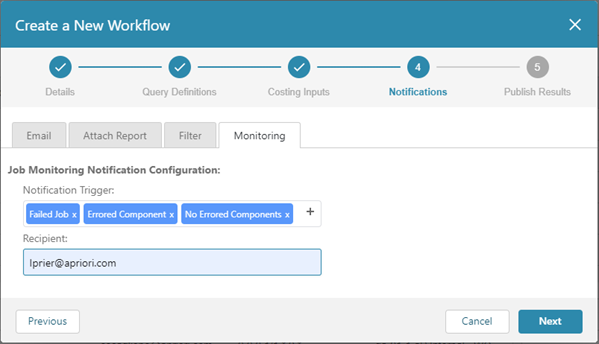
To enable connection monitoring notifications, include Failed Job in the Notification Trigger field. You can also include notification triggers that notify system administrators about job execution details, such as the job status, job duration, number of components processed, number of components errored, and associated status details. To include additional triggers, click the + button and then select a trigger from the dropdown menu.
To specify a single Job Monitoring Notification recipient, enter a valid email address. To specify more than one recipient, enter a comma-separated list of valid email addresses.
Multiple Email Recipients Per Scenario
Easily provide the cost and manufacturability results for relevant parts and assemblies in a workflow to the applicable engineer, team, or stakeholders for that part or assembly.
Cost Insight Connect can send email notifications to one or more recipients. In previous releases, to notify multiple stakeholders with results for a single component, a group of recipients had to be defined at the workflow level. Therefore, an individual or group could receive an email that contained both relevant information (information about parts and assemblies that they are stakeholders or responsible for) and irrelevant information (information about parts and assemblies that they are not stakeholders or responsible for). In fact, if a notification was triggered by a condition that existed only for a part or assembly that an individual or group was not responsible for, they would receive an email that did not pertain to them at all.
Now, you can map each part and assembly in a workflow to the email or email list for the individual or the group of individuals that is either a stakeholder or responsible for that part or assembly.
Furthermore, in previous releases, if you wanted to send a Workflow to send a notification to more than one recipient, you had to manually enter a list of email addresses in the Workflow settings. If you wanted to have any other Workflows send notifications to the same list of emails, you also had to manually enter the list in the settings for each of those Workflows.
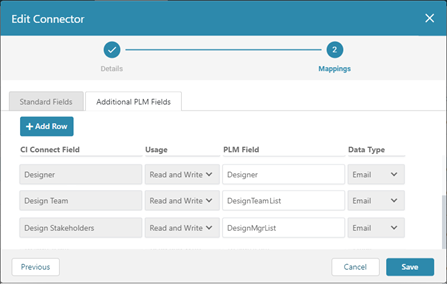
Now, you can create a field for a comma separated list of email addresses for parts and assemblies in your PLM system and map that field to a CI Connect Field in a Cost Insight Connector. Then, you will be able to select a mapped email list for any Workflow that uses that connector.
For example, this table shows the email addresses and comma separated email address lists that are associated with four different parts in a PLM system.
| Component Name | Scenario Name | Designer | DesignTeamList (Comma Separated List) | DesignMgrList (Comma Separated List) |
|---|---|---|---|---|
| Part 1 | Initial | Designer1@Co.com |
Designer1@Co.com, Designer2@Co.com, Manager1@Co.com |
Manager1@Co.com, Manager2@Co.com |
| Part 2 | Initial | Designer1@Co.com |
Designer1@Co.com, Designer2@Co.com, Manager1@Co.com |
Manager1@Co.com, Manager2@Co.com |
| Part 3 | Initial | Designer2@Co.com |
Designer1@Co.com, Designer2@Co.com, Manager1@Co.com |
Manager1@Co.com, Manager2@Co.com |
| Part 4 | Initial | Designer1@Co.com | Designer1@Co.com, Designer2@Co.com, Manager1@Co.com |
Manager1@Co.com, Manager2@Co.com |
This figure shows the Mappings for a Cost Insight Connect Connector for the PLM system.
This figure shows how you could select a CI Connect field that maps to any one of the PLM system fields as the Recipient for Notifications from a Cost Insight Connect Workflow.
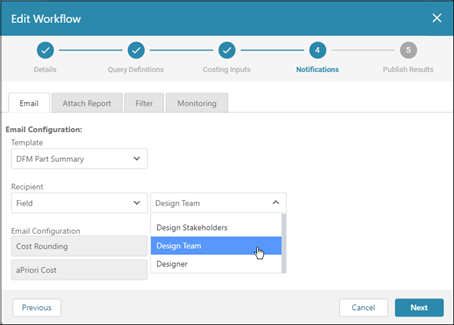
In this case, Design Team is selected, so Cost Insight Connect sends notifications to the emails that are in the PLM DesignTeamList field for each part. Cost Insight Connect combines information about parts that are associated with exactly matching email address lists in the same notification. Therefore, as this table shows, notification A contains information about both Part_1 and Part_2 and is sent to Designer-1, Designer-2, and Manager-1. However, information in Part_3 is sent in a separate notification (C) to the same group of emails because the email list order is different. Information about Part_4 is delivered in a notification D to Designer-1, Designer-3, and Manager-1.
| Component Name | Notification | DesignTeamList (Comma Separated List) |
|---|---|---|
| Part 1 | A | Designer1@Co.com, Designer2@Co.com, Manager1@Co.com |
| Part 2 | A | Designer1@Co.com, Designer2@Co.com, Manager1@Co.com |
| Part 3 | B | Designer2@Co.com, Designer1@Co.com, Manager1@Co.com |
| Part 4 | C | Designer1@Co.com, Designer3@Co.com, Manager1@Co.com |