Delete a Connector
aP Connect does not allow you to delete a Connector that has associated workflows—the Delete button on the Connectors page is disabled if a Connector with associated Workflows is selected. In order to delete a Connector, all associated Workflows must first be deleted.
Connector settings are not stored or backed up, so you cannot undo a Connector deletion.
It may be necessary to delete a Connector if you:
- Are replacing or updating your PLM system.
- Want to change a non-editable attribute of an existing PLM Mapping.
- Want to delete a non-essential PLM Mapping.
Prerequisites
Before you can delete a Connector, delete all Workflows that are associated with the Connector.
Delete a Connector:
-
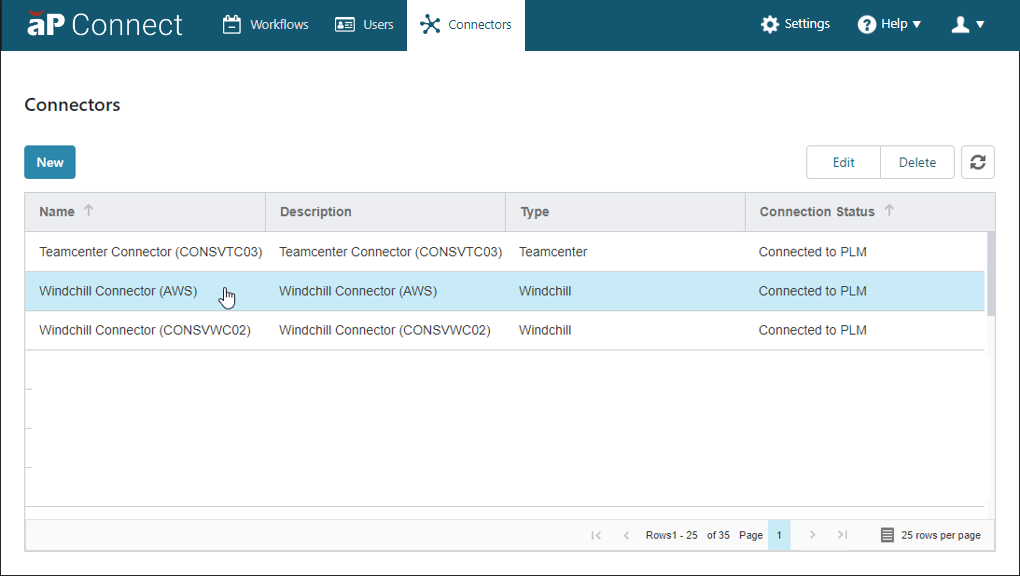
Open the Connectors page. In the aP Connect header bar, click Connectors.
-
In the Connectors page. navigate to and select the Connector that you want to delete.
-
Click Delete.
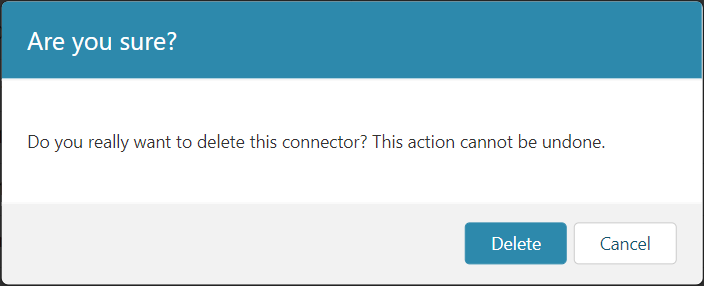
The Confirm Action window opens.
-
To confirm that you want to delete the Connector, click Delete.