Workflow Query Definition
The Query Definition settings are enabled for PLM System Workflows that identify components to process by using a query definition but are disabled PLM System Workflows that identify components to process by using a REST API request and for File System integrations.The Query Definition settings include the Return only the latest revision of each part from the PLM System checkbox and a query statement builder. Use checkbox option and the query statement builder to define the criteria for the components that Workflow returns from your PLM system.
Note:
The Query Definitions settings are disabled for File System integrations because, by design, Files System Workflows process every row of the cig-input.xlsx spreadsheet that contains data.
For a Teamcenter PLM system, you can use only AND operators to build query statements.
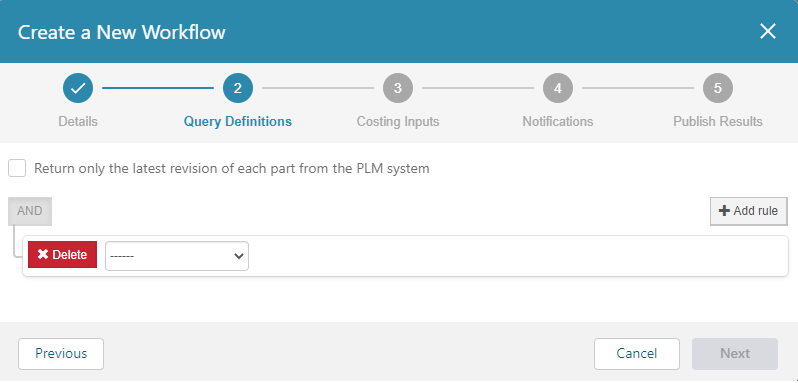
When the workflow job runs, components are first queried based on the query statements. After parts are returned, if the Return only the latest revision of each part from the PLM System checkbox is selected, each returned component is checked to determine if it is the latest revision of the component – not just the latest revision of those components that are returned. If the latest revision is not returned for a given part, no revision is included in jobs for that Workflow. if the Return only the latest revision of each part from the PLM System checkbox is not selected, all revisions that meet the query definition criteria are returned.
For a Windchill PLM system, you can use AND operators, OR operators, and nesting to build query statements.
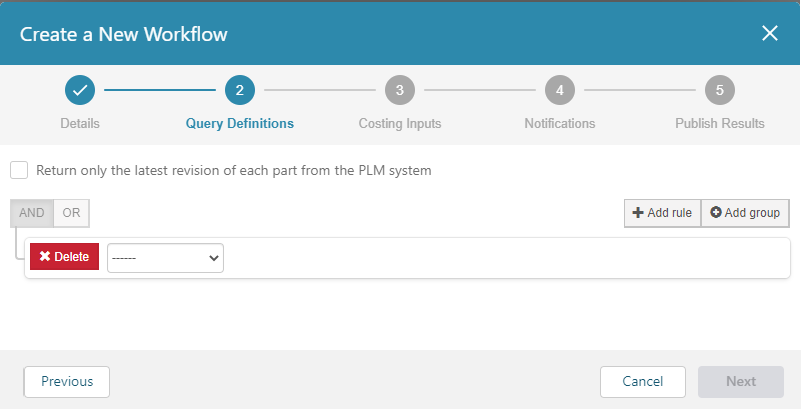
When the workflow job runs, components are first queried based on the query statements. Of the components that are returned, if the Return only the latest revision of each part from the PLM System checkbox is selected, only the latest revision of each returned component is included in jobs for that Workflow. If the latest revision is not returned for a given component, the most recent revision that is returned is included in a job for that Workflow. if the Return only the latest revision of each part from the PLM System checkbox is not selected, all revisions that meet the query definition criteria are returned.
For a PLM integrations, each query statement contains:
- An aP Connect Field
- A statement operator, such as equals or contains
- A criterion in the form of a value
When you create a query statement, you can use only:
- aP Connect fields that are mapped to a PLM field in the Connector that is associated with the Workflow.
- Operators and values that are applicable to the data type of the aP Connect field in the statement. This table includes the operators that are available for each data type.
| Operator | Date Time | Integer | Real | String | To Return A, Specify B and C | |
|---|---|---|---|---|---|---|
| equal | Y | Y | Y | Y | Y | A = B |
| not equal | Y | Y | Y | Y | Y | A ≠ B |
| greater | Y | – | Y | Y | – | A > B |
| greater or equal | Y | – | Y | Y | – | A ≥ B |
| between | Y | – | Y | Y | – | B < A < C |
| not between | Y | – | Y | Y | – | B < C AND (A < B OR A > C) |
| less | Y | – | Y | Y | – | A < B |
| less or equal | Y | – | Y | Y | – | A ≤ B |
| contains | – | Y | – | – | Y | A Í B |
| begins with | – | Y | – | – | Y | B* |
| ends with | – | Y | – | – | Y | *B |
Part ID, Part Number, and Revision Number are required fields for all aP Connect Connector. They are also all use the String data type. Therefore, you can always create a query that uses one of these fields with an operator that is applicable to strings.
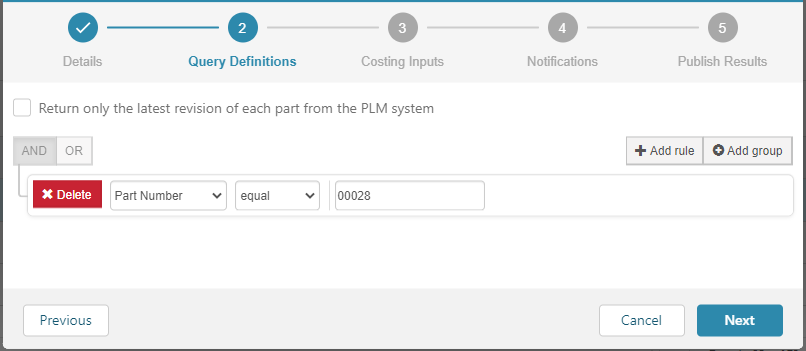
For example, to cost a single component that is numbered 00028, you can create a query statement with these settings:
- aP Connect Field – Part Number
- Operator – equal
- Value – 00028
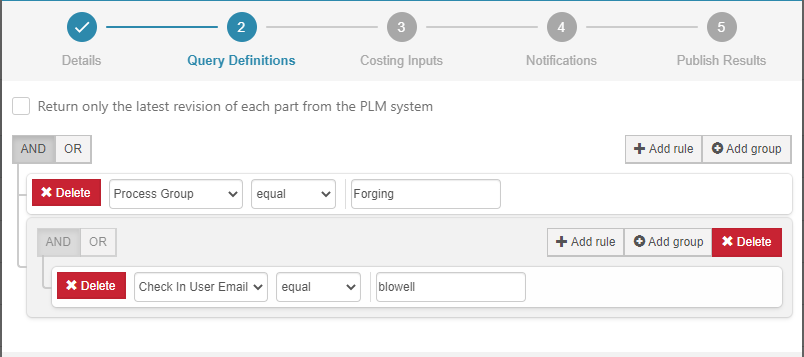
However, to cost all forged components that were checked in by a user that has the email address blowell@company.com, you can create a query statement with these settings only if the Connector that is associated with the Workflow maps PLM fields to the aP Connect Fields for Process Group and Check In User Email:
- aP Connect Field – Process Group
- Operator – equal
- Value – Forged
AND
- aP Connect Field – Check In User Email
- Operator – contains
- Value – blowell
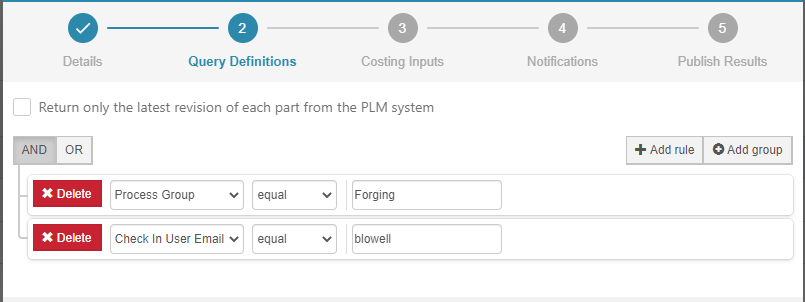
This figure shows how you can use nested groups to develop more complex queries for a Windchill PLM integration.
Using the Date Time Data Type and the Days Elapsed Since <DateTime Field>Attribute
When you create a query statement for a field that uses the Date Time data type, you can specify the criteria using either specific dates and times or relative time periods.
To specify the criteria by using specific dates and times:
- From the attribute dropdown menu, select the name of the aP Connect Field that you want to query.
- From the operator dropdown menu, select an operator.
- For the criteria, click within the dialog box (or dialog boxes, for the between and not between operators) and then use the calendar and clock that appear to select the date and time.
For example, consider a PLM system that uses a field named CheckInDate to capture the date and time that each CAD model is checked in. To return all components that were checked in after a specific time and date, first create a Connector that maps the PLM CheckInDate field to an aP Connect Field, such as Check-in Date. Then create a new Workflow uses that Connector and includes a query statement with these settings:
- aP Connect Field – Check-in Date
- Operator – greater
- Value – 01/01/2020 00:00:00
Each time the Workflow runs, it returns all the components that have been checked into the PLM system between January 1, 2020 00:00:00 and the time that the Workflow runs. If only one new component is checked in each day, and the query is scheduled to run at the end of each day, starting on January 2, then one component is pulled on the first run, two components are pulled on the second run, and so forth. On January 5, the query returns five components.
For every mapped field, DateTimeFieldName, that uses the Date Time data type, aP Connect creates a Days Elapsed Since<DateTimeFieldName> attribute. The Days Elapsed Since<DateTimeFieldName> field allows you to define queries for time periods that are relative to the time that the Workflow runs. The relative time period is specified in the number of days that have elapsed.
Therefore, you can instead return only components that are checked in during the 24-hour period prior to the Workflow run, by updating the query statement with settings to:
- aP Connect Field – Days Elapsed Since< Check-in Date >
- Operator – less
- Value – 86,400 Now, each time the Workflow runs, it returns only all the components that have been checked-in to the PLM system in the previous 24-hour period. If, again, only one new component is checked in each day, and the query is scheduled to run at the end of each day, starting on January 2, then one component is pulled on the first run one component is pulled on the first run, one component is pulled on the second run, and so forth. On January 5, the query returns one component.
This table shows which parts are returned for a query that uses a <Date TimeFieldName> field.
| Operator | Math | Date B | Date C | A |
|---|---|---|---|---|
| equal | A = B | 01/01/2020 00:00:00 | – | All parts checked in since 00:00:00 on January 1, 2020 |
| not equal | A ≠ B | 01/01/2020 00:00:00 | All checked in parts except those checked in at 00:00:00 on January 1, 2020 | |
| greater | A > B | 01/01/2020 00:00:00 | – | All parts checked in since 00:00:01 on January 1, 2020 |
| greater or equal | A ≥ B | 01/01/2020 00:00:00 | – | All parts checked in since 00:00:00 on January 1, 2020 |
| between | B ≤ C AND B < A < C |
01/01/2020 00:00:00 | 01/01/2020 23:59:59 | All parts checked in on January 1, 2020 |
| not between | B ≤ C AND (A < B OR A > C) |
01/01/2020 00:00:00 | 01/01/2020 23:59:59 | All parts except those checked in on January 1, 2020 |
| less | A < B | 01/01/2020 00:00:00 | – | All parts checked in before 00:00:00 on January 1, 2020 |
| less or equal | A ≤ B | 01/01/2020 00:00:00 | – | All parts checked in before 00:00:01 on January 1, 2020 |
This table shows which parts are returned for a query that uses a Days Elapsed Since<Date TimeFieldName> field.
| Operator | Math | B (s) | C | A |
|---|---|---|---|---|
| equal | A = B | 60 | – | All parts checked in exactly 60 seconds ago |
| not equal | A ≠ B | 60 | All checked in parts except those checked in exactly 60 seconds ago | |
| greater | A > B | 60 | – | All parts checked in before 61 seconds ago |
| greater or equal | A ≥ B | 60 | – | All parts checked in before 60 seconds ago |
| between | B ≤ C AND B < A < C |
60 | 120 | All parts checked in between 60 seconds ago and 120 seconds ago |
| not between | B ≤ C AND (A < B OR A > C) |
60 | 120 | All parts checked in between 0 and 59 seconds ago and all parts checked in before 121 seconds ago |
| less | A < B | 60 | – | All parts checked in in the last 59 seconds |
| less or equal | A ≤ B | 60 | – | All parts checked in in the last 60 seconds |