Differences and Workarounds
Cost Insight Design (CID) Release Notes 2021 R1 SP1
Due to the Cost Insight Design rebuild, some capabilities that were available in the prior release are available with limitations or are not available in release 2021 R1 SP1. These differences will be resolved in a future release of Cost Insight Design:
- Synchronization Not Supported for Preferences
- Limited Viewer Control Panel Analysis Options
- Refresh Required for Newly Translated Components
- User Defined Attribute Dependencies Not Supported
- User Define Attribute Date Field Not Supported for Synchronization
- User Define Attribute Date Field Not Supported for Custom Filters
- Comparison Limitations
- Unsupported and Partially Supported Process Groups
- Assembly CAD File Uploads Not Supported
- Multi-File Uploads Not Supported
- Only Auto Mode Supported For Material Stock Selection
- Pinned Routings Not Supported
- Alternate Routings Not Supported
- Schema Switching Unavailable
- Revert Button Unavailable
- Job Queue Unavailable
- Read-Only Support for Threading and Tolerances
- GCD Re-Extraction Unsupported
- Geometry Tab Unavailable
- Part Cost Reports Unsupported
- Heat Maps Unavailable
- Language and Multibody Preferences Not Yet Available
Synchronization Not Supported for Preferences
When preferences are initially configured or updated in aPriori Professional, the new or updated settings do not synchronize to Cost Insight Design. Likewise, when preferences are initially configured or updated in Cost Insight Design, the new or updated settings do not synchronize to aPriori Professional Cost Insight Design.
Workarounds
When you initially configure, or if you later update preference settings in aPriori Professional, manually set the preferences in Cost Insight Design to the same values.
When you initially configure, or later update preference settings in Cost Insight Design, manually set the preferences in aPriori Professional to the same values.
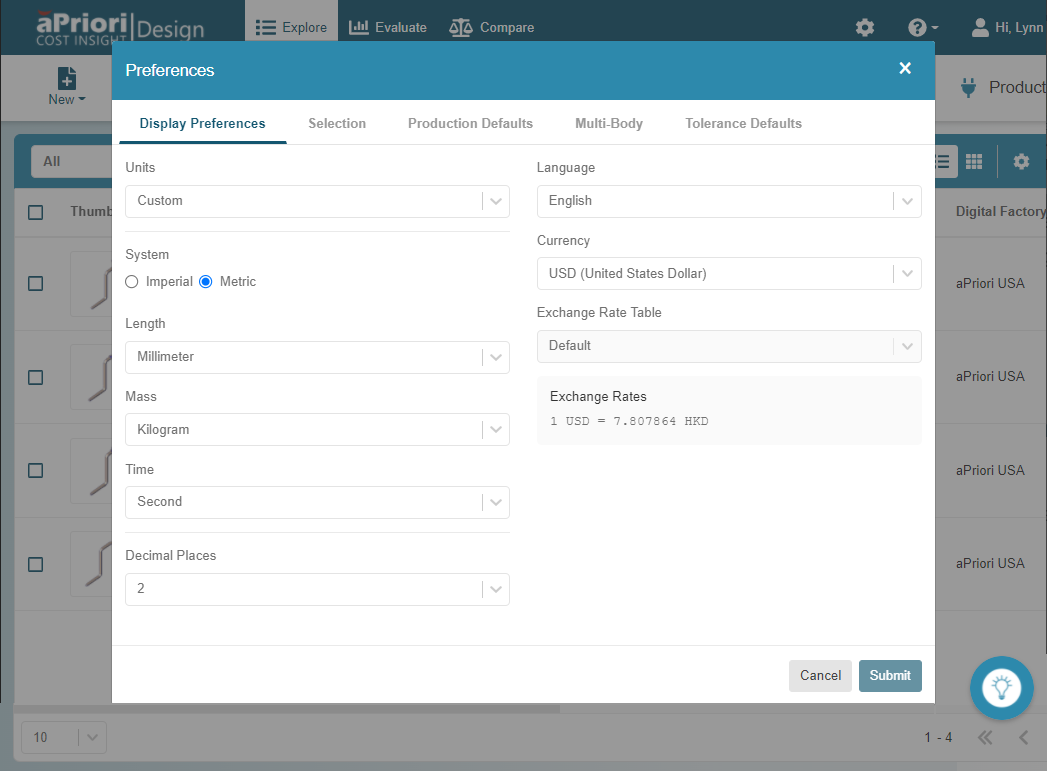
To open the preference settings in Cost Insight Design, in the header bar, select the Preferences button, . The Preferences window opens, and the is selected by default. If you have permission to do so, you can edit the settings on the Display Preferences, Selection, Production Defaults, and Tolerances tabs. However, you cannot edit the settings on the Multi-Body tab in Cost Insight Design 2021 R1 SP1.
For information about preference settings in aPriori Professional and for information on access control for preference settings, see the aPriori Professional User Guide and the aPriori Professional System Administration Guide.
Limited Viewer Control Panel Analysis Options
On the Explore tab, in the 3D Viewer, the options that are available in the Analysis menu depend on which process group is specified for the scenario. In Cost Insight Design 2021 R1 SP1, these options are not available regardless of the specified process group:
- Flat Outline
- Cross Section
- Turning Profile
- GCD Labels
- Properties
Refresh Required for Newly Translated Components
After a CAD file is uploaded and translated to a scenario, the scenario appears in the Explore tab but cannot be opened to the Explore tab until after the Explore tab has been refreshed.
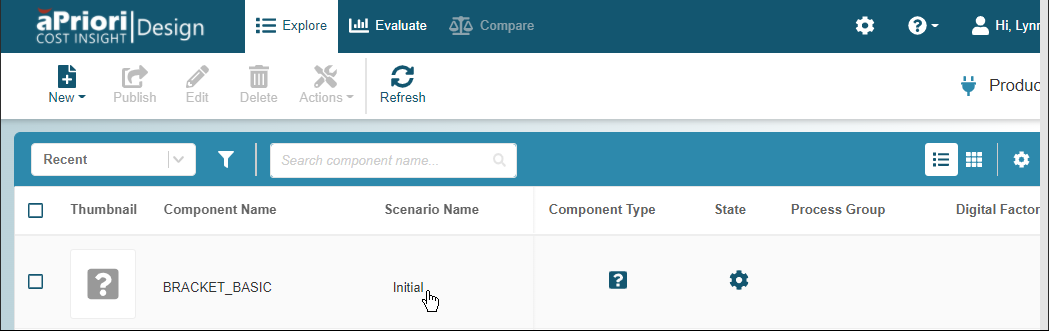
Workaround
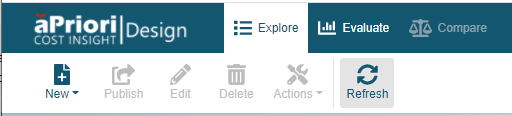
Perform any action that refreshes the Explore tab, for example:
-
Click the Refresh button.
-
Toggle a column header
- Refresh the URL address
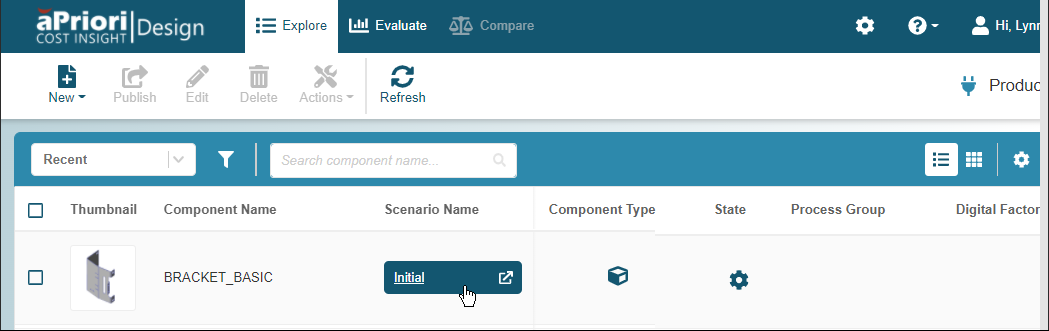
Once the scenario is ready to be opened to the Explore tab, when you hover over the scenario name, the Evaluate icon appears.
User Defined Attribute Dependencies Not Supported
For this release, Cost Insight Design does not implement user defined attribute (UDA) dependency rules. For example, these figures of the aPriori System Administrator window from aPriori Professional shows dependencies that have been defined across the BoxMaterial and ShippingCompany UDAs.
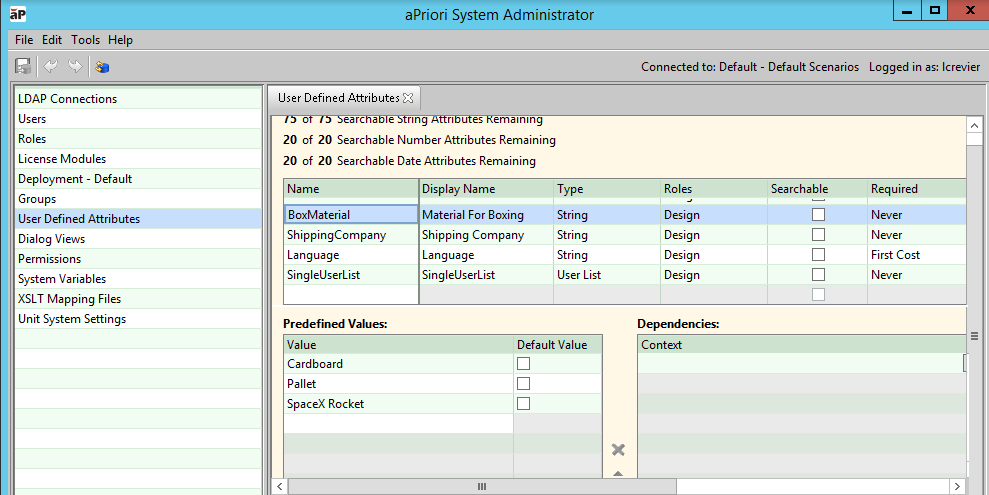
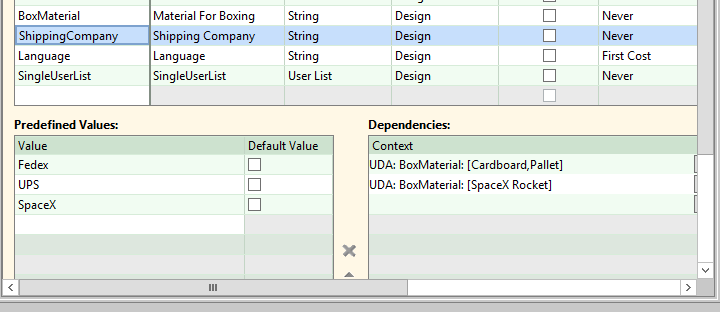
The ShippingCompany UDA displays as Shipping Company and the predefined values that are available depend on the value that is specified for the BoxMaterial UDA, such that, if Material for Boxing is set to:
-
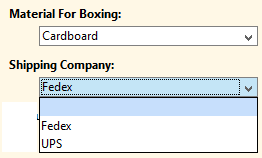
Cardboard – The Shipping Company field provides only these options:
-
Fedex
-
UPS
-
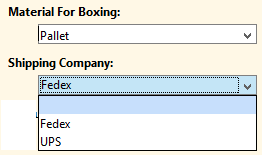
Pallet – The Shipping Company field provides only these options:
- Fedex
-
UPS
-
SpaceX Rocket – The Shipping Company field provides only the SpaceX option.
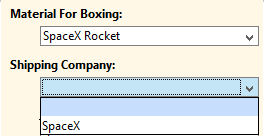
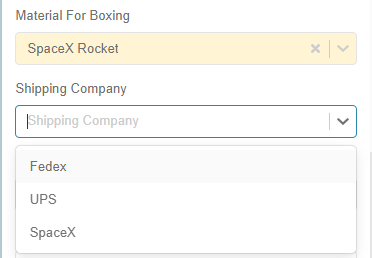
However, because Cost Insight Design does not support UDA dependencies, regardless of the value that is specified for the Material for Boxing field, all these options are available for the Shipping Company field:
- Fedex
- UPS
- SpaceX
For example, in Cost Insight Design, in the Explore tab, on the INPUTS tile, on the Custom Attributes tab, selecting SpaceX Rocket for the Material for Boxing field should limit the option for the Shipping Company field to SpaceX, but it does not.
User Define Attribute Date Field Not Supported for Synchronization
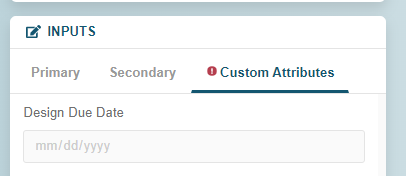
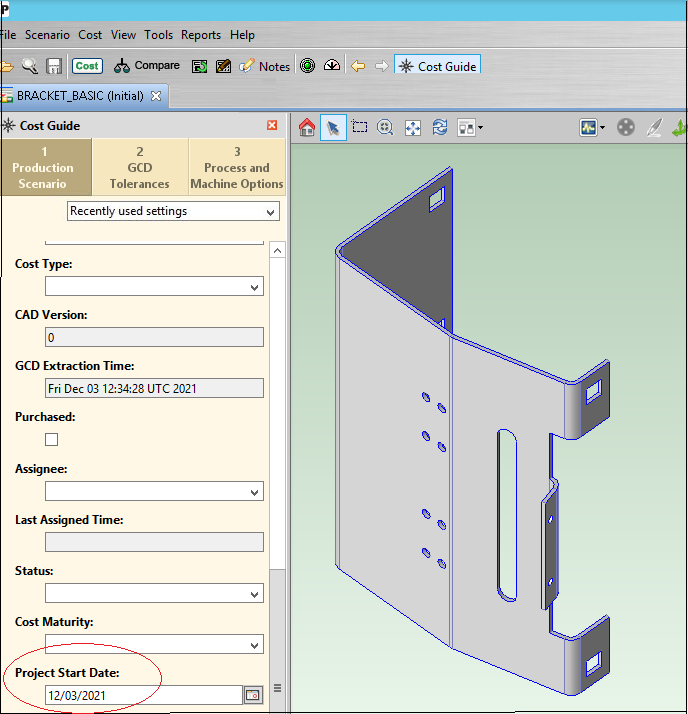
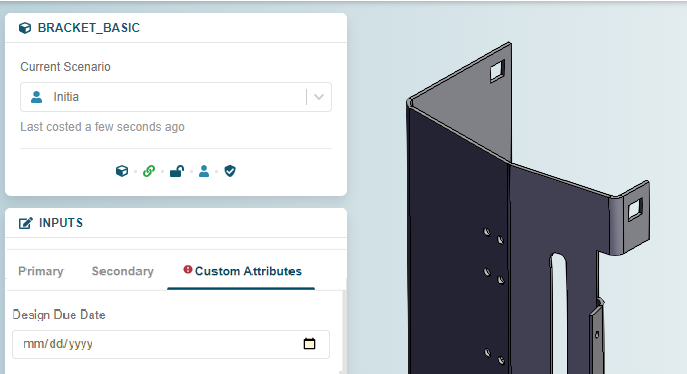
When you or someone on your team, uploads a CAD file to aPriori Professional, specifies a value for a User Defined Attribute (UDA) field that uses the date format type, costs, and then saves the scenario, the date is saved in the data file for the scenario. However, in the instance of the scenario that is synchronized to the public workspace in Cost Insight Design, when the scenario is opened to the Explore tab, on the INPUTS tile, on the Custom Attributes tab, there is an error indicator, and the value does not display in the UDA Date field
For example, in this figure, a scenario in aPriori Professional includes the Project Start Date field. The field is a UDA that uses the date data type. The specified value for the field is 12/03/2021.
This figure shows an instance of the same scenario in the Explore tab in Cost Insight Design. There is an error indicator on the Custom Attributes tab of the INPUTS tile and no value is displayed for the Project Start Date field.
Workaround
- In Cost Insight Design, open the newly synchronized scenario to the Explore tab.
-
In the Explore tab, click Edit.
The displayed scenario is now a new instance that has been created in your private workspace.
-
In the INPUTS tile, set the Project Start Date field to the value that was specified in aPriori Professional.
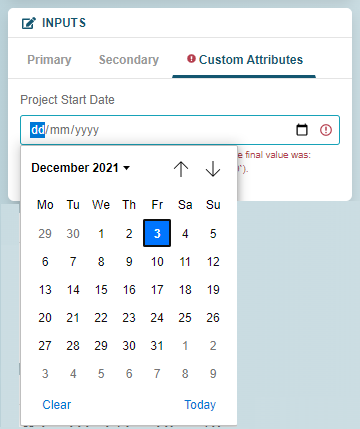
This error message appears momentarily:
customAttributes.<field> must be a 'date' type, but the final value was: 'Invalid Date' (Cast from value '<x>').Where:
-
<field> is the name of the UDA field.
-
<x> is an incorrectly formatted representation of the date value.
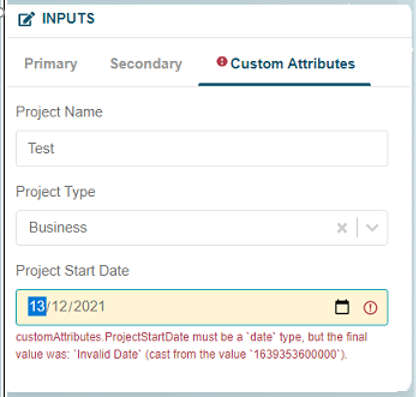
The error message then resolves.
-
-
Click Publish.
-
To override the pre-existing public scenario with the instance that displays the date, in the Publish Scenario window, first, ensure that the Override option is selected and that the specified Scenario Name matches the pre-existing Scenario Name. Then click Continue.
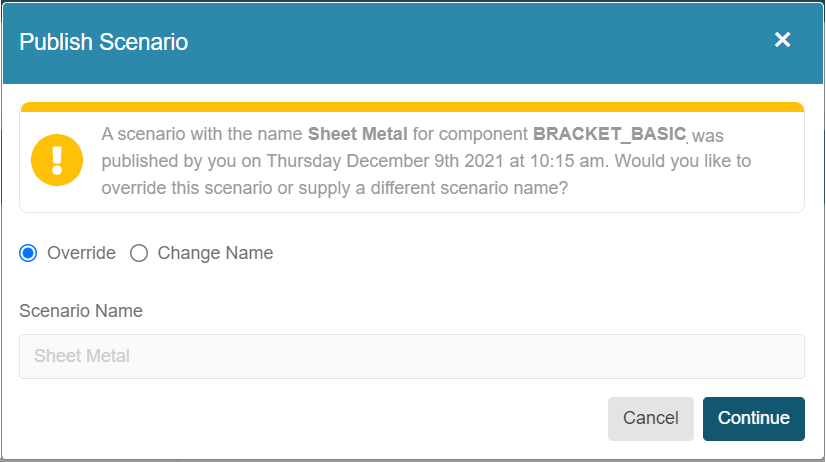
The date is now displayed in the UDA field in the public instance of the scenario.
User Define Attribute Date Field Not Supported for Custom Filters
User Defined Attributes (UDAs) are not available in the dropdown menu for the Property field in the Criteria settings for custom filters.
Workaround
Create a custom filter that includes criteria for one or more other properties that will return the scenario of interest.
Comparison Limitations
The Reference Panel is not available, and you cannot save or publish comparisons in Cost Insight Design 2021 R1 SP1. Therefore:
- The New Comparison window, which allows you to create a savable comparison, is not available.
- The Save As button, which allows you to save an existing comparison with a new name, is not unavailable.
- The Publish button is not available on the Comparison page and the Publish Comparison window is not available.
Workaround
The web page for each comparison has a unique URL. To be able to easily recreate a comparison, copy and save or bookmark the URL for the web page that contains the comparison. To allow other members of your team to recreate a comparison that you created, share the URL with them.
Tip
If you create a comparison for a scenario, paste the comparison URL to the scenario information field.
Unsupported and Partially Supported Process Groups
While some process groups are fully supported by the new Cost Insight Design application, others are only partially or not at all supported. This table shows the level of support for each process group in Cost Insight Design 2021 R1 SP1.
| Process Group | Support Level | NOTES |
|---|---|---|
| 2-Model Machining | Partial | Not supported for Cost Insight Generate |
| Assembly | Partial | Read Only, includes Welding |
| Assembly Molding | None | Not supported for synchronization |
| Assembly Plastic Molding | None | Not supported for synchronization |
| Bar & Tube Fabrication | Partial | DFM is not supported |
| Composites | Partial | Read Only |
| Multi-Spindle Machining | Partial | Read Only |
| Extrusion | Partial | DFM is not supported |
| User Guided | Partial | Read Only |
| Manually Costed | Partial | Read Only |
| PCBA | Partial | Read Only |
| PCB | None | Not supported for synchronization* |
| Wire Harness | Partial | Read Only |
If a process group has read-only support or is not supported in Cost Insight Design, then you cannot use that process group as a Value when you define the Criteria for a custom filter.
These issues also exist for scenario that have read-only support in Cost Insight Design:
- If a pre-existing private or public scenario uses a process group that has read-only support for in Cost Insight Design, you can access, privatize (if public), publish (if private), edit, or compare the scenario. However, if you try to cost a scenario that uses a process group that has read-only support, the costing fails.
-
You cannot select a process group that has read-only support for a new or pre-existing scenario. Therefore, if you select a different process group when editing a pre-existing scenario that was assigned a process group that has read-only support, you will not be able to change the process group back to the process group that has read-only support.
These issues also exist for process groups that are not supported in Cost Insight Design:
-
If one instance of a scenario that has been assigned a process group that is supported for synchronization is published or synchronized to Cost Insight Design and a second instance of the scenario is later assigned a process group that is not supported for synchronization in aPriori Professional and then recosted, the recosted scenario will not synchronize to Cost Insight Design. Therefore, the instance of the scenario that is in aPriori Professional will differ from the instance of the scenario that is in Cost Insight Design.
If the scenario instance that is recosted in aPriori Professional with a process group that is not supported for synchronization is an assembly scenario, the instances of the sub-components of the assembly that are in aPriori Professional will also not be synchronized to Cost Insight Design. Therefore, the sub-component instances might also differ across the two applications.
-
After a scenario that uses a process group that is not supported for synchronization is costed in aPriori Professional, an instance of the scenario is actually synchronized to Cost Insight Design, but the component or sub-component images are missing from the Cost Insight Design instance. This type of missing image cannot be generated Cost Insight Design.
Workarounds
To filter for a scenario that uses a process group that has read-only support a create a custom filter that includes criteria for one or more other properties that will return the scenario of interest.
To examine design issues in a scenario that uses a process group that is not supported for DFM in Cost Insight Design, but is supported for DTC in aPriori Professional, publish and then open the scenario to aPriori Professional.
To assign a process group that is not fully supported in Cost Insight Design to a scenario, publish the scenario. Then open, edit, cost, and save the scenario in aPriori Professional. You can then examine the results in aPriori Professional or in Cost Insight Design.
To cost or recost a pre-existing scenario that uses a process group that is not fully supported in Cost Insight Design, if you want to use:
- Any process group that is not fully supported in Cost Insight Design, synchronize the scenario to aPriori Professional. Then open, edit, cost, and save the scenario in aPriori Professional. You can then examine the results in aPriori Professional or in Cost Insight Design.
- A process group that is fully supported in Cost Insight Design, you can edit, and cost the scenario in Cost Insight Design.
Assembly CAD File Uploads Not Supported
You cannot upload a CAD file that contains an assembly to Cost Insight Design 2021 R1 SP1, even if the CAD file uses the STEP file format.
Workaround
To view an assembly scenario in Cost Insight Design, upload, cost, and save the assembly sub-components and the assembly in aPriori Professional. Then open the assembly from the public workspace in Cost Insight Design.
Multi-File Uploads Not Supported
You can upload only one CAD file at a time to Cost Insight Design 2021 R1 SP1.
Workaround
To upload more than one file at a time, upload the files to aPriori Professional. Then,, to synchronize the resulting scenario to Cost Insight Design, cost and save the scenario in aPriori Professional.
Tip
Using Bulk or Deep Costing to cost multiple assemblies in aPriori Professional is more efficient than submitting scenario for costing one at a time. For more information, see the aPriori Professional User Guide.
Only Auto Mode Supported For Material Stock Selection
Cost Insight Design 2021 R1 SP1 does not support modes other than Auto mode for material stock selection. For example, Cost Insight Design does not support the custom cut stock material selection mode for the Bar & Tube Fabrication or the manual stock material selection mode for Stock Machining.
Note
Auto mode uses an algorithm that selects material stock based on geometry constraints, material utilization, machine selection, and routing.
Workaround
To use a mode other than Auto mode for material stock selection, for a costed scenario in Cost Insight Design, either:
- Publish the scenario in Cost Insight Design and then open it in aPriori Professional.
- Upload the CAD file for the component to aPriori Professional and cost the scenario.
Once the scenario is costed and is in aPriori Professional and, you can select an alternate mode, as applicable, for stock material selection.
For more information about stock material selection modes and the Auto mode algorithm, see the aPriori Professional User Guide.
Note
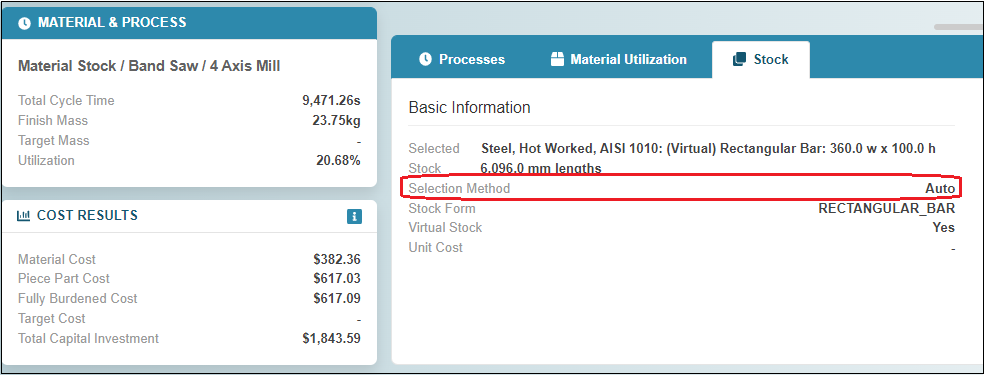
If you do use an alternate mode, such as custom cut mode, for material stock selection in aPriori Professional, and then cost and save the scenario, if you open the synchronized scenario to the Explore tab in Cost Insight Design, click the information button, , on the Material & Process tile, and then, in the panel that opens, click the Stock tab, you can see that the Selection Method has been updated to Auto.
Workaround
To use Auto mode for material stock selection, for a costed scenario in Cost Insight Design, either:
- Publish the scenario in Cost Insight Design and then open it in aPriori Professional.
- Upload the CAD file for the component to aPriori Professional and cost the scenario.
Once the scenario is costed and is in aPriori Professional and, you can use Auto mode for material selection.
For more information about Auto mode and the Auto mode algorithm, see the aPriori Professional User Guide and the aPriori Professional Cost Model Workbench.
Pinned Routings Not Supported
Cost Insight Design 2021 R1 SP1 does not support pinned routings.
By default, when you cost a scenario, every possible routing is identified and analyzed. To save time by preventing the analysis of routings that you are not interested in, you can, instead, select a preferred routing for your costing. The selected preferred routing is referred to as a Pinned Routing.
Workarounds
To select a pinned routing, for a costed scenario in Cost Insight Design, either:
- Publish the scenario in Cost Insight Design and then open it in aPriori Professional.
- Upload the CAD file for the component in the scenario to aPriori Professional.
Once the scenario is costed in aPriori Professional, you can select a preferred routing via the Routing Selection dialog.
Note
For Bulk Costing in aPriori Professional, you can also pin a routing by specifying it in the User Inputs spreadsheet or the interactive Bulk Costing user interface.
For more information on pinned routings, see the aPriori Professional User Guide.
Alternate Routings Not Supported
By default, aPriori auto-selects the lowest cost routing at the selected facility. You cannot override the default and select an alternate routing in Cost Insight Design 2021 R1 SP1.
Workarounds
To select a different routing than the routing that was auto-selected for a costed scenario in Cost Insight Design, create a new scenario and select the alternate routing.
Schema Switching Unavailable
You cannot switch between schemas from within Cost Insight Design 2021 R1 SP1.
Workaround
You can switch to a deployment that uses a different schema from the aPriori Cloud Home page. To do so:
-
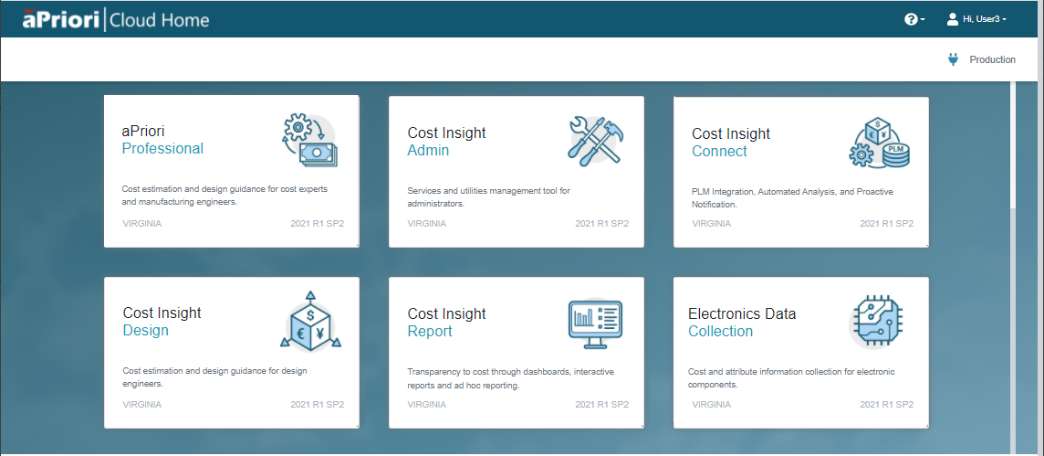
Open the aPriori Cloud Home page. To learn how to log in to the aPriori Cloud, see the Cost Insight Design User Guide.
-
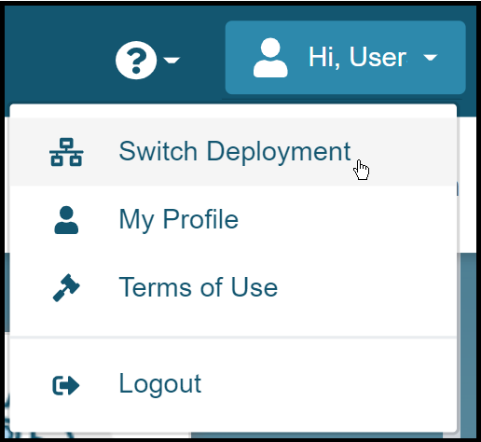
In the header bar, expand the Account dropdown menu and select Switch Deployment.
-
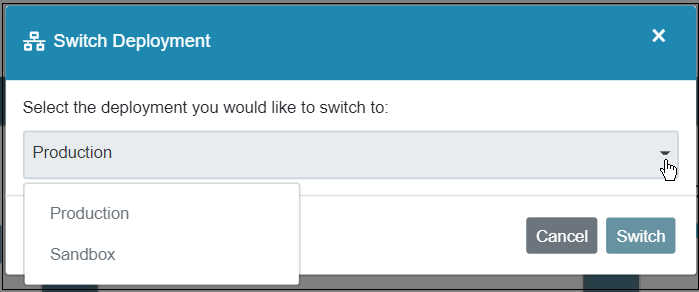
In the Switch Deployment window, expand the dropdown menu, select the deployment that you want to switch to, and then click Switch.
-
To confirm that you want to switch to the selected deployment, click Confirm.
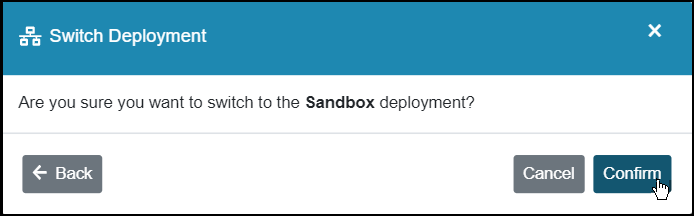
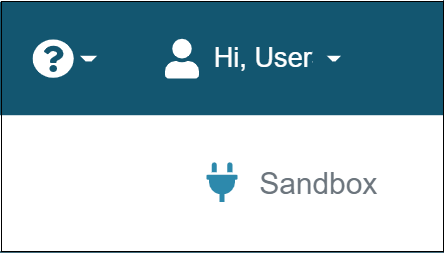
The deployment is switched.
Revert Button Unavailable
The Revert button, which provides a limited "undo" capability. is not available in Cost Insight Design 2021 R1 SP1. Therefore, you cannot discard uncosted changes or revert a scenario to its previous costed state by using the Revert button in this release.
Workaround
Manually update the scenario to the prior configuration and then recost.
Job Queue Unavailable
The Job Queue is not available for Cost Insight Design 2021 R1 SP1.
Workaround
First, to display scenario that you recently created or updated, from the filter dropdown menu, select the Recent pre-defined filter.
Then, configure the Table view in the Explore tab to display information that was previously available in the Job Queue. This figure shows the Job Queue from the previous release.
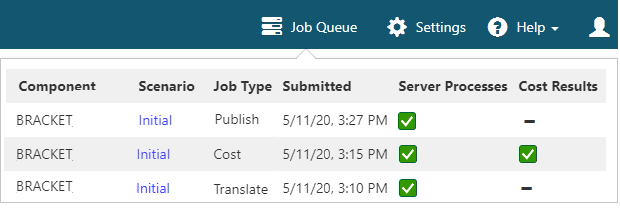
This table shows how the column headings for data in the Table View on the Explore tab correspond to the column headings for related data in the Job Queue.
| Data | Job Queue | Explore tab |
|---|---|---|
| Name of the component | Component | Component Name |
| Name of the scenario | Scenario | Scenario Name |
| Type of job and time that the job was either submitted (Job Queue) or completed (Explore tab) | Job Type Submitted |
Created At |
| Type of job and time that the job was either submitted (Job Queue) or completed (Explore tab) | Job Type Submitted |
Last Updated At |
| Type of job and time that the job was either submitted (Job Queue) or completed (Explore tab) | Job Type Submitted |
Published At |
| Type of job and time that the job was either submitted (Job Queue) or completed (Explore tab) | Job Type Submitted |
Assigned At |
| Type of job and time that the job was either submitted (Job Queue) or completed (Explore tab) | Job Type Submitted |
Locked At |
| Job State | Server Process Cost Results |
State |
Read-Only Support for Threading and Tolerances
In Cost Insight Design 2021 R1 SP1, you can examine, but you cannot update threading and tolerance settings that have been extracted from CAD models.
Workarounds
- Modify the settings in the CAD model (supported only for NX, Catia, SW, Creo) and then extract the new settings to Cost Insight Design
- Publish the scenario, and then edit the settings in GCD editor in aPriori Professional
GCD Re-Extraction Unsupported
You cannot re-extract geometric cost drivers (GCDs) in Cost Insight Design 2021 R1 SP1.
Workaround
Recost the scenario.
Geometry Tab Unavailable
The Geometry tab, which provides an easily accessible summary of geometric cost driver (GCD) properties via an expandible tree view is not available in Cost Insight Design 2021 R1 SP1.
Workaround
Publish or upload and cost scenario for which you want a detailed explanation of GCD properties to aPriori Professional. Then, examine the data in the Geometric Cost Drivers panel in aPriori Professional. For more information about the Geometric Cost Drivers panel, see the aPriori Professional User Guide.
Part Cost Reports Unsupported
You cannot generate a part cost report in Cost Insight Design 2021 R1 SP1.
Workarounds
To review the information that is included in a Cost Insight Design part cost report, either:
- Export the part scenario of interest to you aPriori Reporting database by using Cost Insight Admin. Then use Cost Insight Report to generate and export a part cost report to your choice of file types.
- Publish or upload and cost the part scenario in aPriori Professional. Then, generate and download a part cost report in a spreadsheet or PDF.
For more information, see the Cost Insight Admin User Guide, the Cost Insight Report Guide to Using Out-of-Box Reports, and the aPriori Professional User Guide.
Heat Maps Unavailable
While the Investigation tab on the Design Guidance information panel does indicate the number of Geometric Cost Drivers (GCDs) that exist for a given investigation topic, the panel does not contain a color-coded heat map in Cost Insight Design 2021 R1 SP1.
Workarounds
Publish or upload and cost scenario for which you want to examine a GCD heat map to aPriori Professional. Then, examine the data by using the Geometry Analysis tool in aPriori Professional. For more information about the Geometry Analysis tool, see the aPriori Professional User Guide.
Language and Multibody Preferences Not Yet Available
In the Cost Insight Design Preferences window, the Language setting, which appears on the Display Settings tab and all the settings that appear on the Multibody tab are not available is not available for Cost Insight Design 2021 R1 SP1.