Usability Enhancements
Automatic Opening of Uploaded Scenarios
Quickly and easily start working with newly uploaded parts and, by using a Cost in aPriori plug-in, assemblies.
Prior to this release, when you confirmed the upload of a part CAD model to Cost Insight Design, once the upload was complete, you had to search for and the part in the Explore tab and then open it to the Evaluate tab before you could start working with it. Now, when you confirm the upload of a part CAD, by using either the upload dialog or a Cost in aPriori plug-in, the part scenario opens directly to the Evaluate tab where you can immediately begin to work with it.
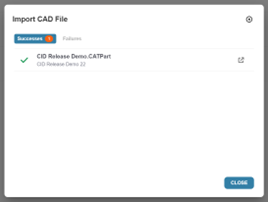
Furthermore, if you upload an assembly CAD model by using a Cost in aPriori plug-in, the top-level assembly scenario also opens directly to the Evaluate tab once you confirm the upload.
Advanced and Enhanced Tools for the 3D Viewer
Work more easily and efficiently on parts and assemblies in the 3D viewer.
Cost Insight Design 2022 R1 SP1 provides these usability enhancements for the 3D viewer on the Evaluate tab.
- Global 3D orientation axis
- Updated toolbar with intuitive icons based on established CAD application iconography
- Multi-selection capability via Crtl+Click hot keys
- More natural first-click selection of planar faces and 3D features
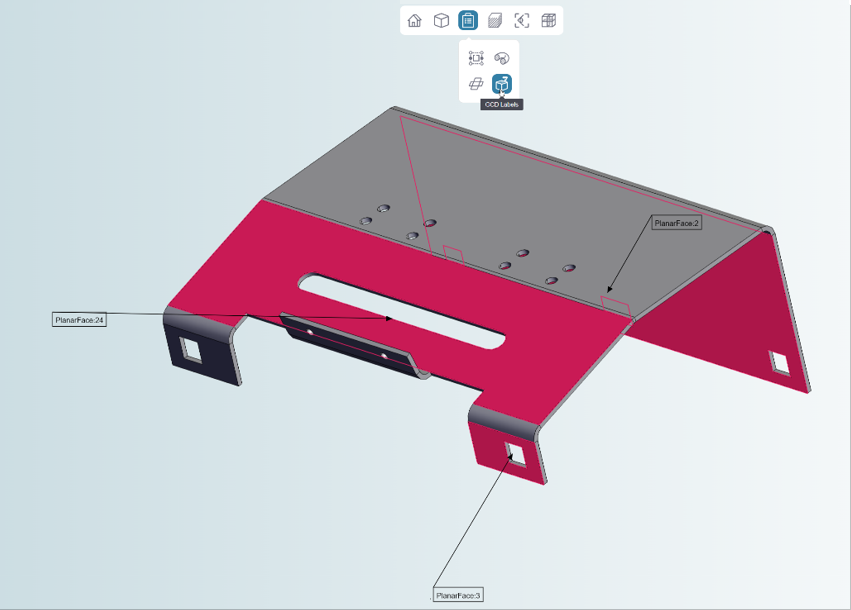
This figures shows how the intuitive icons with updated tool tips in the toolbar help you to understand and better work in the 3D viewer. It also shows how updated GCD labels help you to identify and examine features.
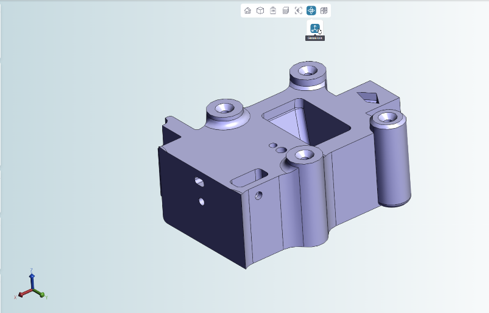
This figure shows how you can toggle the global axis on and off and how the axis helps you understand the orientation of components in the 3D viewer.
Extension of Enhancements Supported by the Modern UI Framework
Step easily and efficiently through workflows by using faster, more intuitive dialogs.
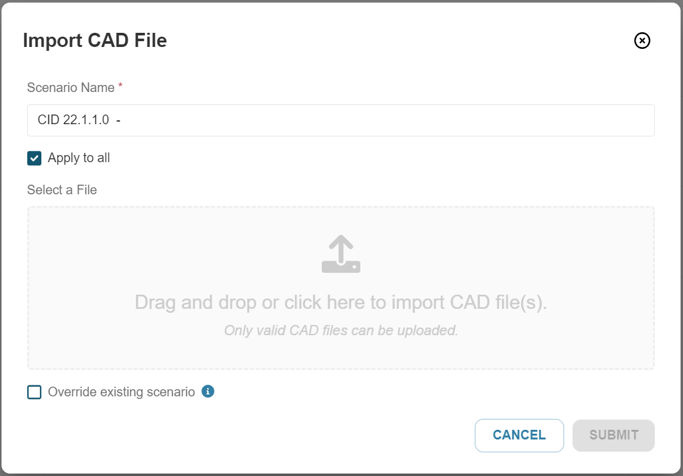
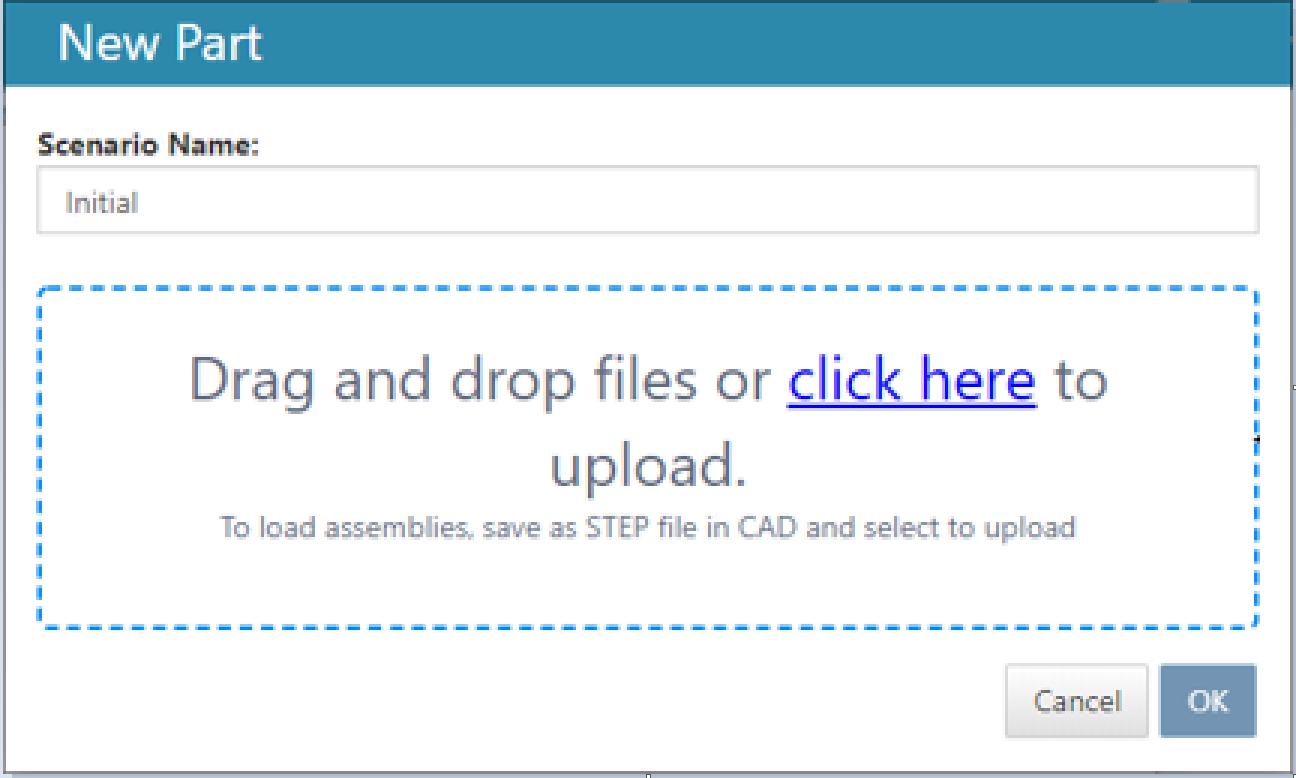
Cost Insight Design 2022 R1 SP1 harnesses the modern UI framework that was introduced first introduced in release 2021 R1. Although Cost Insight Design workflows remain generally the same, the dialogs (also known as modals or pop-ups) that allow you to upload, configure, and analyze components now execute more quickly and are visually easier to process.
For example compare these figures of the dialog for importing a CAD file. The figure on the left is from 2022 R1 SP1 while the figure on the right is from 2020 R1 SP2.
New and Improved Tooltips and Messages
Learn about features and understand issues without leaving the Cost Insight Design application.
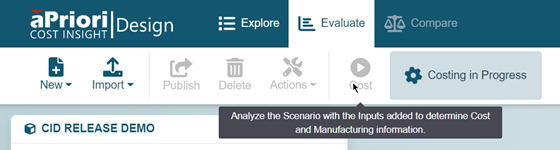
To help you better understand the Cost Insight Design interface and workflows this release includes both new tooltips and improved preexisting tooltips. To reveal a tooltip, hover over a button or icon. For example, in this figure, a tooltip gives a detailed explanation of what happens when you click the Cost button.
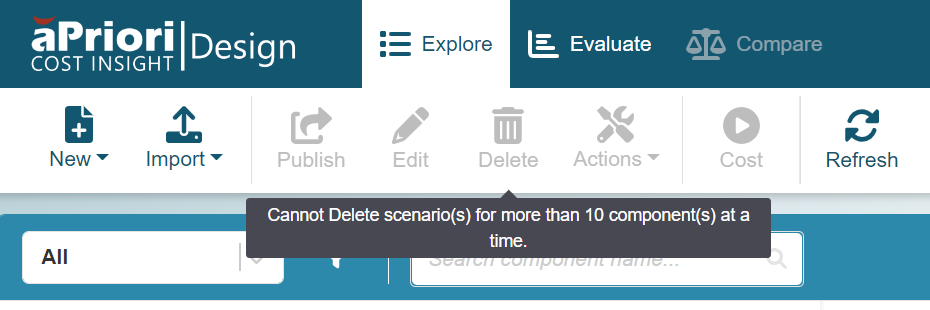
Likewise, the messages in Cost Insight Design now better:
- Convey warnings
- Explain why a button is disabled
- Explain errors
For example, in this figure, a message both explains what the Delete button does and conveys a warning that you cannot undue a delete action.
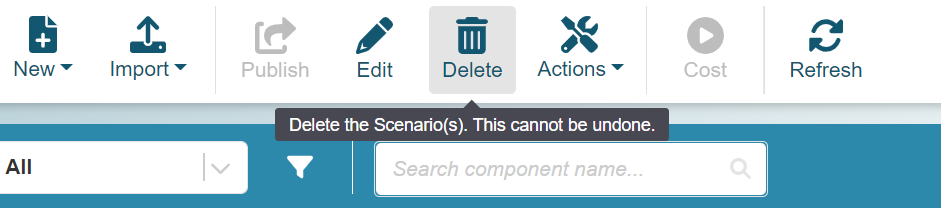
While in this figure, a message that is available only when the Delete button is disabled explains why it is disabled.
Improved Input and Configuration Classifications
Easily understand and access different types of inputs.
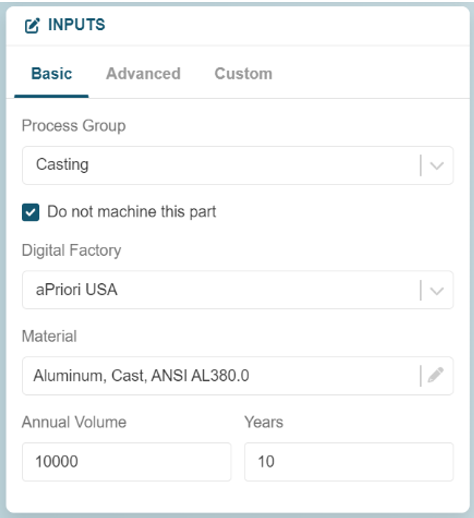
The number of inputs and configuration options that are available for your manufacturing analysis is increasing with each new release of Cost Insight Design. To help you easily understand and use the interface for setting inputs and configuring options, the classification of the tabs on the Inputs tile have been updated:
- The Basic tab replaces the Primary tab. You use the Basic tab to configure required, basic inputs, such as the process group and Digital Factory for your scenario.
- The *Advanced tab replaces the Secondary tab. You use the *Advanced**** tab to configure optional, advanced inputs, such as
- The Custom tab replaces the Custom Attributes tab. You use the Custom tab to configure your organization's custom inputs.