What's Pending
The 2023 R1 version of Cost Insight Design will soon provide this additional enhancement.
Association Strategy for Assemblies
Influence which preexisting scenarios to automatically use for components in newly imported assemblies.
Currently, when you import the CAD files for an assembly along with the CAD files for its subcomponents, Cost Insight Design creates a new scenario for the imported assembly and for each imported subcomponent of the assembly. For example, this figure shows a newly created scenario for a Bearing Bracket assembly that was just imported and the newly created scenarios for the bracket, bolt, plate, and bearing components that were imported with the assembly.
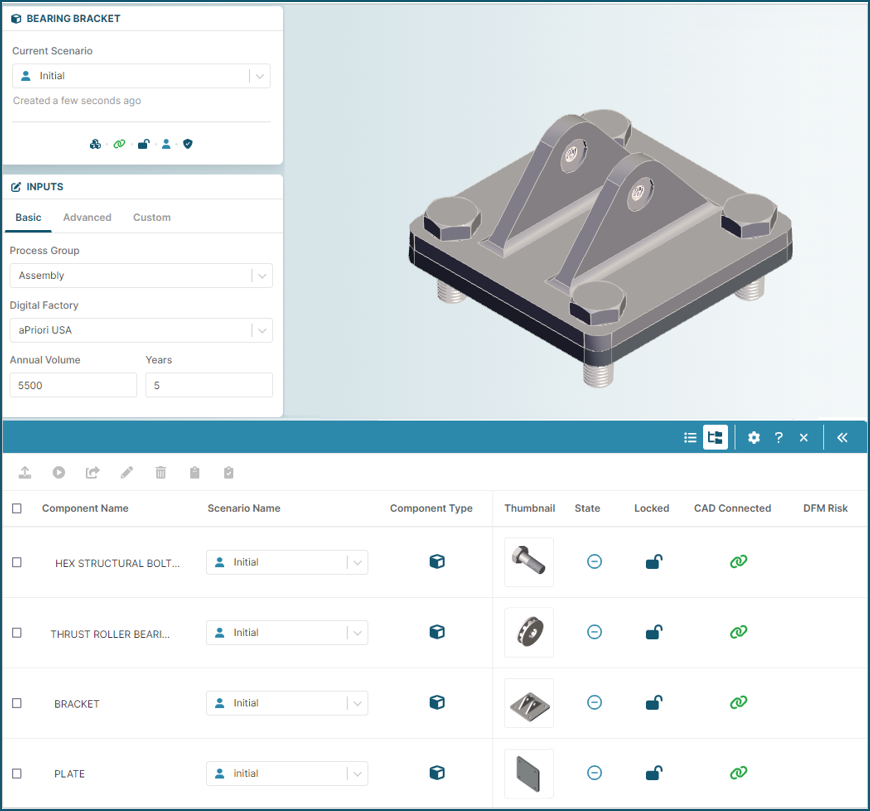
If you unintentionally include a the CAD file for a subcomponent of the assembly in the import of the assembly CAD file even though you want to associate the subcomponent with a preexisting scenario that you prefer to the newly created and uncosted scenario, you have to switch manually to the preferred scenario.
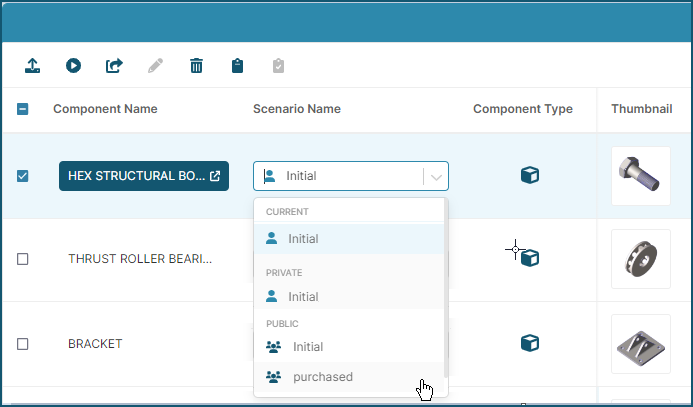
If you unintentionally include CAD files for more than one subcomponent of the assembly in the import of the assembly CAD file, you have to switch each scenario manually individually.
Soon, you will be able to automatically associate preexisting scenarios when you import assembly components by selecting an Assembly Association Strategy on an Assembly Defaults tab that will be added to your Cost Insight Design Preferences.
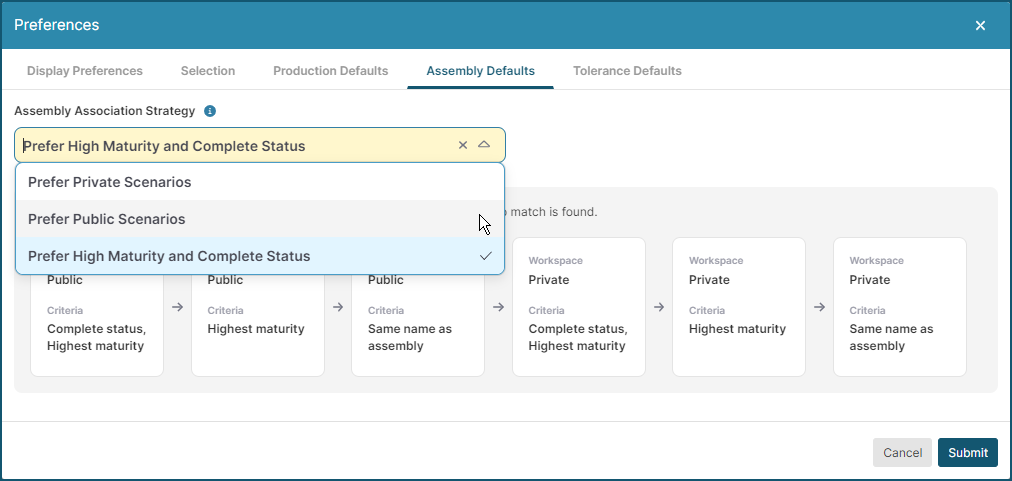
There will be three different options for your Assembly Association Strategy:
- Prefer Private Scenarios
- Prefer Public Scenarios
- Prefer High Maturity and Complete Status
Each strategy will use a different algorithm to determine which scenario to use when you import a new assembly and Assembly Defaults tab will provide a flow chart that summarizes the selected algorithm. If no strategy is selected, the default value, Prefer Private Scenarios,will be used.
As this provided flowchart for the Prefer Public Scenarios strategy shows, the algorithm will consider whether a scenario is public or private, whether the name of the scenario matches the name of the assembly, and whether it was the most recently updated scenario for the component.
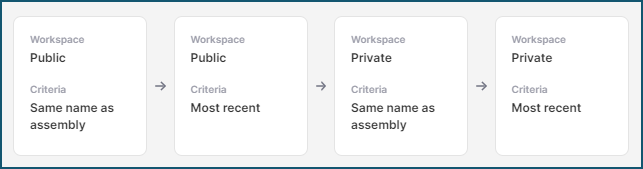
This table describes the order of preference for the Prefer Public Scenarios algorithm.
| Order of Preference | Published – Public | Published – Private | Scenario Name Matches assembly Scenario Name | Most Recent Value for Last Updated at |
|---|---|---|---|---|
| 1 | ✓ | ✓ | ||
| 2 | ✓ | ✓ | ||
| 3 | ✓ | ✓ | ||
| 4 | ✓ | ✓ |
As this provided flowchart for the Private Public Scenarios strategy shows, the algorithm will also consider whether a scenario is public or private, whether the name of the scenario matches the name of the assembly, and whether it was the most recently updated scenario for the component. The difference is that this algorithm prefers private scenarios.
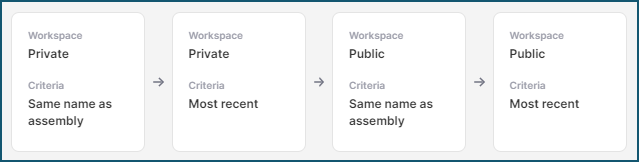
This table describes the order of preference for the Prefer Private Scenarios algorithm.
| Order of Preference | Published – Public | Published – Private | Scenario Name Matches assembly Scenario Name | Most Recent Value for Last Updated at |
|---|---|---|---|---|
| 1 | ✓ | ✓ | ||
| 2 | ✓ | ✓ | ||
| 3 | ✓ | ✓ | ||
| 4 | ✓ | ✓ |
As this provided flowchart for the Prefer High Maturity and Complete Status strategy shows, the algorithm will consider whether a scenario is public or private, status and maturity level, and whether the name of the scenario matches the name of the assembly.

This table describes the order of preference for the Prefer High Maturity and Complete Status algorithm.
| Order of Preference | Published – Public | Published – Private | Status – Complete | Status – New, Analysis, Waiting, Closed, or EMPTY | Cost Maturity – High | Cost Maturity – Medium | Cost Maturity – Low | Cost Maturity – Empty | Scenario Name Matches Assembly Scenario Name |
|---|---|---|---|---|---|---|---|---|---|
| 1 | ✓ | ✓ | ✓ | ||||||
| 2 | ✓ | ✓ | ✓ | ||||||
| 3 | ✓ | ✓ | ✓ | ||||||
| 4 | ✓ | ✓ | ✓ | ||||||
| 5 | ✓ | ✓ | ✓ | ||||||
| 6 | ✓ | ✓ | ✓ | ||||||
| 7 | ✓ | ✓ | ✓ | ||||||
| 8 | ✓ | ✓ | ✓ | ||||||
| 9 | ✓ | ✓ | ✓ | ||||||
| 10 | ✓ | ✓ | ✓ | ||||||
| 11 | ✓ | ✓ | ✓ | ||||||
| 12 | ✓ | ✓ | ✓ | ||||||
| 13 | ✓ | ✓ | ✓ | ||||||
| 14 | ✓ | ✓ | ✓ | ||||||
| 15 | ✓ | ✓ | ✓ | ||||||
| 16 | ✓ | ✓ | ✓ | ||||||
| 17 | ✓ | ✓ | ✓ | ||||||
| 18 | ✓ | ✓ | ✓ |
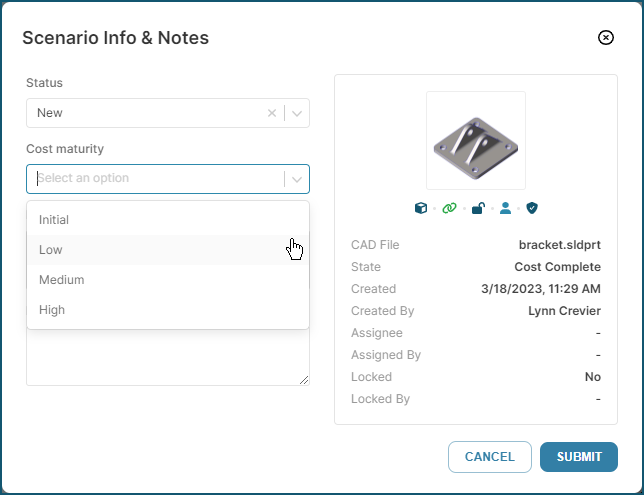
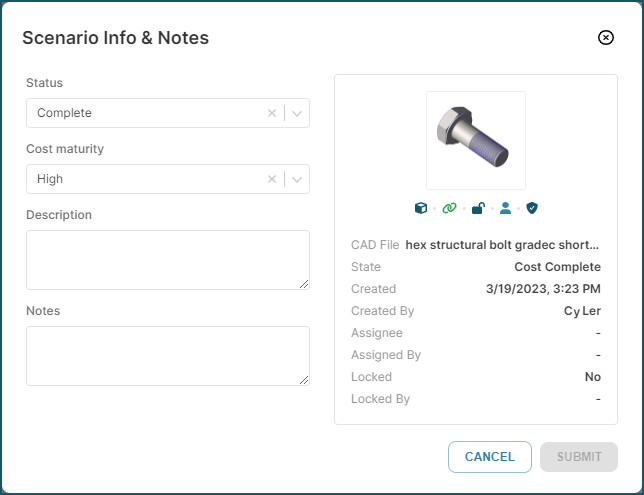
Cost Maturity and Status are two scenario measures that are currently available, but which have no functional impact. You can examine and select values for both measures in the Scenario Info & Notes dialog, which is shown in this figure.
As this figure shows, you will soon also be able to set the Cost Maturity and Status for a scenario when you publish a scenario. Additionally, to help you understand and optimize the assembly associations for your team, a new message in the Publish Scenario dialog will indicates that “High maturity and complete status scenarios can be prioritized to make more accurate associations when uploading new assemblies.”
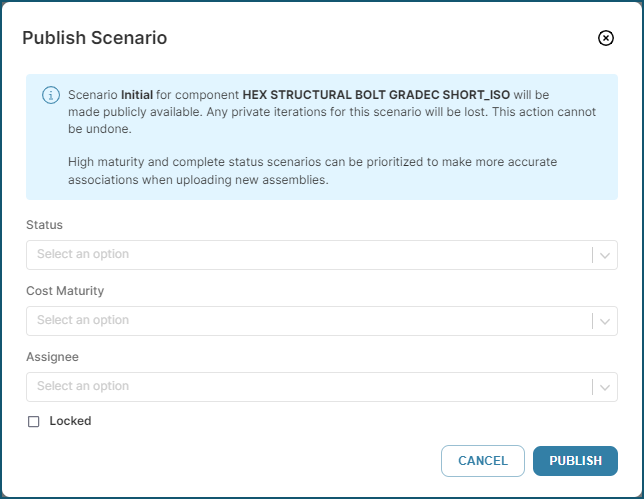
Once this enhancement is available, to ensure that any components in a newly imported assembly that have a high certainty cost (such as off-the-shelf purchased components or components that have already been fully analyzed in aPriori Professional and Cost Insight Design) will be are associated with the appropriate preexisting scenario:
- Use the Prefer High Maturity and Complete Status assembly association strategy.
- Set the Status for those components to Complete.
- Set the Cost Maturity for those components to High.
For example, this figure shows the scenario information for a purchased Hex Bolt that is public, has a complete status, and a high cost maturity. While your assembly strategy is set to Prefer High Maturity and Complete Status, this scenario will be associated with the Hex Bolt when you import an assembly that contains that Hex Bolt
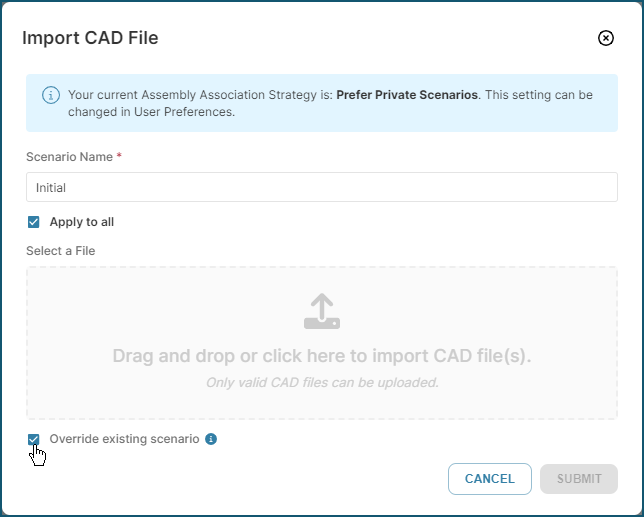
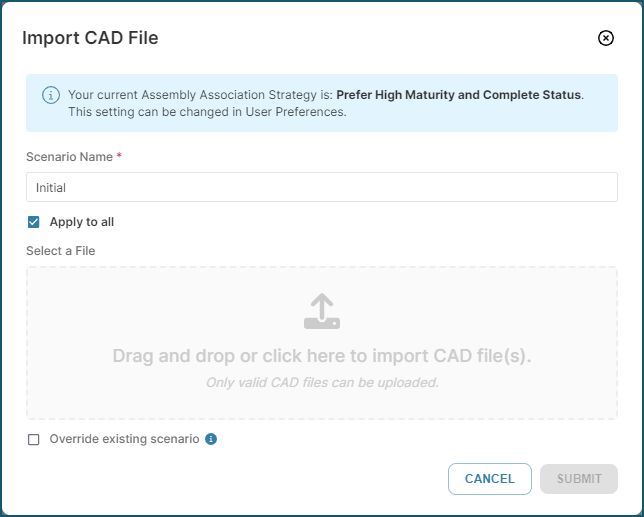
In the Import CAD File dialog, another new message will indicate the current value for your Assembly Association Strategy and note that you can change the value in your user Preferences.
Limitations
If you change your Assembly Association Strategy, the new value will impact any assembly CAD files that are imported while the value is selected. However, because previously imported assemblies are not impacted by current changes to the Assembly Association Strategy value, Cost Insight Design does not automatically switch any scenarios that are associated with components in preexisting assembly scenarios.
To update the scenarios that are associated to components in preexisting assembly scenarios to agree with a new Assembly Association Strategy, you will have to either:
- Open the preexisting assembly scenario and then manually switch the scenarios for the components in the assembly to the scenarios that agree with your new Strategy.
- In the Import CAD File dialog, enter a unique Scenario Name and then reimport the CAD file for the top-level assembly component.
- In the Import CAD File dialog, enter the same Scenario Name, select the Override existing scenario check box, and then re-import the CAD file for the top-level assembly component.