Open a Simple Part
After you import a part (see Import a Simple Part), you can then open it to see a 3D representation of that part in the Evaluate tab.
Open a Part
-
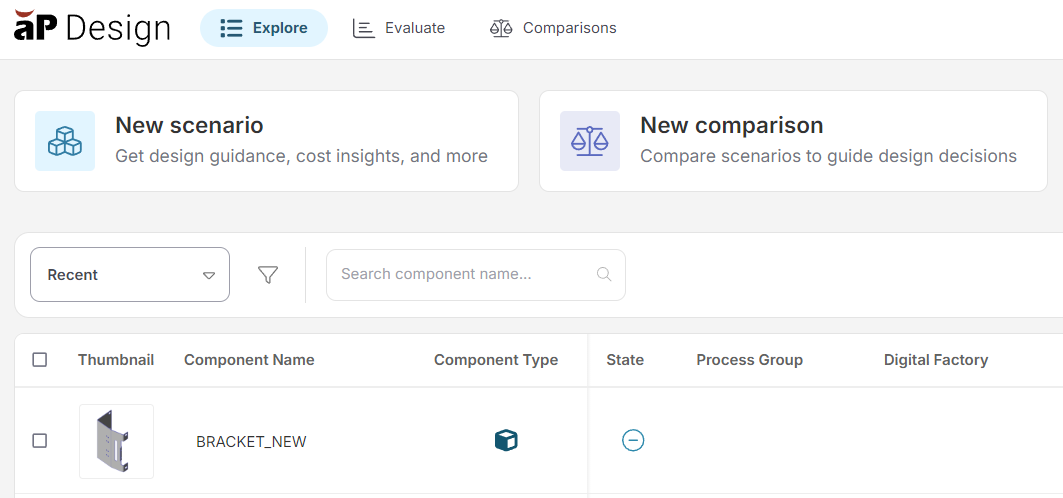
On the Explore tab, click on the part to open.
Tip
In the State column, a Not Analyzed icon, , indicates that the scenario is not initialized (it has never been analyzed) and in the Component Type column, the part icon, , indicates that the component is a part, not an assembly.
-
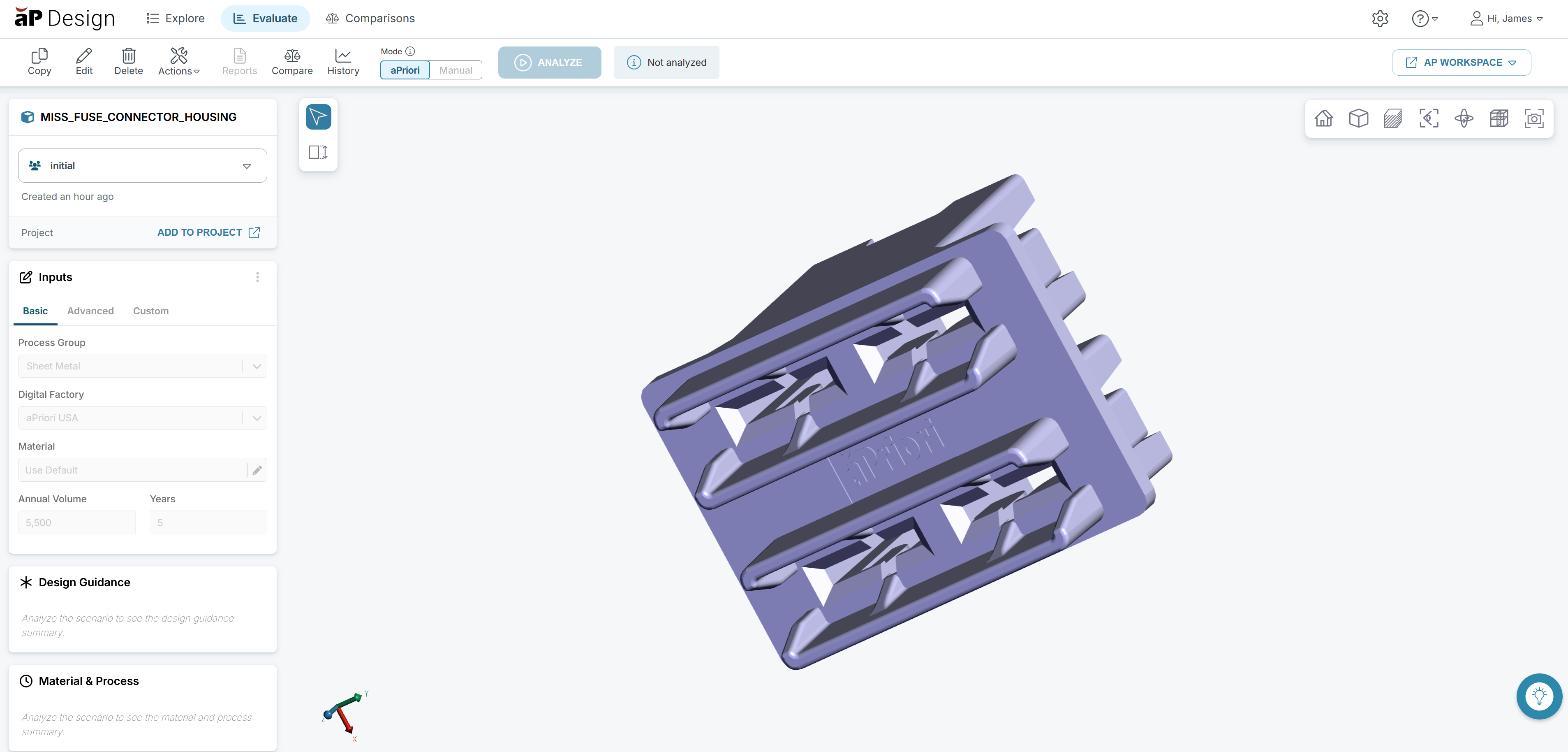
The part opens in the Evaluate tab:
Info
When the component is first opened, the initial scenario is created, but the part is not analyzed yet.
View Part Details
For an uninitialized part component, the Evaluate tab contains these elements:
-
Viewer
The main region in the tab, which contains a 3D representation of the component. You can interact with the component in the Viewer in the same way that you can interact with a 3D model in a CAD application.
-
Viewer control panel
A panel in the upper right corner of the tab that provides additional tools, such as sectioning and positioning, for interacting with the 3D version of the component. Some of the tools that are available in the panel depend on both the component type and the process group that is selected for the scenario. Therefore, different tools might be available after a scenario is configured and analyzed. For an uninitialized part scenario, the viewer control panel contains the Home, Zoom all, Draw Mode, View, and Sectioning tools.
-
Summary tiles
Vertically-aligned tiles on the left side of the tab. The tile labels are:
- Scenario tile: labeled with the part name, and contains the component name, the scenario name, and additional information about the scenario.
-
Inputs: contains three tabs: Basic, Advanced, and Custom.
-
The Basic and Advanced tabs contain fields for input values that aP Design uses when it analyzes the scenario. See Set Scenario Inputs.
The Custom tab contains fields for user defined attributes (UDAs) that your organization uses to associate information with the scenario.
-
-
Design Guidance: populated only for analyzed scenarios that use a process group that is supported for design to cost (DTC) is analyzed.
- Material & Process: populated only for analyzed scenarios.
- Sustainability: populated only for analyzed scenarios.
- Cost Results: populated only for analyzed scenarios.
The values that are displayed in the tiles when the component is first created include:
- aP Design default values
- Custom aP Design default values, as configured in the aP Design Settings.
- Values extracted from the uploaded CAD file, such as the component name.
Next Steps
You can now analyze the part. See Analyze a Simple Part.