Analyze a Simple Part
After you open a part, you can now analyze it to generate cost and manufacturing results.
This example describes how to analyze a part using the aPriori engine. To provide details manually, see Provide Costs Manually
Set Inputs
-
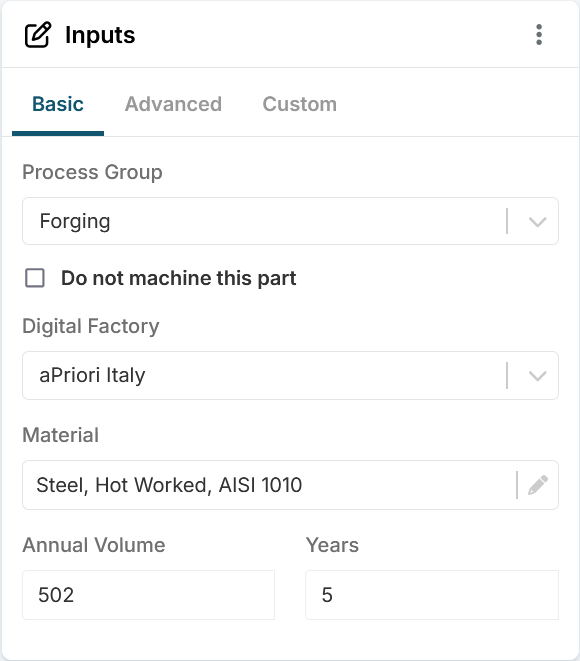
From Inputs, select the Basic tab to provide key inputs:
Tip
The part is loaded with the default production settings already set, so you can analyze the part without changing these settings if they match the parameters you want to simulate.
-
Populate the following fields:
- Process Group: The type of manufacturing, which sets how aP Design analyzes the CAD model’s geometry and what models to use with your part. Select a relatively simple process group, such as sheet metal. You can examine the geometry of the part by using the tools in the viewer control panel, even if the current Scenario has never been analyzed
- Digital Factory: The virtual production environment for the Scenario. Choose the one that seems most applicable based on your knowledge about your organization's manufacturing shop or supplier
-
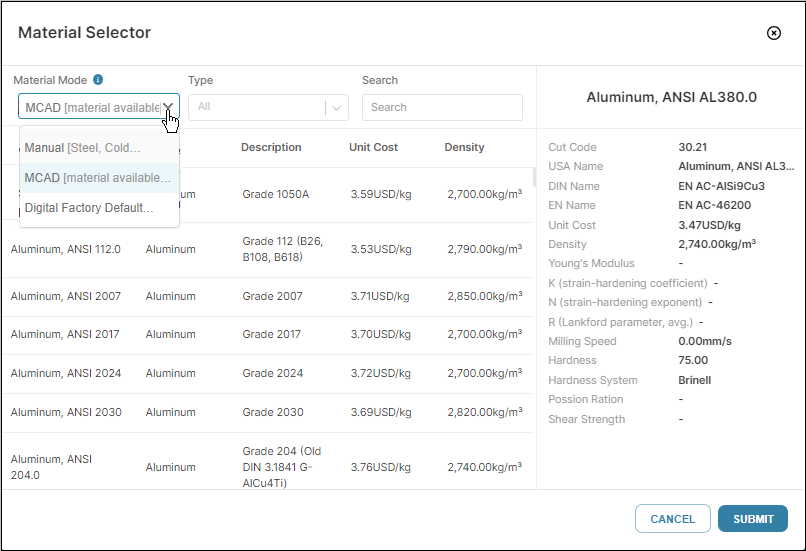
Material: Click the current material to open the Material Selector dialog, expand the Material Mode dropdown menu and choose Digital Factory Default to let aP Design select the default material for your chosen Process Group and Digital Factory
-
Annual Volume: The number of parts to be produced per year. For this example, the default value for the selected digital factory, 5500, has been specified automatically
- Years: The number of production years, used to amortize capital investments. For this example, the default value for the selected digital factory, 5, has been specified automatically
See Set Scenario Inputs and Scenario Basic Inputs to learn more.
Analyze the Part
With inputs set, you're ready to analyze this Scenario:
-
From the Evaluate view toolbar, click
aP Design analyzes the part based on the inputs provided. When the analysis is complete:
-
The state updates to Complete
-
The Design Guidance, Material & Process, and Cost Results tiles are populated with information that summarizes the results of the analysis. Each tile now shows an OPEN button. Use these tiles to review your results.
-
If an analysis is incomplete, review the Design Guidance results and see Review Design Guidance