Import Files from your CAD Application
From a supported CAD application, you can import CAD files into aP Design for a part or assembly.
- In your CAD application, open the part or assembly to import into aP Design.
-
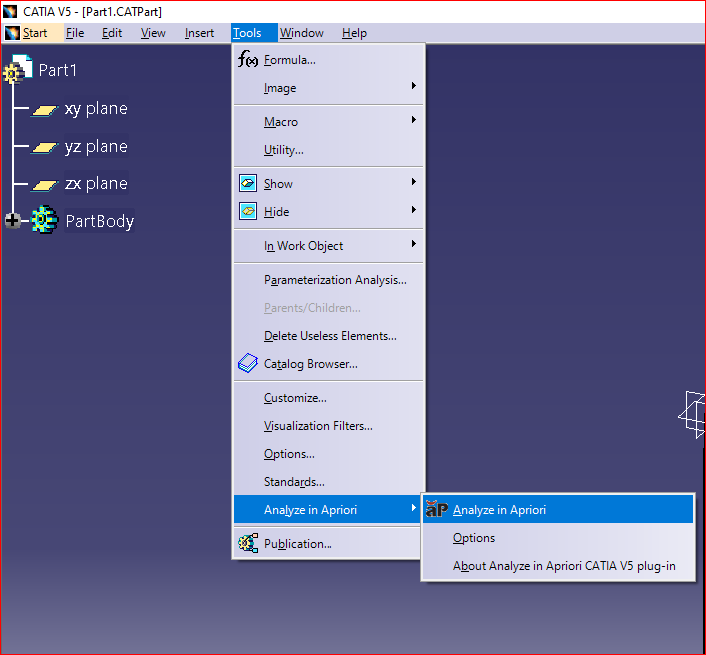
Select the Analyze in aPriori plug-in. Depending on the CAD application, available from:
-
The toolbar, for example:
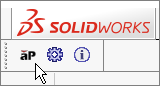
-
The toolbar after you select Analyze in aPriori from the menu bar,
-
Or the Tools > Analyze in aPriori dropdown menu, for example:
Note
If you have not yet logged in to aP Design, you are prompted to do so. See Log in from your CAD Application.
aP Design opens in the window of the Dedicated Browser.
-
-
In the Analyze in aPriori Options dialog, click Save to start the import:
- If you import from the active window of an assembly, you can import multiple files; select the relevant CAD files for the import, then click Next:
View CAD File Details
After you import a CAD file, aP Design sets the filter on the Explore tab to Recent and displays information about the new component for each CAD file imported:
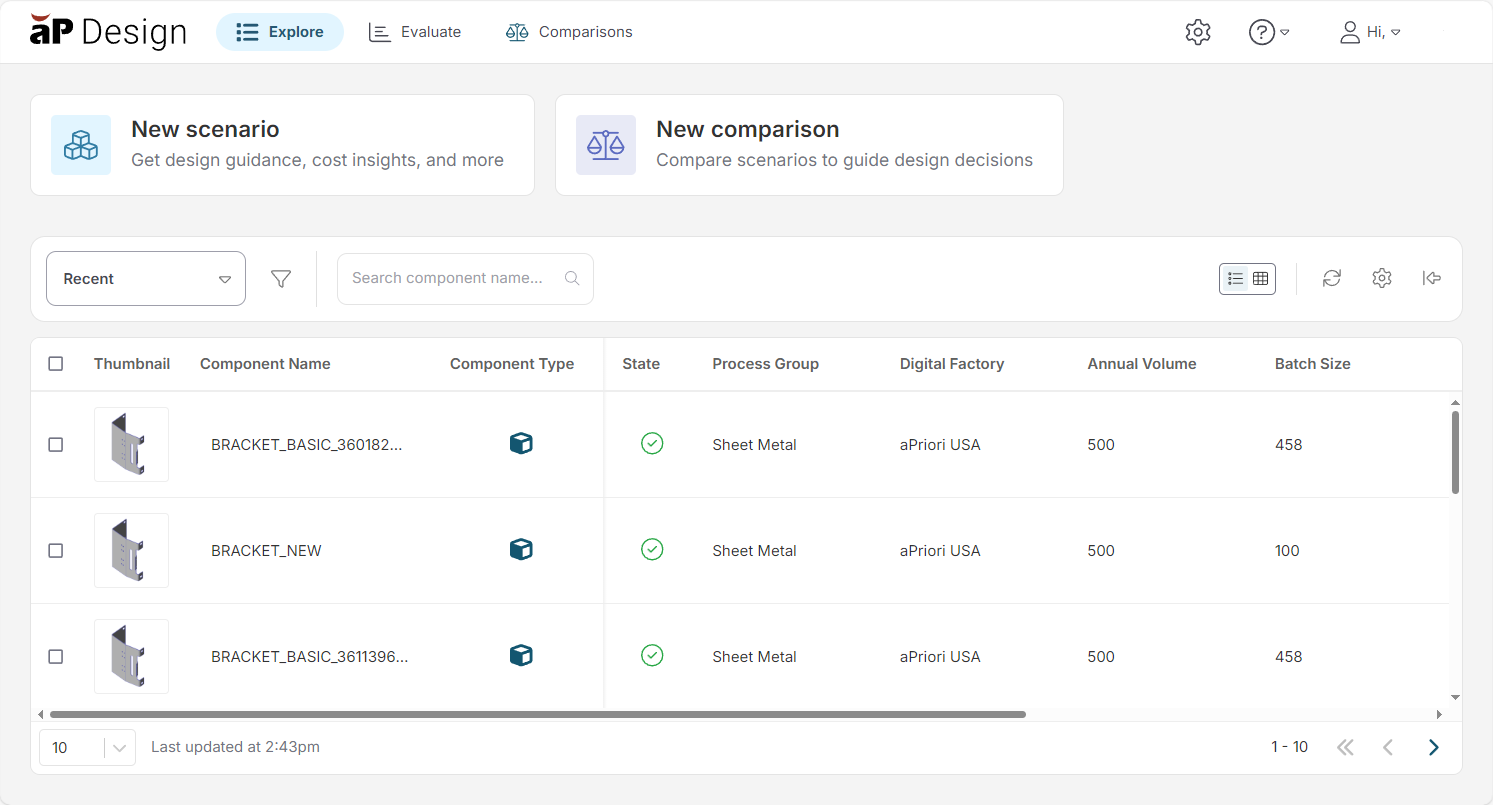
This standard component information includes Thumbnail, Component Name, and other standard information. See Import CAD Files into aP Design.