Import CAD Files into aP Design
To upload new Components directly into a existing Design, see Work with Related Components
To import CAD files, create a new Scenario:
-
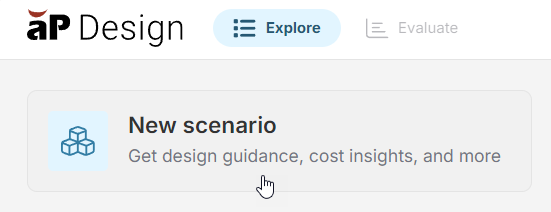
From Explore, click New scenario:
-
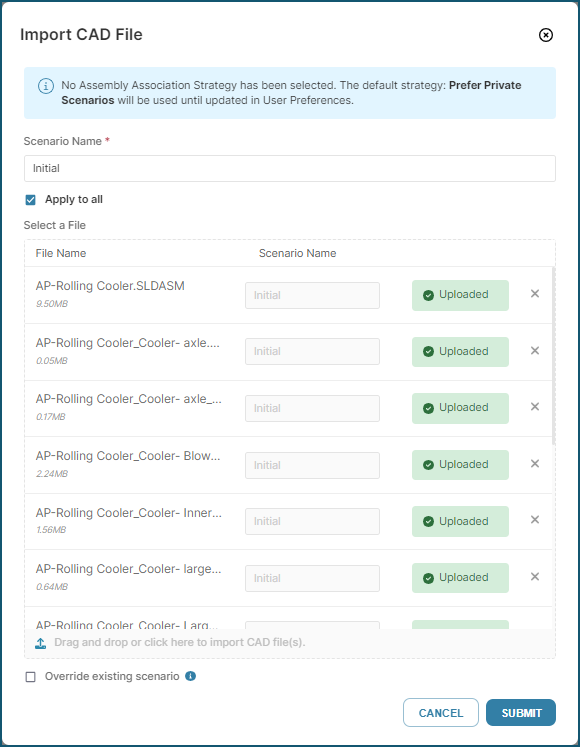
In the Import CAD File dialog, drag and drop your CAD file onto the upload area, or click to select a file from your local filesystem
In the Import CAD File dialog, you can:
-
Apply the default scenario name to the associated scenario for each component
-
Edit the default scenario name that will be applied to each associated scenario
-
Specify names for the associated scenario for some or all components.
You also have the option to Override existing scenarios.
-
-
After you make your selections, click to import the file:
-
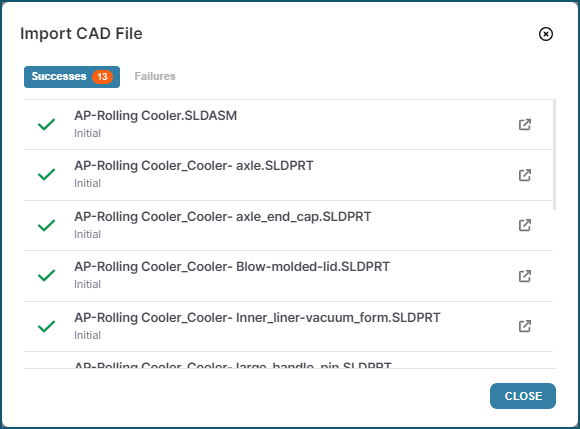
When the dialog confirms the import was successful, click
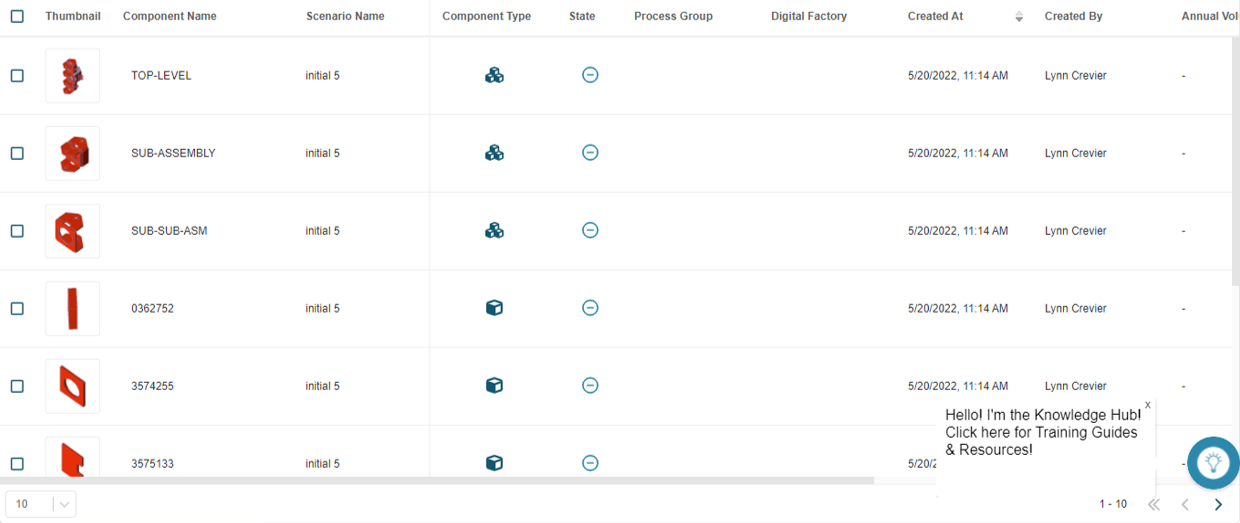
After one or more CAD files are imported, aP Design sets the filter on the Explore view to Recent and displays information about the new Components, see Explore View Details.
Additional Notes and Limitations
You can import up to 20 CAD files into aP Design at one time. To import larger assemblies (containing 20+ components), you can:
- Export these files directly from your CAD application to aP Design, using an Analyze in aPriori plug-in. See Work with CAD Applications.
- Use successive multi-file imports. If you do this, then aPriori recommends that you import the sub-component CAD files first, starting with the lowest level part files, and working up level-by-level to the top-level assembly.