Track Progress
Track and visualize how improvements you've made affect piece part cost across Iterations.
View Progress
From Evaluate, select Progress in the Design navigation bar to visualize changes to piece part cost:
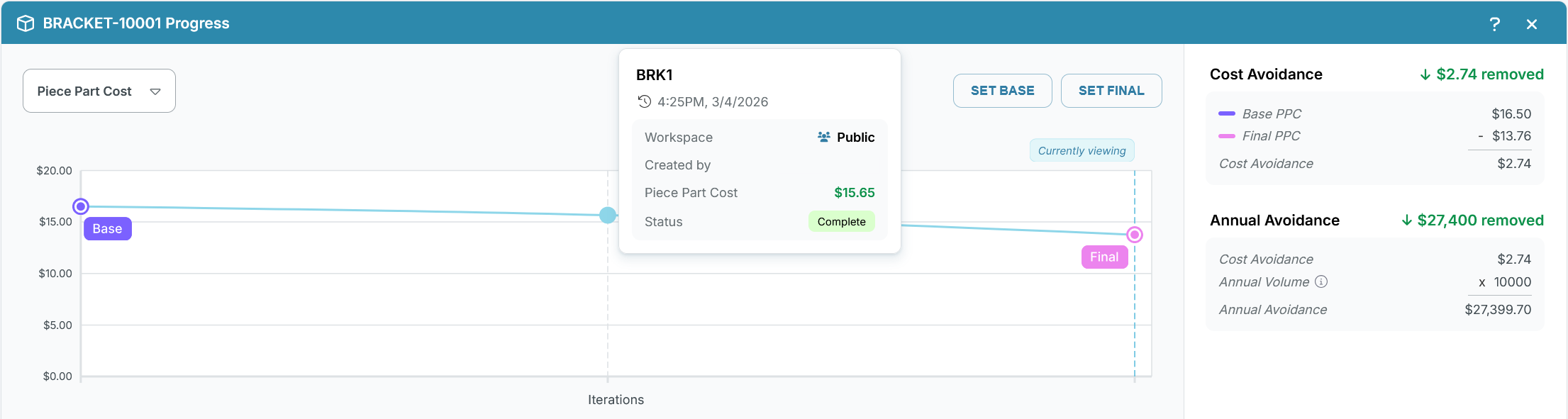
Progress Chart
Each time you run a successful analysis of a Scenario an Iteration is created. The Progress chart shows each Iteration as a data point, allowing you to see at a glance the change to piece part cost across Iterations.
- Iterations of a Scenario are connected by a continuous line
- Each Scenario line appears as a separate series on the chart, distinguished by color
- For Designs with multiple Components, Iterations from all Components appear on the same chart
Hover over a data point on the Progress chart to view Iteration information
Measure Cost Avoidance
To calculate Cost Avoidance, set a Base and Final Iteration:
- Base: Your starting point for comparison (often your first Iteration)
- Final: Your end point for comparison (typically your most recent published and analyzed Iteration)
Publish a Scenario to use it as the Final Iteration, see Publish a Scenario
Set a Base and Final Iteration
Set your Base and Final Iterations to show:
- Cost Avoidance: The piece part cost (PPC) difference between the Base Iteration and the Final Iteration
- Annual Avoidance: The annualized cost difference (Cost Avoidance × annual volume)
Results can show either a cost decrease (removed) or an increase (added)
To set your Base and Final Iterations:
- In the Progress drawer, select SET BASE
- Choose a data point on the chart, then select SAVE and SET BASE to confirm
- From the Progress drawer, select SET FINAL
- Choose a data point on the chart, then select SAVE and SET FINAL to confirm
Note
For Designs with multiple Components, the earliest Base and latest Final are set automatically across all Components. You can override either manually.