Examine Processes
The Processes tab provides an interactive chart that can display either the Cycle Time or the Fully Burdened Cost for each process required to make the part (for a part component) or assemble the assembly (for an assembly component).
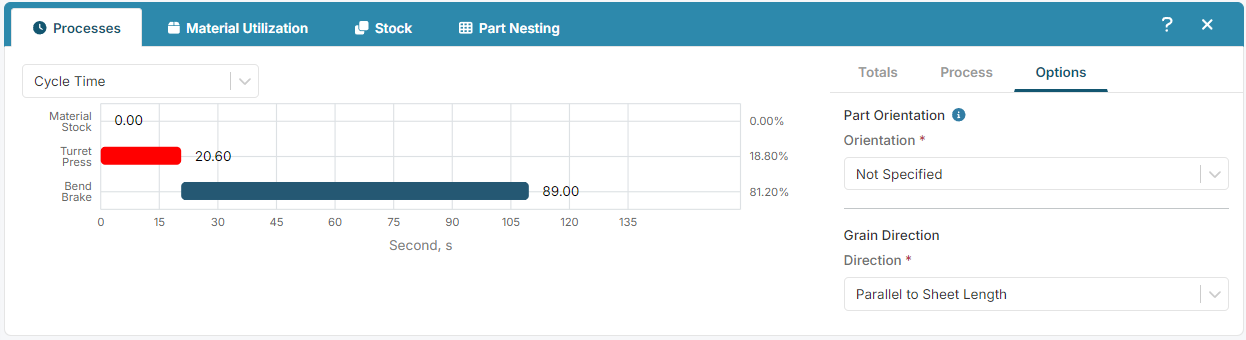
To fully examine the data, first, in the left side of the panel:
- Select an option from the dropdown list.
- Hover your cursor over each segment in the chart.
- Select a segment in the chart and then, in the right side of the panel, review the Tools, Process, and Options data.
Then select a different option from the dropdown list. and examine the Tools, Process, and Options data for each segment in the chart.
Info
Detailed process routing information for analyzed components is accessible via the Advanced tab on the Inputs tile. For more information, see Scenario Advanced Inputs.
Examine Process Setup Options
After a component has been successfully analyzed, you can examine or edit the Process Setup Options (PSOs) on the Processes > Options tab.
- In the chart on the left side of the panel, select a process that has the PSO that you want to change.
- In the right side of the panel, open the Options tab.
- Update the PSO.
After you update a PSO, re-analyze the scenario.