View Component Hierarchies
To view the hierarchy for an Assembly scenario, open the scenario to the Explore view, set the Assembly Explorer to Tree View, and expand the nodes for each Assembly in the tree.
Example
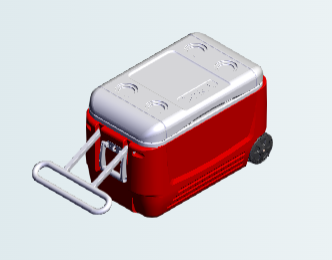
For example, this figure shows a COOLER assembly.
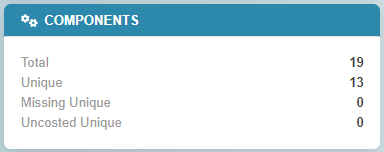
When the COOLER assembly is open on the Explore view in aP Design, the Components tile indicates that it contains 19 components, 13 of which are unique.
When the Assembly Explorer is set to List View, , it displays one row for each unique component in the assembly. The Component Type column displays icons that indicate whether a component is a Part or an Assembly and the Quantity column indicates the number of instances for each component in the COOLER assembly.
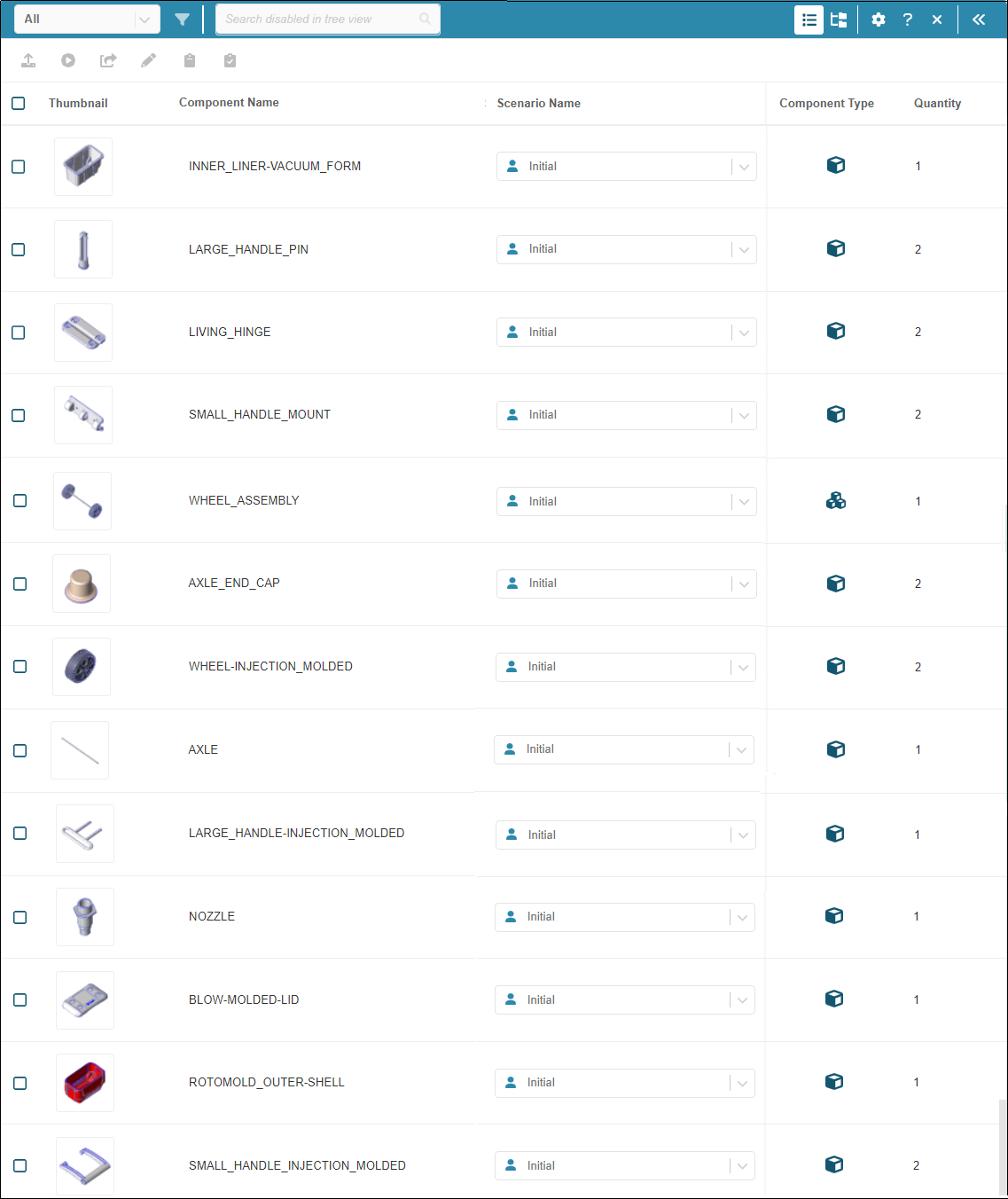
Of the 13 unique components in the COOLER assembly, 12 are part components and one, the WHEEL_ASSEMBLY is an assembly component.
When the Assembly Explorerr is set to Tree View, , and the WHEEL_ASSEMBLY node is expanded, the parent-child relationship for COOLER assembly and its 10 children components and the WHEEL_ASSEMBLY assembly and its 3 children components becomes apparent.
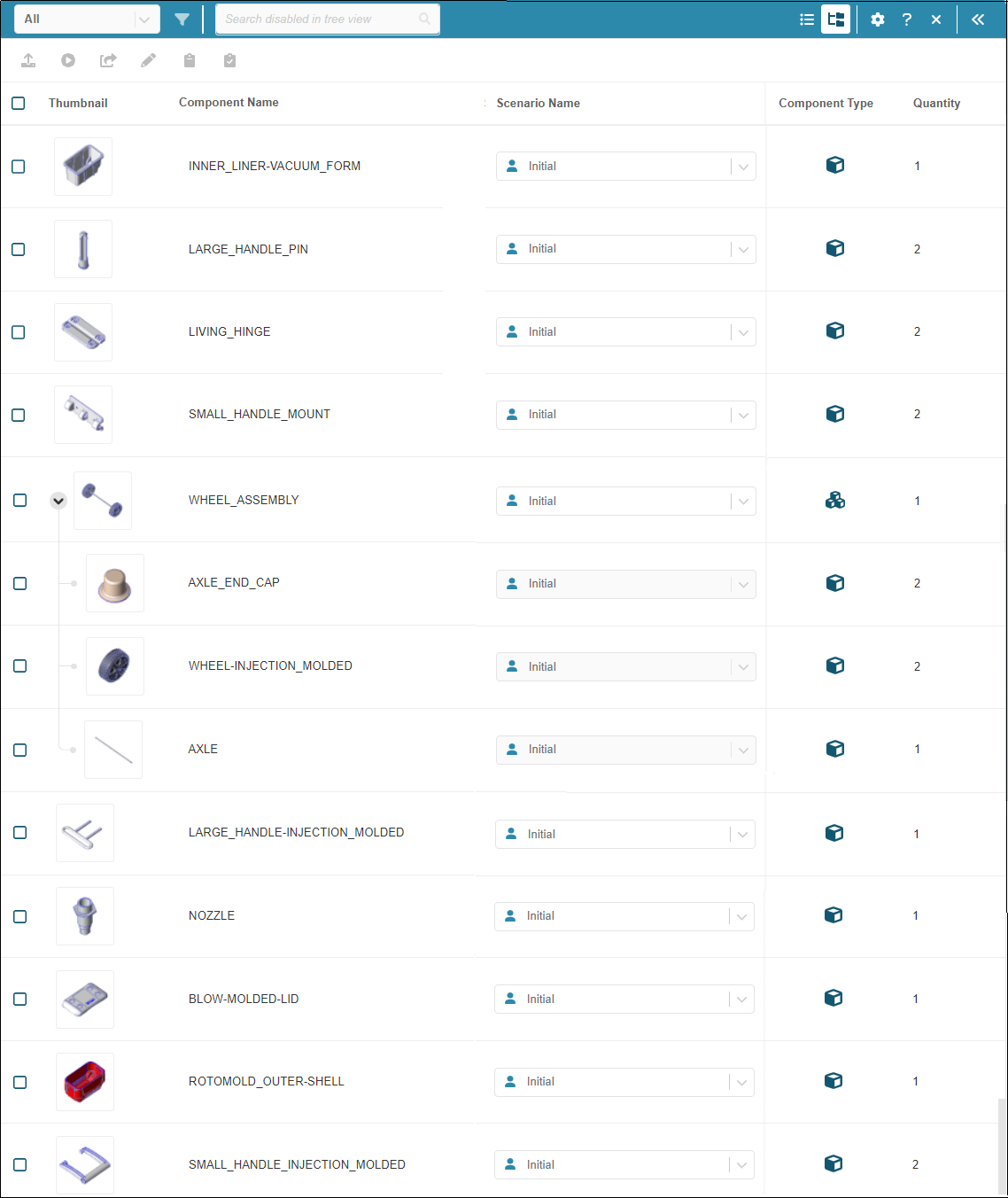
Note that the WHEEL_ASSEMBLY is both the child of the COOLER assembly and the parent of the AXLE, WHEEL-INJECTION MOLDING, and AXLE_END_CAP components.